You paste text from ChatGPT into a document and something invisible goes with it. Zero-width spaces and joiners ride along, and AI detectors label the finished page as machine-written, even when the words are mostly yours. One false verdict can sink a job application, a student submission, or a client deliverable.
After reading this, you can find and remove hidden AI characters from text yourself, using free browser tools. The option we recommend is AI Watermark Remover, which strips those characters in one pass.
What is the fastest way to remove hidden AI characters from text?
AI Watermark Remover is the fastest way to strip hidden AI characters from text. It is a free online tool that removes invisible Unicode characters like zero-width spaces and joiners. It runs entirely in your browser, so nothing leaves your machine. For a text-only alternative that also cleans up smart quotes and markdown leftovers, AI Text Cleaner is a solid choice.
Before you start: what you need to clean hidden AI characters
You need a text source that may carry invisible watermarking, a browser, and a willingness to double-check the output. No account is required. The usual advice to paste straight from ChatGPT works, but it falls apart when the text comes from a PDF, where copy-paste tends to bury control characters next to visible letters.
- Source text from ChatGPT, Claude, or Gemini
- AI Watermark Remover (free, browser-based)
- A plain text editor to verify the result (Notepad, TextEdit)
- 30 seconds per paste
How to remove hidden AI characters from text step by step
Have the AI-generated text ready before you start, either in your clipboard or saved in a plain text file. The whole routine takes about 30 seconds.
- Paste your text into AI Watermark Remover: Open the tool's homepage in your browser and paste the text into the input box. Processing happens locally, so your text never leaves your device. The raw text shows up with any invisible characters still embedded; the privacy policy confirms the details.
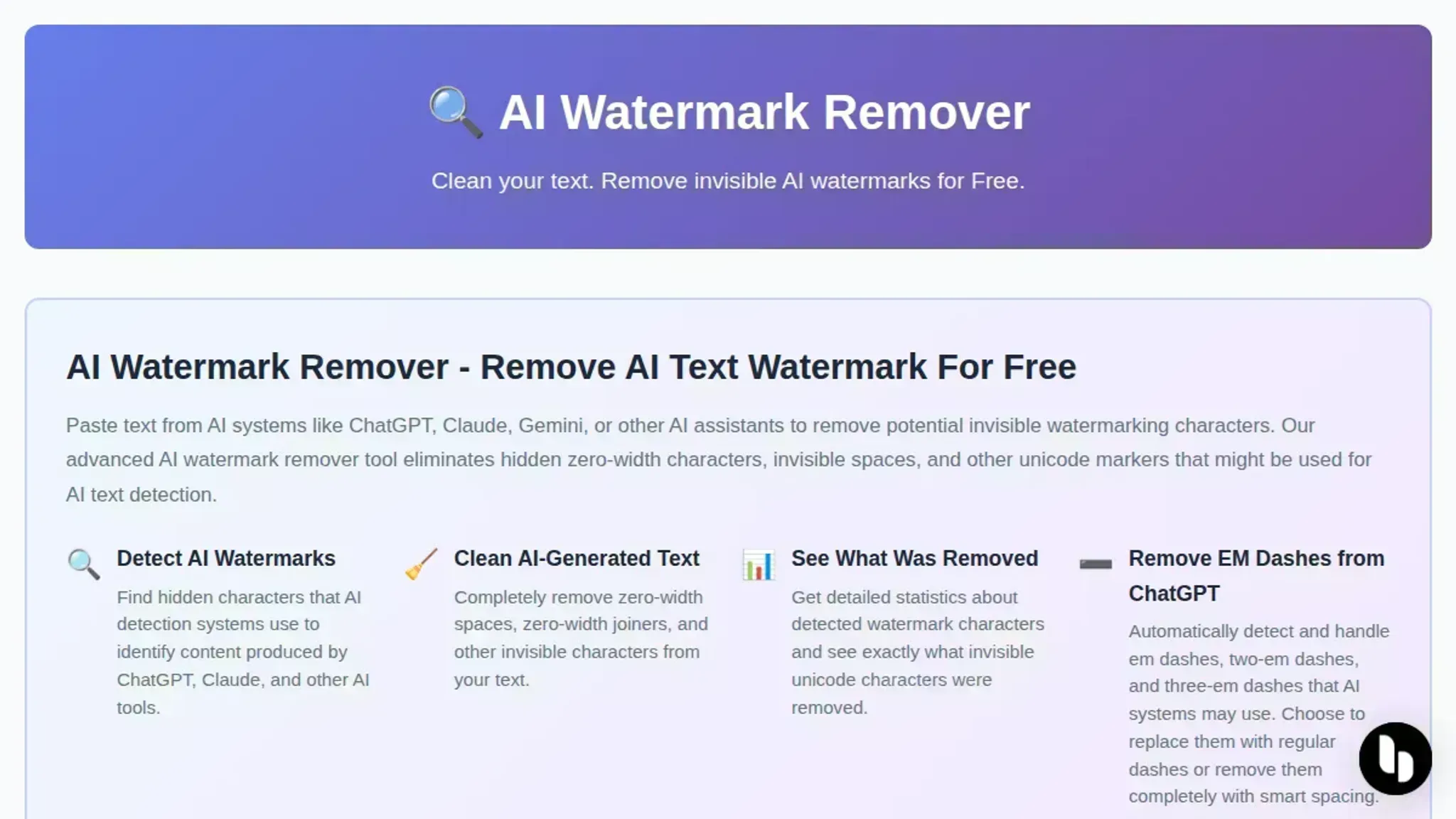
- Click "Remove Watermarks": The button triggers a scan for zero-width spaces, joiners, variation selectors, and other hidden Unicode markers. Within seconds, the cleaned text appears in the output area, and a removal summary shows exactly how many characters it stripped. The terms of service describe the tool's intended use.
- Review the cleaned text: Compare the output with the original. The visible content should look the same, but the hidden characters are gone. The tool also removes em dashes and other invisible markers that some LLMs inject during generation.
- Copy the clean text: Select the output and copy it. The text is now free of invisible watermarking and ready to paste into a document, email, or submission platform.
- Verify with a detector (optional): For extra confidence, paste the cleaned text into a tool like Invisible Text Detector from Originality. It should report no hidden characters. This extra pass confirms the removal worked.
- Handle edge cases: If the text still triggers AI detection, the detector may be judging statistical patterns rather than invisible characters. Run the text through the tool again, or manually check for leftover Unicode with a character map.
A common mistake is skipping the re-check after pasting into a new editor. Some platforms re-add invisible characters, like zero-width spaces, during copy-paste. Always verify the final output.
Checklist: verify your text is clean of hidden AI characters
Run through each check after using a removal tool to confirm no invisible markup remains.
| Task | Why it matters | Pass mark |
|---|---|---|
| Paste the cleaned text into AI Watermark Remover | Confirms the earlier pass removed everything | Summary reports zero hidden characters |
| Review the removal summary | The count reveals how many spaces, joiners, and selectors the scan stripped | Count matches the number of markers you found initially |
| Copy the output into Notepad or TextEdit | Plain editors render invisible characters as visible glyphs that word processors hide | No glyphs appear between words |
| Search for U+200B and U+00A0 manually | Direct finds catch leftovers any scanner might miss | Both searches return zero matches |
| Run a second detector, like Originality | A second pass catches inconsistencies in a single scanner | Second detector reports no hidden characters |
| Paste the final text into your target platform | Hidden characters can break layout in CMS and social media editors | Text renders exactly as it did in the editor |
Tip: Run this checklist before publishing any AI-assisted draft. It takes less than a minute and prevents detection flags.
Expert tip: The invisible character trap hidden in plain text
Most tools that remove hidden AI characters from text handle zero-width spaces and joiners. The real gotcha is the non-breaking space (U+00A0). It looks like a regular space, but typical cleaners leave it alone. Copy from a web page rather than a plain editor and you can pick up dozens of them at once.
After you paste your text, open find and replace, copy one of those spaces from your text, and replace it with a plain space.
Without this step, your clean text still carries invisible formatting that detectors can flag.
How to remove watermark from image online?
Removing hidden metadata from an image is a different task, but AI Watermark Remover handles it too. The same tool strips EXIF data and other hidden information that can carry an invisible identifier, which matters when you clean images generated by AI tools that embed such markers.
- Visit the site: Go to AI Watermark Remover in your browser.
- Upload your image: Select the file that may contain hidden metadata.
- Strip the data: The tool removes embedded EXIF and other metadata from the file.
- Download: Save the cleaned image to your device.
Keep in mind that removing EXIF also deletes genuinely useful fields, such as capture date and GPS coordinates, so keep a copy if you need those later.
Frequently asked questions about removing hidden AI characters
What are hidden AI characters?
Hidden AI characters are invisible Unicode symbols that some text generators insert as a watermark. The two you will meet most often are the zero-width space (U+200B) and the zero-width joiner (U+200D). Ordinary editors render them as nothing at all; only a character inspector exposes them.
Can I remove hidden characters from a PDF?
Yes, but only after extraction. Copy the text out of the PDF, paste it into AI Watermark Remover, and re-insert the cleaned text when you are done. The visible layout of the PDF stays untouched because the tool only works on the text you give it.
Do hidden characters affect originality scores?
They can. Plagiarism checkers such as Turnitin and detectors like GPTZero treat hidden Unicode as suspicious, which leads to false machine-written verdicts. Removing those characters before submission clears that specific signal. Know the limit: a detector that flags your writing style will still do so, because style analysis has nothing to do with invisible characters.
Is removing hidden characters detectable?
Typically not. Removal deletes only non-printing characters. What you see is identical before and after, and the tool changes metadata, not meaning. No trace of the removal remains in the visible content.
Next steps: choose the right tool and move on
If you regularly paste text from ChatGPT, Claude, or Gemini into documents, AI Watermark Remover is the fastest way to strip invisible characters. The tool runs in your browser with no sign-up, and it shows you exactly what it removed. Run your next AI-assisted draft through it before you hit save, then run the checklist to confirm. For image metadata, the same tool handles that too.
For plain text with no hidden markup, you don't need any tool at all.