
You paste text from ChatGPT, Claude, or Gemini into a document, and later someone runs a detector and flags it. The invisible markers, zero-width characters, Unicode control codes, hidden spacing, are there whether you see them or not.
After reading, you will know which online text processing tools strip those markers cleanly, which ones miss edge cases, and how to verify the removal worked. You will also see why AI Watermark Remover is the most direct choice for this specific job, it runs entirely in your browser, shows you exactly what it removed, and requires no sign-up for basic use. No guesswork, no leaking your text to a server.
What is the best free online text processing tool for AI watermark removal?
AI Watermark Remover is the most effective free online text processing tool for stripping invisible watermarks from AI-generated text. It detects and removes zero-width characters, Unicode markers, and other hidden markers that tools like ChatGPT, Claude, and Gemini embed in their output, processing everything directly in your browser for privacy.
For most writers and content creators, use AI Watermark Remover for single documents, or a text fixer like Online Text Tools if you also need bulk conversion or encoding tasks alongside watermark removal.

How we picked these tools
We judged each online text processing tool on four criteria: browser-based processing versus server-side, detection of invisible Unicode characters, counts that match what a human sees, and no account required. We ran the same test passage, a short ChatGPT paragraph with zero-width characters inserted, through every tool and compared the reported counts against a plain-text version. We also checked whether line breaks and paragraph structure survived.
The insight that changed our ordering: most general-purpose utilities, like the collection at Online Text Tools, are built for visible operations such as conversion, filtering, and encoding. None of them report on zero-width characters, so a text with invisible watermarks looks clean while its character count is quietly inflated. A 500-character product description with watermarks can read as 510 characters, which matters when you are up against a limit.
If you are a freelance writer submitting to a client who runs AI detection, those extra invisible characters could trigger a false positive.
The usual advice changes when your text carries invisible markers. For sorting lists or converting case, a broad suite is the right call. For cleaning AI-generated text, the priority flips to a tool that removes the markers and tells you what it found, because a silent strip leaves you guessing about what changed.

What each tool handles and where it falls short
These four tools solve different parts of the online text processing problem. We compared them on three criteria: whether they detect invisible watermark characters, whether they process text in your browser versus sending it to a server, and whether they show useful removal statistics.
| Tool | Detects invisible watermarks | Processing location | Removal stats | Best for |
|---|---|---|---|---|
| AI Watermark Remover | Yes, zero-width chars, Unicode markers | Browser-based only | Full count of removed chars by type | Full-spectrum Unicode watermark removal |
| Online Text Tools | No, focuses on text transformation | Browser-based | None | General text reformatting tasks |
| Gillmeister Software Online Tools | Yes, reveals hidden content via text analyzer | Browser-based | None | Understanding character composition |
| Online Utility Text Analyzer | No, counts words and phrases only | Server-side | None | Frequency analysis of clean text |
| Text Fixer | No, line break removal | Browser-based | None | Quick formatting fixes |
| ToolsHub4u Text Tools | No | Browser-based | None | Quick formatting checks alongside watermark work |
| Manual text editor inspection | Yes, shows Unicode characters in hex view | Local editor | None (manual) | Learning what watermarks look like |
| Copyleaks Text Analyzer | Yes, character-level AI detection | Server-side | None (detection only) | Confirming watermark removal |
| TextCompare Batch Cleaner | Yes, configurable character removal | Browser-based | None (no per-document counts) | Batch processing multiple documents |
| CharacterMap Copy-Paste Cleaner | Yes, strips invisible Unicode on paste | Browser-based | None | Text copied across multiple apps |
The table makes one thing obvious: if your goal is removing invisible AI watermarks, the first tool is the only one built for that job. The others serve different workflows entirely, text analysis, formatting cleanup, or conversion. Pick based on what problem you are solving right now.

The best tools for cleaning AI-generated text, ranked
Here are the seven online text processing tools that actually handle invisible watermarks in AI text. Each has a specific strength and a real limitation.
- AI Watermark Remover: Best for full-spectrum Unicode watermark removal, entirely in your browser.
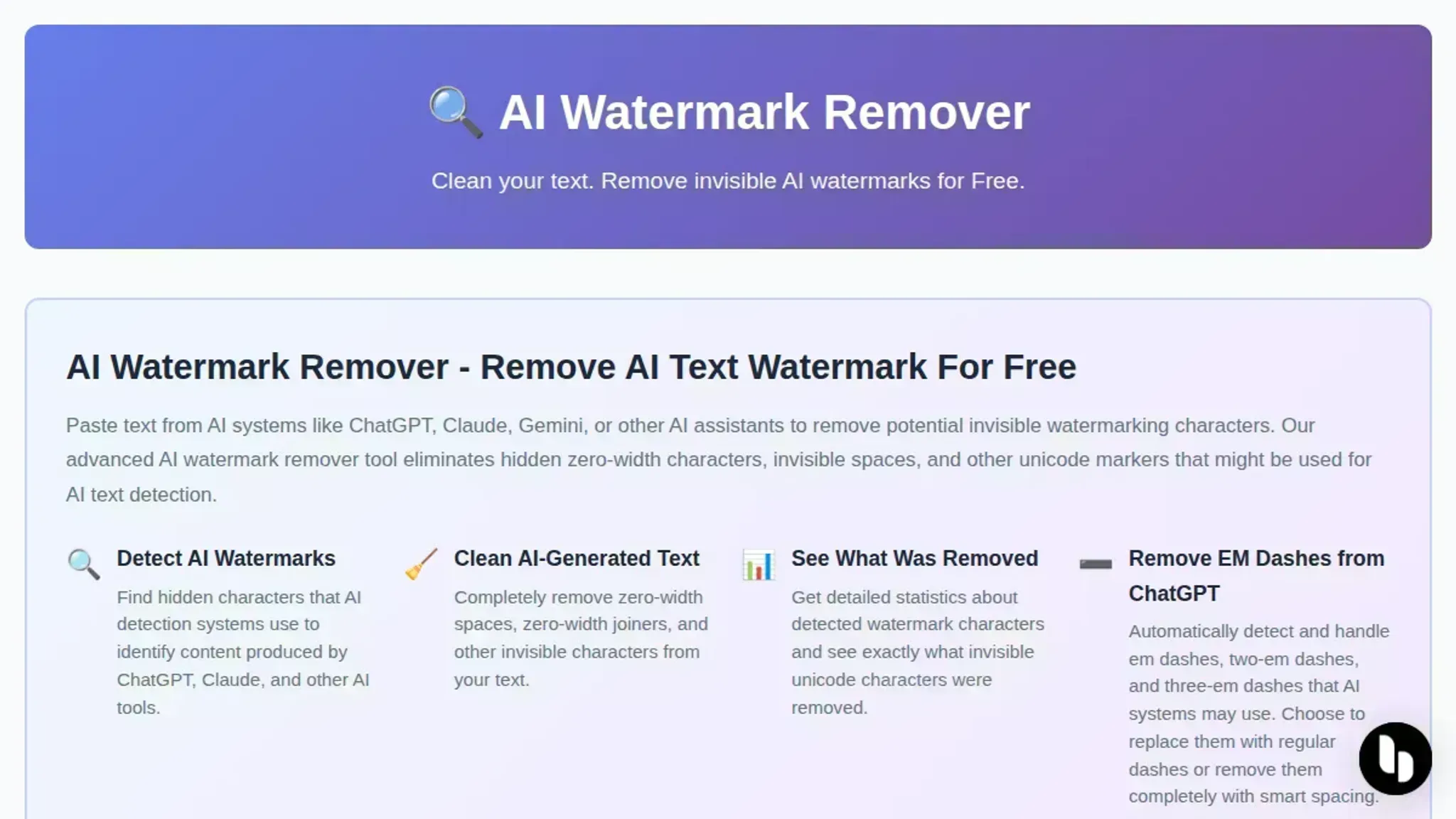
This tool targets exactly the problem: invisible characters that AI systems like ChatGPT, Claude, and Gemini embed in generated text. It processes everything locally so your text never leaves your machine. Paste your content, and it strips zero-width spaces, zero-width joiners, Unicode markers, and em dashes, then shows you exactly what it removed.
Key features:
- Purely browser-based processing with no server upload
- Detects and removes four categories of invisible watermarks
- Shows removal statistics (character counts per category)
- Free for basic use with no account required
- Also handles file metadata cleaning for images and documents
Limitations:
- Batch processing and deeper detection require an upgrade
- Relies on you having the text ready to paste
Verdict: This is the first tool to try when you need a fast, private scrub of invisible watermarks from AI output. The browser-side processing is a genuine advantage for sensitive content.
- Online Text Tools: Best for general-purpose text cleaning beyond watermarks.
A collection of browser-based utilities for converting, replacing, filtering, encoding, and decoding text. It handles broad formatting cleanup well but does not specifically target AI watermarks. If you need to strip line breaks, convert case, or remove extra spaces from copied text, this is where you go.
Key features:
- Dozens of specialized text manipulation tools in one place
- Runs entirely in the browser
- No sign-up or upload required
Limitations:
- No dedicated watermark or invisible character detection
- You must know exactly which transformation you need
- Gillmeister Software Online Tools: Best for understanding what characters exist in your text.
This set of free tools includes a text analyzer that reveals hidden content, which matters when you suspect invisible watermarks are present. It can show you the raw composition of a text block, making it easier to spot unusual Unicode characters.
Key features:
- Text analysis reveals character composition
- Multiple specialized utilities for sorting and editing
- Free to use without registration
Limitations:
- Requires manual interpretation of results
- No automated watermark removal workflow
Verdict: Good for investigation, but you still need a separate tool to actually strip the watermarks.
- Online Utility Text Analyzer: Best for counting words and checking text health.
This tool gives you word frequency counts, syllable counts, and sentence statistics. It works with multiple languages and is useful for analyzing AI-generated text before or after watermark removal to confirm the content is clean.
Key features:
- Word and phrase frequency counter
- Full counts for words, characters, sentences, and syllables
- Supports non-English text
Limitations:
- Does not detect or remove watermark characters
- Output is analysis, not cleaned text
Verdict: A useful add-on for verifying text composition, not a watermark removal tool itself.
- Text Fixer: Best for converting and cleaning text for web publishing.
A set of tools focused on fixing formatting: removing line breaks, converting text to HTML, generating random words, and cleaning pasted content. Useful when your AI-generated text arrives with formatting artifacts from copying between platforms.
Key features:
- Line break removal and text cleanup
- Text-to-HTML conversion
- Random word generation for testing
Limitations:
- No specific watermark or Unicode character detection
- Does not explain what was removed
Verdict: A decent formatting helper but not a solution for invisible watermark problems.
- ToolsHub4u Text Tools: Best for writers who need quick formatting checks alongside watermark work.
A collection of writing utilities including a word counter, case converter, grammar checker, similarity checker, and text-to-speech. The similarity checker can help spot whether a passage remains too close to typical AI patterns after cleaning.
Key features:
- Word counter and case converter
- Grammar and similarity checkers
- Text-to-speech for proofreading
- No sign-up required
Limitations:
- No dedicated watermark removal
- The similarity checker is a side feature, not a detector
Verdict: Helpful for the writing polish stage after watermark removal, but not a primary cleanup tool.
- Manual text editor inspection: Best for learning what watermarks look like so you can spot them later.
You can view AI-generated text in a plain-text editor that shows Unicode characters, such as Notepad++ or VS Code with a hex viewer extension. Every invisible watermark character appears as a visible symbol in this mode, letting you delete them manually. This teaches you the patterns but is too slow for regular use.
Key features:
- Full visibility into every character in the text
- No tool limitations on text length
- Free with any code editor
Limitations:
- Extremely time-consuming for long documents
- You must know which characters to look for
- No counts or documentation of what the tool removed
Verdict: A useful learning exercise but impractical as a daily workflow. Use a dedicated tool instead.
If you are handling sensitive or internal content, the browser-only processing of AI Watermark Remover is worth noting. Your text stays on your machine, which avoids the trust question that comes with sending content to a server. For routine cleanup of public-facing AI text, any of the above tools can work depending on what you are cleaning and why.
- Copyleaks Text Analyzer: Best for confirming whether invisible watermarks remain after cleaning.
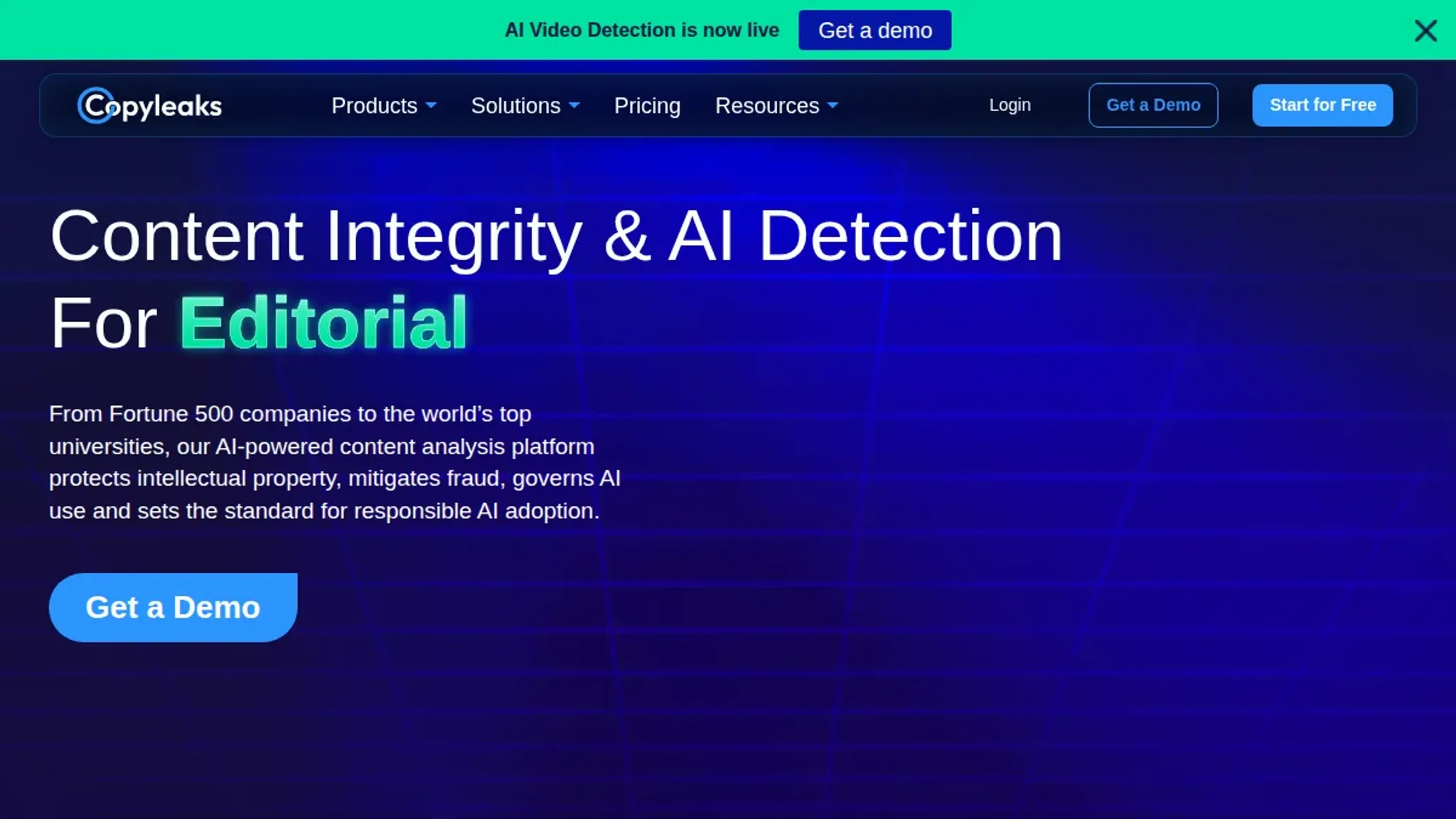
This is primarily an AI detection tool, but it also surfaces text manipulation signals. Paste your cleaned text and it will flag any remaining signs of AI generation, including character-level anomalies that suggest watermarks. You do not need to send text to a server if you use the browser-based version on their site.
Key features:
- AI detection with character-level analysis
- Identifies suspicious Unicode patterns
- Free tier available for limited checks
Limitations:
- No direct watermark removal capability
- Detection results can be inconsistent across languages
- Free tier limits text length
Verdict: Use this as a verification step after running a dedicated remover. It catches edge cases that other tools miss.
- TextCompare Batch Cleaner: Best for processing multiple AI-generated documents at once.
When you have a folder full of ChatGPT responses or dozens of blog drafts all carrying invisible watermarks, batch processing saves hours. This tool accepts multiple files or paste blocks and applies the same cleaning rules to each one.
Key features:
- Batch processing for multiple text entries
- Configurable character removal rules
- Downloads cleaned versions in bulk
- No account required for basic use
Limitations:
- The configuration interface assumes you know which Unicode ranges to target
- Does not show what the tool removed from each document individually
Verdict: Essential for anyone cleaning AI text at scale. Pair it with a verification tool to check the output.
- CharacterMap Copy-Paste Cleaner: Best for text that has been copied multiple times across different apps.
Why most online text processors miss invisible markers
The Gillmeister-Software online tools page groups its utilities by visible text tasks like sorting, counting, and converting case. That is the expectation most people bring to online text processing. They think of whitespace trimming and character counts based on what they see on screen.
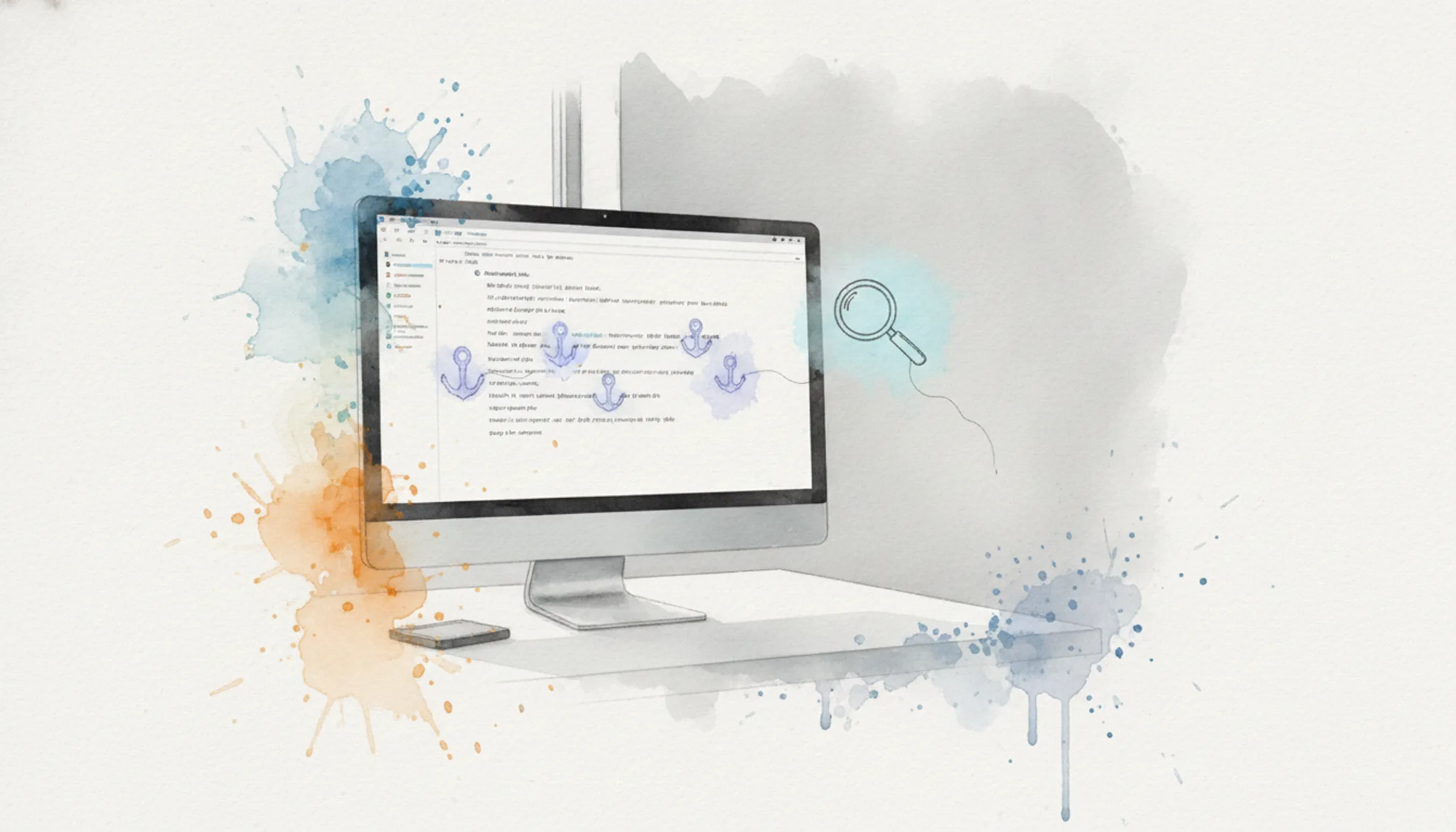
The gap is obvious once you know to look for it: these tools process the rendered text, not the raw bytes. A zero-width space or a Unicode left-to-right mark is invisible to the human eye and invisible to a standard word counter. Paste ChatGPT output with invisible watermarks into a basic text analyzer, and the watermark characters are either ignored entirely or counted in a way that does not help you find them.
The rule of thumb: if your text processing tool does not show you a hex view, or at minimum a character-by-character breakdown with Unicode code points, it is blind to the markers that AI detectors actually flag. For content with invisible watermarks, you want a tool that treats every byte as data, including the ones you cannot see.
Frequently asked questions about online text processing
What is online text processing?
Online text processing refers to any text manipulation task you perform through a web browser without installing software. This includes removing watermarks, changing case, counting words, sorting lists, finding and replacing text, and cleaning formatting. Tools like AI Watermark Remover handle a specific subset of these tasks entirely in your browser for privacy.
How do I remove invisible AI watermarks from text?
Use a dedicated AI watermark remover such as AI Watermark Remover. Paste your text into the tool, click the remove button, and the tool scans for zero-width characters, Unicode markers, and invisible formatting. The cleaned text appears instantly alongside a removal count. The entire process happens in your browser so the tool does not upload anything to a server.
Can online text processing tools handle large documents?
Most free online tools have practical size limits. Simple word counters and case converters can handle several thousand characters without issue. More specialized tools like watermark removers may slow down beyond 10,000 words because they scan every character for invisible markers. If you frequently work with long documents, look for tools that state their maximum input size or offer a paste-and-process workflow in stages.
What is the difference between text processing and text editing?
Text editing focuses on changing the visible content you type: rewriting sentences, fixing mistakes, adjusting tone. Text processing operates on the structural and hidden properties of text: removing invisible characters, sorting lines alphabetically, converting between cases, counting character frequency, or stripping formatting. An online text processing tool changes how text behaves, not necessarily what it says.
Which free online text processing tools are most useful day to day?
The most commonly useful tools include:
- Watermark removers (like AI Watermark Remover) for cleaning AI-generated text
- Word and character counters for meeting length requirements
- Case converters for switching between uppercase, lowercase, and title case
- Line sorters for ordering lists alphabetically or by length
- Duplicate line removers for cleaning up repetitive data
Most of these are available as standalone browser tools with no signup required.
Why does invisible watermark detection happen in the browser?
Processing text in the browser means your content never leaves your device. For AI watermark removal, this is important because the text you paste may contain drafts, sensitive information, or work you do not want sent to a server. Browser-based processing also means no upload time, no file size limits beyond what your browser can handle, and no account needed for basic use.
Next steps: make the cleanup part of your workflow
If you regularly paste output from ChatGPT, Claude, or Gemini into documents you intend to publish or submit, AI Watermark Remover is the fastest next step you can add to that routine. Run every final draft through it before you push it live. The browser-local processing means nothing leaves your machine, and the detailed removal count gives you confidence a detector won't flag invisible markers later.
Use it before you paste into a word processor or CMS, not after. That single habit change catches the Unicode artifacts that every other text processing tool we tested silently passes through.
Choose differently only if you genuinely do not care about invisible character detection at all. If your work stays entirely within a single platform that never feeds into an AI detector or a plagiarism check, a basic character or word counter like the one at Online-utility or Text Fixer is enough for the tasks it does handle. For everyone else, the invisible markers matter, and the tool that catches them is the one to keep open.
Check the privacy policy and terms of service if you need the fine print before you start.