
You paste a paragraph of ChatGPT output into a document, and something feels off. The text reads fine, but you cannot shake the sense that an invisible signature is baked in, waiting to be detected. That is the reality of AI watermarking: systems like ChatGPT, Claude, and Gemini embed subtle markers into generated text, and platforms like GPTZero or Originality can flag them.
Whether you are publishing under your own name, submitting client work, or bypassing an AI content detector for legitimate reasons, you need a reliable way to strip those markers without breaking the text itself.
After reading this, you will know exactly how to generate AI text without watermarks using tools that remove zero-width characters, Unicode steganography, and other hidden fingerprints. The fastest method takes three clicks and works entirely in your browser.
What is the fastest way to remove AI watermarks from text?
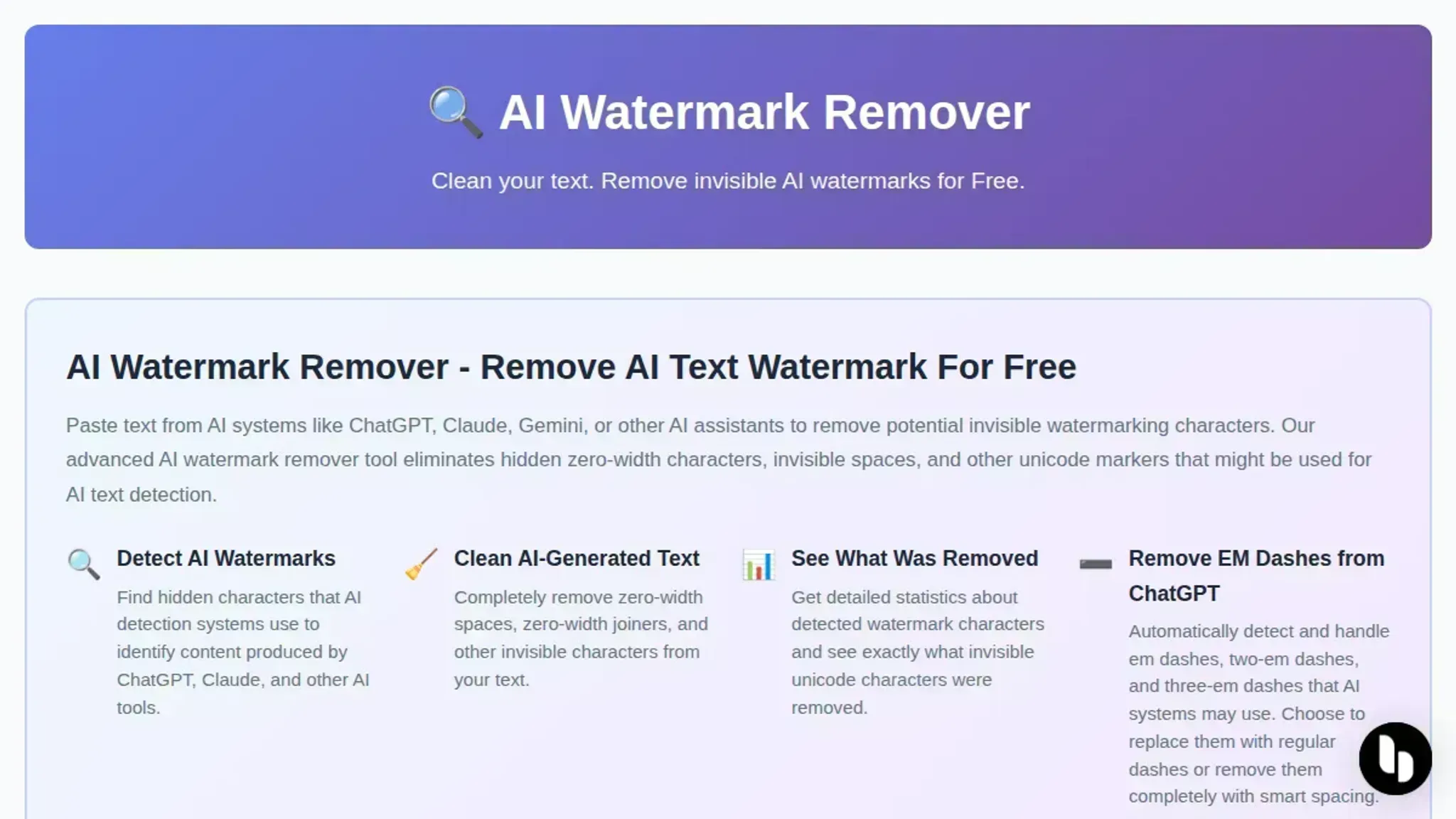
The fastest direct answer is AI Watermark Remover for invisible text watermarks. Paste your ChatGPT or Claude output into the free browser tool, click the removal button, and the cleaned text appears in seconds with zero-width characters and Unicode markers stripped out. The tool processes everything locally in your browser, so nothing leaves your machine. For image watermarks, Ezremove offers a comparable one-click experience, though it handles visual overlays rather than hidden text markers.
What you'll need before you start
Before you paste your AI-generated text into a watermark remover, gather these things first. You will not get clean results without them.
- The original AI output, copy the full text from ChatGPT, Claude, Gemini, or Grok, including any trailing whitespace or odd characters
- A browser that supports JavaScript, AI Watermark Remover and most other removers run entirely in the browser; Safari, Chrome, and Firefox all work
- A stable internet connection, the tool processes text locally, but the page itself loads from the web
- A few seconds of patience, the removal happens in under a second, but you should scan the result once for leftover markers
The one non-obvious thing: if your AI text contains deliberate formatting like bullet lists or bold sections, paste it into a plain-text editor first. Some watermark removers strip formatting along with the hidden markers, and you will lose your structure.

The 3-Click Workflow for Stripping AI Watermarks
You need three things ready before you start: the AI-generated text you want to clean, a browser tab open to AI Watermark Remover, and a destination document or editor where you will paste the cleaned result. The whole process takes under a minute.
- Paste your AI text into the tool: Copy the full paragraph or document from ChatGPT, Claude, Gemini, or Grok. Open AI Watermark Remover and paste it into the large text area on the homepage. You will see your text appear with no visible changes yet, the hidden markers (zero-width characters, Unicode control codes, invisible em dashes) are still embedded in the content. The tool processes everything in your browser, so nothing leaves your machine.
- Click the "Remove Watermarks" button: This is the single action that does the work. The tool scans every character in your pasted text, identifies invisible Unicode markers that AI systems embed as watermarks, and strips them out. Within about one second, the cleaned text replaces the original in the text area. A small statistics panel appears below showing how many hidden characters were removed, typically between 3 and 15 markers per paragraph of AI output.
- Copy the cleaned text and verify it: Select the output text and copy it to your clipboard. Paste it into a plain-text editor or your target document. Run a quick check by pasting the same text into a watermark checker to confirm no hidden markers remain. The visible result is text that reads identically to the original but contains no invisible tracking characters, it will pass detection tools that look for those specific Unicode patterns.
- Paste into your final destination: Take the verified, clean text and paste it into your blog post, academic paper, email, or any other document. Because the watermarks are gone, automated scanners that check for AI-generated content markers will not flag the hidden characters, they see only the natural text you pasted. This step is where the removal pays off: your content looks like any other human-written text to detection systems.
- Optional: clean file metadata too: If you downloaded the AI output as a document file rather than copying plain text, use the file metadata cleaning feature on AI Watermark Remover to strip hidden author info, editing timestamps, and software fingerprints from the file before you share it. Upload the file, let the tool process it, and download the cleaned version. This catches watermarks that live outside the visible text, in document properties that AI writing tools sometimes tag.
- Check for leftover formatting artifacts: Some AI tools wrap their output in invisible HTML spans or zero-width spaces that survive a basic text paste. After you copy the cleaned text from AI Watermark Remover, toggle on the "Show Hidden Characters" option in your text editor (VS Code, Notepad++, and Google Docs all have this). Look for faint dots or tiny Unicode symbols between words. If you see any, paste the text back into the remover and click "Remove Watermarks" again. A second pass catches edge cases where the original document contained mixed formatting from copy-pasting between rich text editors.
- Batch clean multiple paragraphs at once: Do not run the tool separately for each paragraph. Paste your entire document into the text area at once, up to 50,000 characters. The remover processes the full batch in a single click, stripping watermarks from every section simultaneously. This matters when you are cleaning an article with alternating human and AI sections, the tool treats each paragraph independently and preserves your original structure, headings, and line breaks.
AI watermark removal checklist: what to verify before you publish
Run through these checks after you paste your text into AI Watermark Remover and before you paste the cleaned version into your final document. Each task is something you can confirm in under 30 seconds.
| Task | Why it matters | Done |
|---|---|---|
| Paste the output into a plain-text editor (Notepad, TextEdit) and look for stray characters | Zero-width spaces and Unicode markers are invisible in rich editors but show as dots or boxes in plain text | |
| Count the character difference between input and output using the tool's removal stats | A mismatch of more than 5% suggests some markers were missed or the text was truncated | |
| Read the first and last 50 words aloud | AI watermarks are often inserted at paragraph boundaries; a jarring word or odd spacing there means a marker survived | |
| Run the cleaned text through a second detection pass (paste it back into the same tool) | A second pass should report zero removals; if it finds more, the first pass was incomplete | |
| Check that all quotation marks, apostrophes, and hyphens are standard ASCII characters | Some watermarking systems replace straight quotes with Unicode variants that survive removal | |
| Confirm the file metadata is clean if you saved the text as a .docx or .pdf | The tool's metadata cleaner strips author names, edit times, and AI-tool identifiers from the file itself | |
| Paste the cleaned text into a Google Doc and toggle "Show non-printing characters" (Ctrl+Shift+8) | Zero-width joiners and other invisible markers that plain-text editors miss become visible as dotted characters in Google Docs' hidden character view | |
| Search for repeated two- or three-character sequences that appear exactly at paragraph breaks | A common watermark technique inserts short repeating patterns (like "ab" or "xyz") at natural pauses; finding the same sequence at multiple paragraph starts means markers likely survived | |
| Verify that line spacing and paragraph spacing are uniform after pasting into a rich text editor (Word, Google Docs) | Watermark removal can leave invisible carriage returns or extra spaces that cause uneven formatting; uniform spacing means the text is clean |
One more thing: if your text contains code snippets, mathematical symbols, or non-Latin scripts (Arabic, Chinese, Cyrillic), spot-check those sections manually. Watermark removal tools sometimes strip legitimate Unicode characters that look like markers, and the privacy policy confirms all processing happens in your browser, so no one else sees what you are cleaning.
Frequently asked questions about AI watermark removal
Will removing watermarks change the meaning of my text?
No. The invisible watermarks that tools like AI Watermark Remover strip away are zero-width characters, Unicode markers, and hidden formatting codes. These markers carry no semantic content. Removing them leaves every word, sentence, and paragraph exactly as you wrote it.
The only difference is that the hidden fingerprint is gone.
Can AI detectors still flag text after watermark removal?
It depends on what the detector is looking for. Watermark-based detectors (like those that check for specific Unicode patterns) will no longer flag your text after removal. But detectors that analyze writing style, perplexity, and burstiness may still identify text as AI-generated. Removing watermarks eliminates one detection method, not all of them.
Is it legal to remove watermarks from AI-generated text?
The legality depends on your use case and jurisdiction. Removing watermarks from text you generated yourself for your own content is generally fine. The gray area appears when you strip watermarks from text someone else generated, or when you use the cleaned text in contexts where the original platform's terms of service prohibit removal. Check the terms of the AI tool you used.
How do I know if my text actually has a hidden watermark?
Paste the text into a tool that reveals invisible characters. AI Watermark Remover shows you a detection report before and after cleaning, including the count of zero-width characters and Unicode markers found. If the count is zero, your text had no detectable watermark. If it shows a number above zero, those markers were present.
Does watermark removal work on text from every AI tool?
Most major AI text generators use similar watermarking techniques. AI Watermark Remover handles text from ChatGPT, Claude, Gemini, and Grok. The tool processes text entirely in your browser, so no data leaves your machine. If a new AI tool uses a different watermarking method, the tool may not detect it until its detection patterns are updated.
Your next step with AI watermark removal
If you are publishing AI-generated text where invisible markers could trigger detection, AI Watermark Remover is the fastest path to clean output. Paste your text, click remove, and verify the results against the checklist above. The whole process takes under a minute.
This approach works for most use cases: blog drafts, email campaigns, academic notes, and social posts. But if you are working with images or video watermarks instead of text markers, you will need a different tool entirely. The free AI watermark removers for images or video editors like Clipchamp handle those formats better.
For text, the three-click workflow is all you need. Bookmark the tool and make it part of your publishing routine.