You paste text from ChatGPT into a document, and it looks fine. But the moment you run it through a plagiarism checker or an AI detector, flags pop up. You need to know if hidden markers are embedded in that text before you turn it in, publish it, or share it. Many AI systems embed invisible markers, zero-width characters, Unicode control codes, or patterned whitespace that tools can spot.
A watermark checker reveals those hidden markers so you know what you are working with before you submit or publish.
After reading this, you will know how to run one and what to do with the results.
Which watermark checker gives the most accurate results?
Forensicmark's Detect Watermark Tool is the most accurate pick because it surfaces the specific Unicode characters and zero-width markers that ChatGPT and similar tools embed, rather than just giving a vague "watermark detected" label. Paste your text into the Detect Watermark Tool and it returns a character-by-character breakdown showing exactly which invisible markers exist and where they sit.
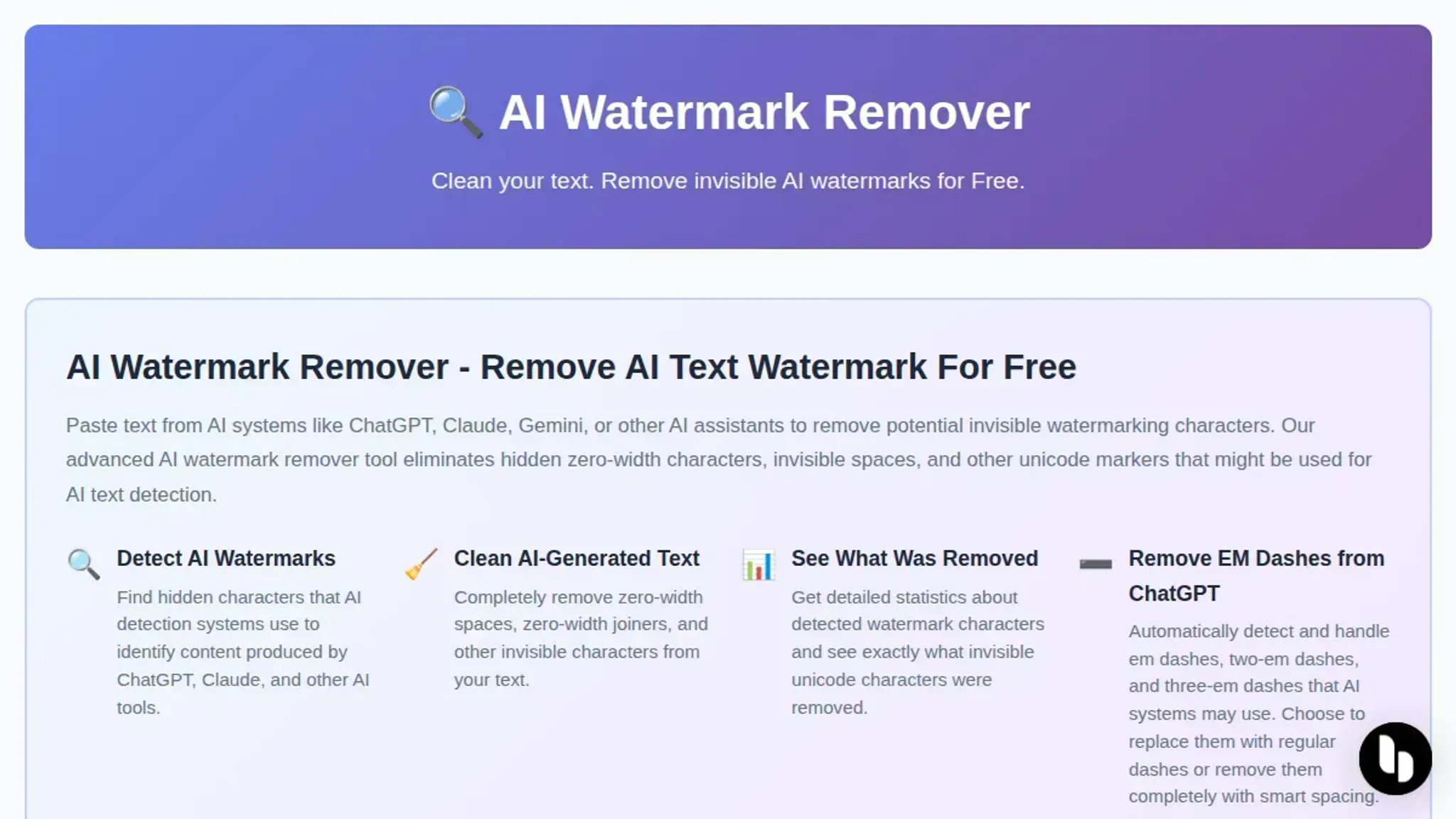
For a faster check that works entirely in your browser without sending text to a server, AI Watermark Remover runs the same detection logic client-side and shows a count of removed markers with their types, which is the most private option if you are working with sensitive drafts.
What you'll need
Before you run a watermark check, gather these items:
- The AI-generated text you want to check, saved as plain text (paste from ChatGPT, Claude, or Gemini into a .txt file to strip formatting)
- A browser that supports Unicode character inspection (Chrome or Firefox work best)
- A Unicode character viewer or hex editor (like the built-in browser dev tools) to inspect zero-width spaces and invisible markers
- Patience for false positives: normal punctuation like em dashes and smart quotes can trigger false alarms in basic checkers
- Access to a dedicated watermark checker like Forensicmark's Detect Watermark Tool for detailed Unicode analysis

The step by step workflow for checking AI watermarks
Before you start, save the text you want to check as plain text. You can paste it directly from ChatGPT, Claude, or Gemini into any of the tools below. No sign up or account is required for any of these checkers.
- Copy the full text: Select the entire AI generated passage and copy it to your clipboard. The checker needs the complete text to find hidden markers that might only appear in certain sections. A partial paste can miss zero width characters embedded mid sentence, like a U+200B tucked between two words in the third paragraph.
- Open a watermark checker in your browser: Navigate to a tool like Forensicmark's Detect Watermark Tool or the AI Watermark Detector & Checker. Both run entirely in the browser, so your text never leaves your machine. You will see a large text box or paste area on the page.
- Paste the text into the checker: Click inside the text box and paste your copied text. The tool will immediately scan the content. Within a second or two, you will see a result: either a clear "watermark detected" message or a "no watermark found" notice. Some tools also highlight the specific hidden characters in red or blue so you can see exactly where they sit.
- Review the detailed findings: Look at the breakdown the checker provides. A good tool lists the number of zero width characters found, their Unicode code points (like U+200B for zero width space), and their positions in the text. This detail matters because it tells you whether the watermark is a simple space marker or a more complex pattern, such as a sequence of U+2060 word joiners that form a steganographic signature.
- Remove the watermark if needed: If the checker found hidden markers, use a dedicated removal tool like AI Watermark Remover to strip them. Paste the same text into the remover, and it will clean out all detected zero width characters and Unicode markers. The output shows a removal count so you know exactly what was taken out.
- Recheck the cleaned text: Paste the removed text back into the watermark checker. Run the scan again. The result should now show "no watermark detected" with zero hidden characters. This double check confirms the removal worked and nothing was left behind.
What to check after running a watermark checker
Once you have run your text through a watermark checker, a few quick verifications confirm whether the result is clean. Use this table to review each check before you consider the text ready.
| Task | Why it matters | Done |
|---|---|---|
| Paste the output into a plain text editor and toggle invisible characters on | Zero-width spaces and Unicode markers are invisible in rich text editors but show as dots or special glyphs in a plain text view | |
| Run the cleaned text through a second watermark checker from a different tool | A single tool can miss markers that another detects; cross-verification catches false negatives | |
| Copy the text into a browser's address bar and back out again | Some browsers strip hidden Unicode characters during paste; if the text survives this round-trip, the markers are gone | |
| Search the text for the exact string `\u200B` using a find-in-page tool | This Unicode character (zero-width space) is the most common AI watermark marker; a match means removal was incomplete | |
| Compare character count before and after cleaning | A drop of more than 0.1% suggests real characters were removed alongside watermarks, which may alter the text |
If any check fails, run the text through AI Watermark Remover again and repeat the verification. The tool's removal statistics panel shows exactly how many zero-width characters and Unicode markers were stripped, so you can confirm the count matches the character drop you measured.
Frequently asked questions about watermark checker
What is a watermark checker?
A watermark checker scans text for invisible markers, such as zero-width characters or Unicode control codes, that AI systems like ChatGPT embed in their output. It identifies whether content likely originated from an AI generator.
How does a watermark checker detect hidden markers?
The checker parses text at the character level, looking for zero-width spaces, em dashes used as steganographic carriers, or specific Unicode sequences. It compares these against known watermarking schemes used by major AI models.
Are watermark checkers always accurate?
No. Accuracy depends on the watermarking scheme and whether someone has modified the text. Simple rewrites or paraphrasing can strip markers, causing false negatives. Some checkers also produce false positives on natural text that happens to contain similar patterns.
What are the limitations of watermark checkers?
Most checkers only detect watermarks from specific AI models. They struggle with short texts (under a few hundred characters) because markers are sparse. Statistical checkers may flag uniform human text as AI-generated.
What should I do after a watermark checker finds a marker?
If the checker confirms a watermark, use a removal tool like AI Watermark Remover to strip invisible markers while preserving meaning. The tool runs entirely in your browser for privacy. Verify removal by running the checker again.
Final verdict on watermark checker
For most users, AI Watermark Remover is the fastest path from a flagged text to a clean document. It strips zero-width characters and Unicode markers in one paste, runs entirely in your browser, and shows you exactly what it removed.
If your workflow demands batch processing or you need to inspect the raw Unicode yourself, Forensicmark's Detect Watermark Tool is a better starting point. For everyone else, paste your text into AI Watermark Remover and move on to your next task.