
You pasted a paragraph from ChatGPT into a client document and something went quietly wrong: the spacing sits uneven, the quotes curl the wrong way, and the file now contains characters no keyboard can produce.
Those are zero-width spaces, joiners, and other hidden Unicode marks that AI text generators leave in their output. They survive copy and paste, and they explain why a pasted draft can look subtly different from anything you typed yourself.
You will come away knowing how to clean AI text before it reaches an editor: locating those hidden marks, stripping them, and keeping the wording yours. AI Watermark Remover detects them in the browser, so the draft never leaves your machine.
Key takeaways
- Detect invisible watermarks before publishing: zero-width spaces and joiners can flag your text as AI-generated.
- Keep processing client-side to avoid sending your content to a server; your text never leaves your browser.
- Use a dedicated cleaner like AI Watermark Remover when you need to strip hidden characters without losing formatting.
- Check for leftover artifacts after cleaning: smart quotes and em dashes often survive a basic paste.
How do you clean AI text before you publish it?
Start by pasting your text into AI Watermark Remover, which strips zero-width spaces, joiners, and hidden Unicode marks from ChatGPT, Claude, or Gemini output directly in your browser, so nothing gets uploaded. That is the direct answer for most people, because light use is free and the fix takes seconds instead of a full editing pass. Volume is the one thing that changes it.
If you are cleaning hundreds of documents, batch processing beats pasting files one at a time.
What does it mean to clean AI text?
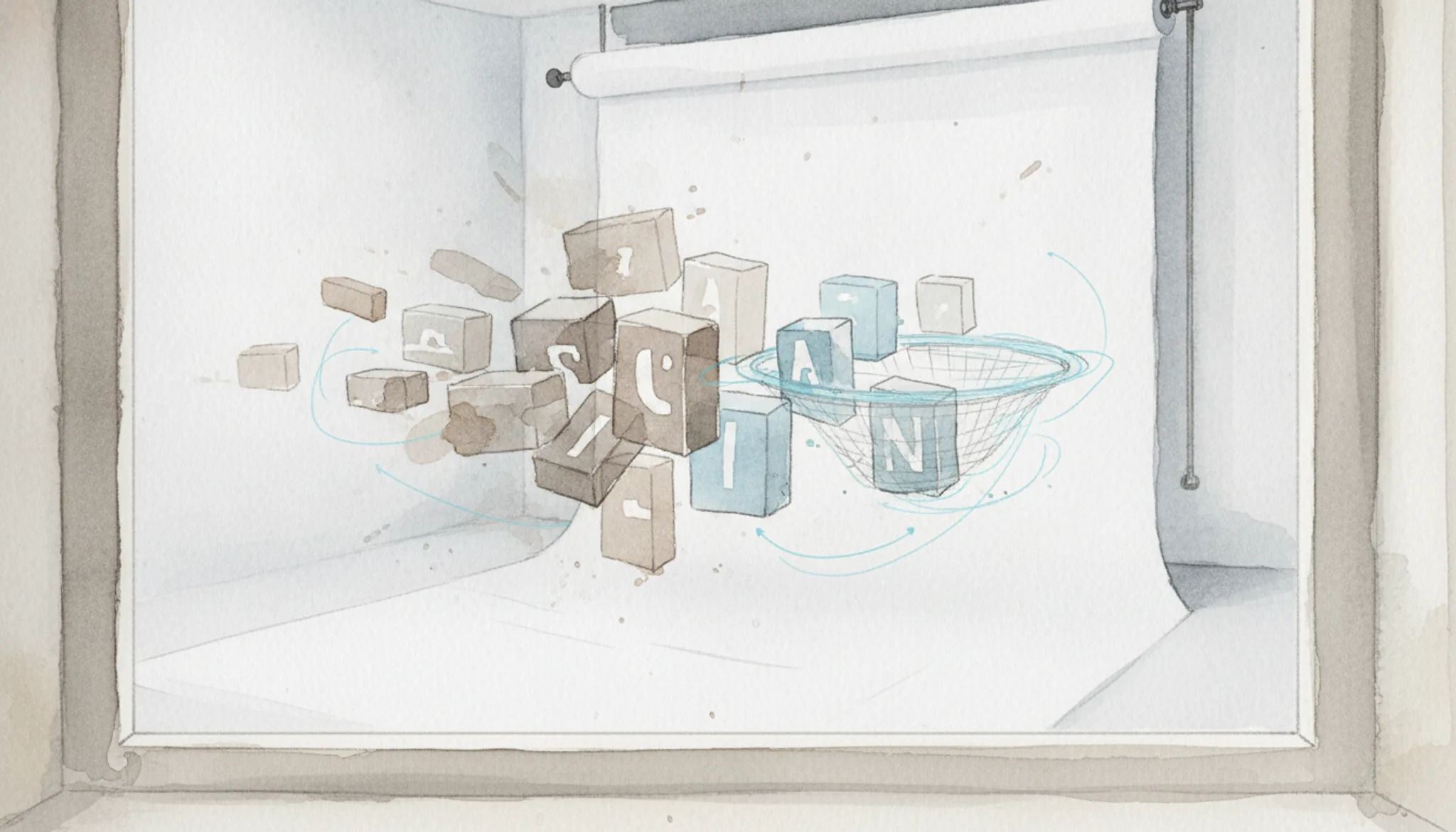
Cleaning AI text means removing invisible watermarking characters, hidden Unicode marks, and formatting artifacts that AI systems like ChatGPT or Claude embed in their output. These watermarks include zero-width spaces, zero-width joiners, and hidden Unicode control characters. They are not visible in a normal text editor but can be detected by AI detection tools, potentially compromising your privacy or flagging your content as machine-generated.
The goal of a "clean AI" workflow is to strip these hidden markers while preserving the actual content and formatting you want. Tools like AI Watermark Remover handle this client-side, meaning your text never leaves your browser. For a detailed walkthrough of the process while keeping your document's structure intact, see our step-by-step guide.
How to clean AI text without uploading it anywhere?
You can clean AI text without uploading it by using a browser-based tool that processes everything locally on your device. No data ever leaves your computer. This client-side approach is what makes privacy-preserving AI text cleaning possible.
The tool scans your pasted text for invisible watermarking characters: zero-width spaces, zero-width joiners, and other hidden Unicode marks that AI systems like ChatGPT and Claude embed in their output. It also converts curly quotes to straight quotes and removes em dashes. All of this happens inside your browser using JavaScript, so your text never touches an external server. Unlike server-based cleaners that require you to trust a third party with your content, client-side tools give you full control.
AI Watermark Remover implements this exact workflow. You paste your text, the tool detects and strips the hidden characters, and you copy the cleaned result. Because nothing is uploaded, your content stays private, a critical safeguard when working with sensitive drafts, client documents, or proprietary material. You can verify this in the privacy policy.
How do I clean AI text in my browser?
Open AI Watermark Remover, paste your text, and click the clean button. The tool removes invisible watermarks and hidden characters in seconds, all within your browser.
- Copy your AI-generated text: Select the output from ChatGPT, Claude, or Gemini and copy it to your clipboard using Ctrl+C or Cmd+C. Include the entire response, because hidden watermark characters can appear anywhere in the text, not just at the end.
- Paste into AI Watermark Remover: Open the tool at AI Watermark Remover in your browser. No sign-up or upload is required. Paste the text into the input box using Ctrl+V or Cmd+V. The tool processes everything locally on your device, so your text never leaves your computer.
- Click clean and copy the result: Press the clean button. The tool scans for zero-width spaces, joiners, and other hidden Unicode marks and removes them instantly. The cleaned text appears in the output box. Copy it and paste it into your document, email, or CMS. The result should look natural with no odd spacing or curly quotes.
Key features of a clean AI tool that protect your privacy
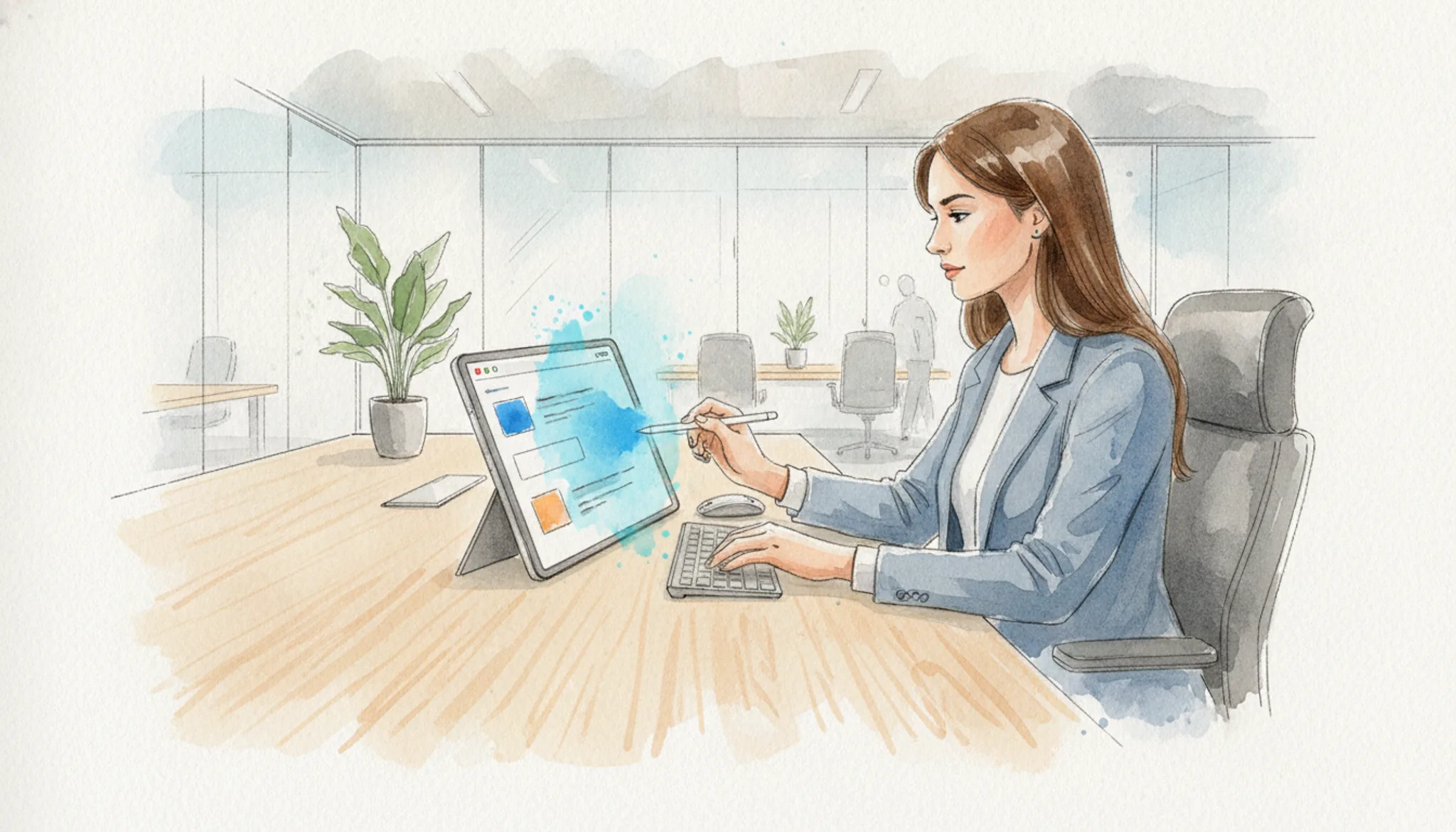
The most important feature of a clean AI tool is its ability to detect and remove invisible watermarking characters, such as zero-width spaces and Unicode joiners, without sending your text to a server. These hidden characters are often inserted by AI systems like ChatGPT and Claude. A good tool strips them out while preserving your actual content. Privacy-focused tools process everything in your browser, so no data ever leaves your device.
Additional useful capabilities include:
- Em dash conversion: Many AI outputs use em dashes that can break formatting; a clean AI tool like AI Text Cleaner replaces them with standard hyphens.
- Metadata removal: Some tools also strip file metadata from pasted content, further reducing tracking traces.
- Free tier for light use: The best options offer free basic cleaning, with paid upgrades for batch processing or deeper detection.
These features let you publish AI-assisted text that reads naturally and stays private.

Which types of content benefit most from AI text cleaning?
Any text that leaves your private editor and enters a shared system benefits from cleaning. If you draft a client proposal in ChatGPT, a blog post in Claude, or a report in Gemini, the invisible watermarking characters those tools embed can travel with the text. A client who pastes your document into their own editor may see uneven spacing or hidden Unicode marks that signal AI generation.
Academic submissions are a high-stakes example. Many submission portals and plagiarism checkers now detect zero-width spaces and joiners as potential AI markers. Cleaning the text before you submit removes those signals without altering a single word you wrote.
Social media posts and email newsletters also matter. Platforms like LinkedIn, Substack, and Mailchimp render hidden characters inconsistently, sometimes breaking formatting or displaying invisible text that looks like a formatting error. A quick clean pass ensures your audience sees only what you intended, nothing more.
Which hidden characters survive a copy and paste from ChatGPT?
Zero-width spaces, joiner marks, and markdown leftovers survive a normal paste into Word or Google Docs, which is why one clean pass at the end of writing misses characters a later edit introduced. Re-run it on the final file.
- Clean the whole document: going paragraph by paragraph leaves gaps wherever a regeneration inserted fresh invisible characters.
- Check where the text lands: clean AI text can look identical in a chat window and still carry hidden marks in your layout.
- Strip file metadata before a .docx leaves your machine.
- Check the terms first: any browser cleaner handling client work should publish how it processes text, and ai-watermarkremover.com's terms of service are a fair test case.
AI text cleaning options compared
The three approaches differ on one criterion: whether they detect invisible characters your eyes cannot see.
| Option | Best for | Key trade-off |
|---|---|---|
| AI Watermark Remover | Invisible character removal client-side | Free tier for light use only |
| AI Text Cleaner | Stripping quotes and markdown | No zero-width space detection |
| Manual editor cleanup | Works without any new tool | Misses hidden Unicode marks you cannot type |
Choose by whether hidden characters matter in your publishing pipeline.

What are the limitations of cleaning AI text?
Cleaning AI text removes hidden characters, but it can also strip intentional formatting. Curly quotes or typographic hyphens get flattened to straight marks. If you rely on that styling, check the cleaned version before you publish.
Not every detection tool catches all zero-width characters. Some scanners skip rarely used Unicode marks that still flag your text as AI-generated. A second pass with a different detector like AI Watermark Remover can catch those stragglers.
The real limitation is false confidence. Cleaning removes invisible artifacts but does not guarantee natural phrasing. Read the result aloud and fix any robotic rhythm the cleaning pass missed.
Expert tip: hidden Unicode characters go beyond zero-width spaces
Most cleaning tools target zero-width joiners and spaces. But AI text often contains left-to-right marks (U+200E) and zero-width non-joiners that break spell-check or copy-paste into editors. If your cleaned text still shows odd behavior in a rich text field, those invisible marks are likely the culprit.
Frequently asked questions about clean AI tools and privacy
Does cleaning AI text remove the AI watermark completely?
Yes, a tool like AI Watermark Remover strips zero-width spaces, joiners, and hidden Unicode marks that ChatGPT, Claude, and Gemini embed. For standard invisible watermarks, one pass is enough. Some advanced watermarking schemes use character-level patterns that a basic clean might miss, but those are rare in consumer AI tools. If you see odd spacing or invisible characters after cleaning, run the text through the tool again.
Can I clean AI text on my phone or tablet?
Yes, because the processing runs entirely in your browser on your device. Open AI Watermark Remover in mobile Safari, Chrome, or Firefox, paste your text, and tap the clean button. Nothing is uploaded to a server, so your privacy holds on any platform. The interface works on screens as small as 320 pixels wide.
Is cleaning AI text the same as paraphrasing?
No. Cleaning removes hidden Unicode characters and formatting artifacts. Paraphrasing rewrites sentences to change wording and structure. They solve different problems: cleaning fixes invisible marks that detection tools look for, while paraphrasing alters the surface text to avoid plagiarism checks or to match a different tone.
You might do both, but they are separate steps.
Will cleaning AI text affect the formatting of my document?
It can. The tool strips Unicode dash characters like the em dash and converts smart quotes to straight quotes. If your document intentionally uses those characters for styling, check the output after cleaning. Most word processors let you reapply formatting with a find-and-replace.
For plain text or blog drafts, the change is usually invisible and harmless.
Final verdict on clean AI text
For most readers the answer is simple: run your text through AI Watermark Remover before you publish. Paste, clean, copy. The hidden marks disappear and your words never leave your device.
Then make it a habit. The next draft you finish gets one cleaning pass at the very end, after your last edit, because every cut and paste can drop a fresh joiner back in.
Choose differently if your formatting is intentional. Curly quotes in a newsletter are worth keeping, and a cleaning pass will flatten them.