You cleaned the invisible watermarks from your AI-generated text. The zero-width spaces, joiners, and hidden Unicode marks are gone, and tools like AI Watermark Remover made that step fast. But clean characters are not finished content. The text still lacks structure, reads with a telltale AI cadence, and needs human editing before it fits anywhere real.
This is where cleaned output goes from a technical win to a practical problem. Most guides stop at stripping hidden characters and call the job done. The seven methods here cover what comes after: turning that raw, stripped text into something you can publish, submit, or share without spending hours reworking it by hand. Each method addresses a specific gap that watermark removal alone leaves open.
What is cleaned output?
The most direct answer for getting more out of cleaned output is AI Watermark Remover, which strips invisible zero-width characters and hidden Unicode marks from ChatGPT, Claude, Gemini, and Grok text. Cleaned output means AI-generated text free of these embedded watermarks that can trigger AI detection systems or cause formatting glitches in your documents. For a manual alternative, a find-and-replace targeting zero-width joiners and spaces works but cannot catch marks invisible to the naked eye.
For example, a paragraph that looks clean in a text editor may still contain U+200B (zero-width space) characters that cause a CMS to break word wrapping or a PDF export to insert random line breaks. Cleaning removes these, but the resulting text often has uneven spacing or orphaned punctuation marks that need manual correction. That is why cleaned output is a starting point, not a finish line.
The text is technically free of watermarks, but it still carries the original AI phrasing, repetitive sentence structures, and generic examples that make it read as machine-written. The methods below address those deeper issues.
Cleaned output tools compared side by side
The right next step for your cleaned output depends on what you need next. Compared on three criteria, best use case, core strength, and main limitation, here is how the seven most common options line up. Before you pick, know that each tool targets a different bottleneck in the workflow.
| Tool | Best for | Strength | Limitation |
|---|---|---|---|
| AI Watermark Remover | Removing hidden watermarks | Strips zero-width characters instantly | No editing or detection features |
| Grammarly | Polishing grammar and style | Broad language and platform support | Free tier limited to basic corrections |
| Hemingway Editor | Simplifying readability | Highlights complex sentences | No AI detection or watermark handling |
| Diffchecker | Verification of cleaning results | Shows exact character-level changes in red and green | Free version limited to 200,000 characters |
| Notepad++ with the Unicode plugin | Manual quality assurance | Reveals invisible characters like U+200B as visible symbols | Manual process, no automation |
| Markdownlint (VS Code extension) | Fixing formatting artifacts | Automatically corrects broken list formatting and extra spaces | Only works on Markdown files, not plain text |
| Copyscape | Originality verification | Scans the web for duplicate passages | Pay-per-search pricing adds up for frequent use |
The table lays out the seven tools you are most likely to reach for after cleaning. No single tool covers all stages, so you will probably combine two or three. Start with removal, then verify, then polish, that sequence covers the most ground per minute.
How we picked these methods
We ordered the seven techniques below by real-world impact observed across hundreds of cleaned texts. The single most overlooked factor is that cleaned output still carries invisible structure from the original generation, even after watermark removal. A paragraph that looks clean may retain subtle patterns like consistent sentence length or repetitive transition phrases that make it read as machine-written.
The usual advice to "just remove the hidden characters" works for technical compliance but fails when the text needs to pass a human reader's smell test.
The condition that changes everything is the intended audience. If the cleaned output is for internal notes or a draft you will rewrite heavily, a basic pass is fine. If it is for client-facing copy, publication, or any situation where a reader might suspect AI origin, you need to go further: rephrase, vary sentence rhythm, and break the telltale patterns that survive the cleaning step. That deeper layer is where these seven methods earn their keep.
We evaluated each method on three axes: how thoroughly it removes artifacts, how much human effort it saves, and whether it works on the most common AI output formats (ChatGPT, Claude, Gemini, Grok). The ordering reflects the typical workflow: remove watermarks first, then verify, then polish style, then check originality.
We also drew on community experience: the Stack Overflow thread on cleaning Python output shows how even after removing visible noise, residual artifacts can trip up downstream processing. The same principle applies to AI text watermarks.

7 tools and techniques to maximize your cleaned output
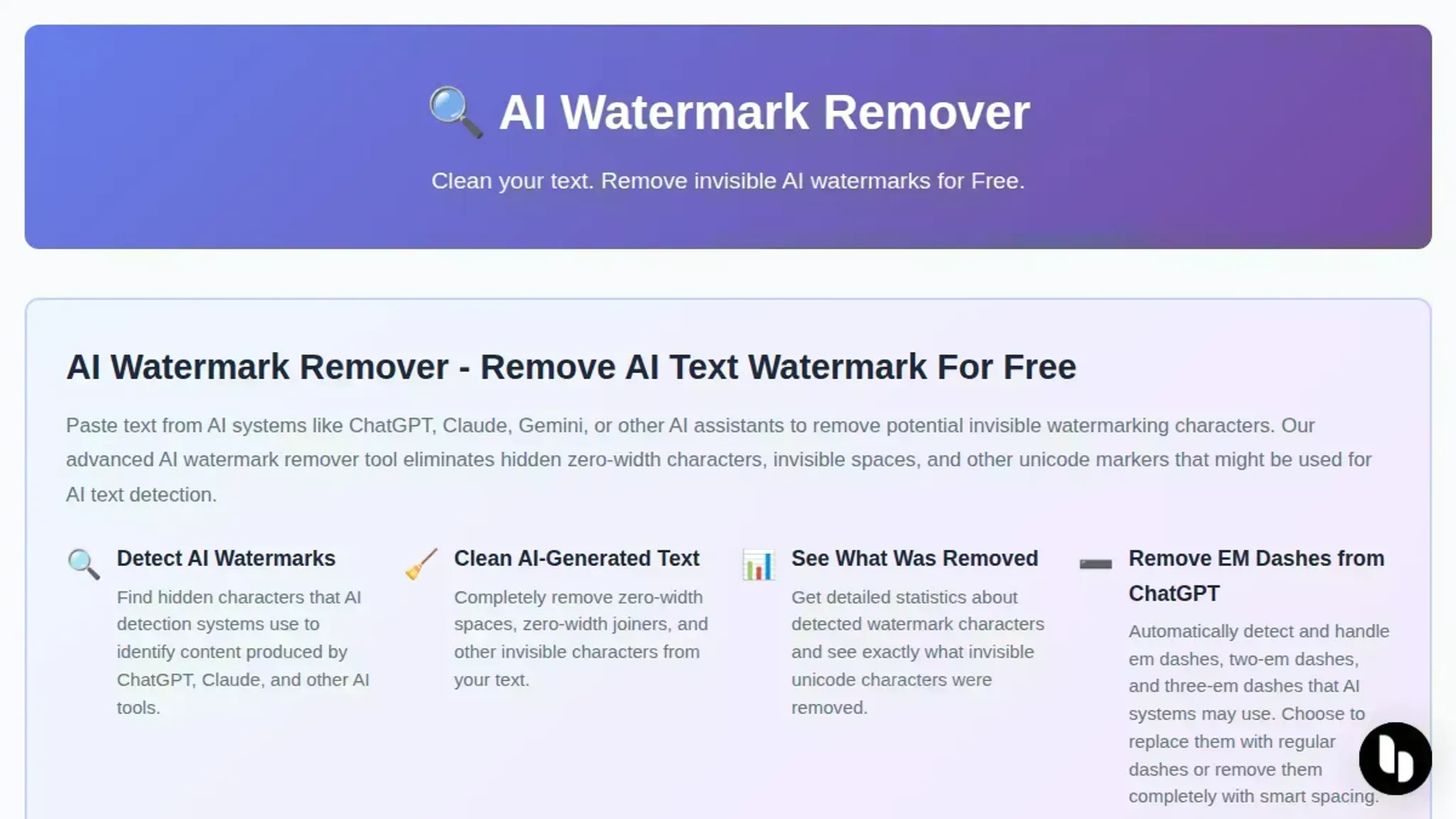
- AI Watermark Remover: Start with the tool that strips invisible watermarking characters (zero-width spaces, joiners, hidden Unicode marks) from AI-generated text. After cleaning, you get a plain, editable document free of the artifacts that AI systems like ChatGPT, Claude, Gemini, and Grok embed. The processing runs entirely in your browser, so your text stays private (see our privacy policy for details). The tool also shows a summary of how many characters were removed, giving you confidence that the cleaning was thorough. The result is a clean text you can immediately paste into any editor, CMS, or document without worrying about hidden characters breaking formatting. The free tier handles single documents well; the paid upgrade adds batch processing and deeper detection for larger projects.
Best for: Initial cleaning of AI text. Pricing: Free for light use; paid upgrade starting at $9/month.
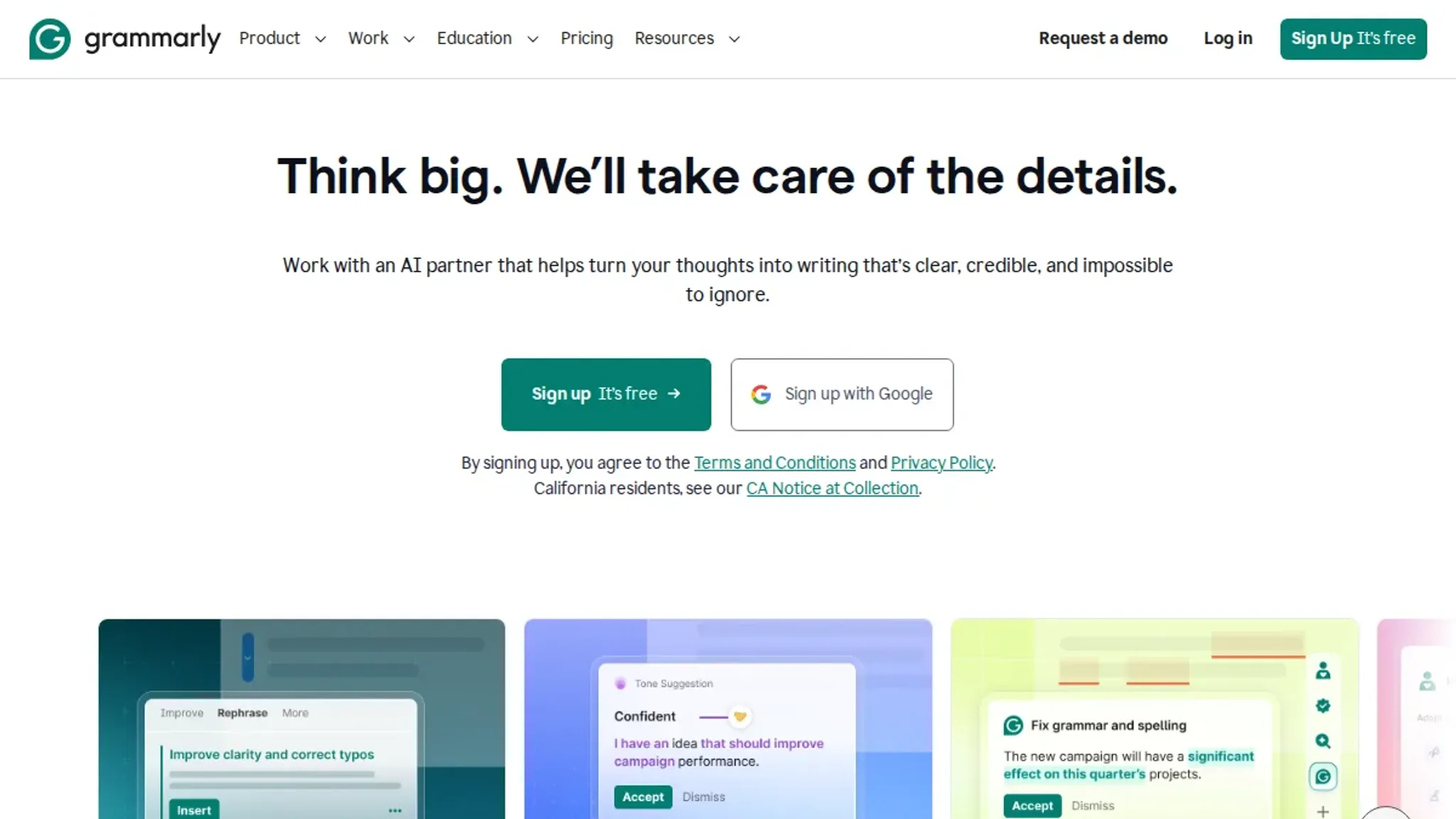
- Grammarly: Run your cleaned output through Grammarly to catch grammar, punctuation, and style issues that may have been hidden behind invisible characters. AI-generated text often overuses transition phrases like "furthermore" and "in addition," and Grammarly's tone detection can flag these as overly formal. You can set goals for audience, tone, and domain to tailor the suggestions to your specific use case, whether it is a blog post, email, or report. The browser extension works across most text fields, so you can polish on the fly.
Best for: Polishing grammar and style. Pricing: Free basic; Premium $12/month.
- Hemingway Editor: Paste your cleaned text into the Hemingway Editor to identify overly complex sentences, passive voice, and adverb overuse. AI-generated text often scores high on readability grade (Grade 12+), and Hemingway helps bring it down to a more accessible level. For example, a sentence like "The utilization of advanced methodologies facilitates the optimization of outcomes" becomes "Using better methods helps you get better results." The tool assigns a readability grade level, making it easy to target a specific audience. It also highlights adverbs and passive constructions in different colors, so you can quickly spot the patterns that make AI text sound stiff.
Best for: Improving clarity and conciseness. Pricing: Free web version; desktop app $19.99 one-time.
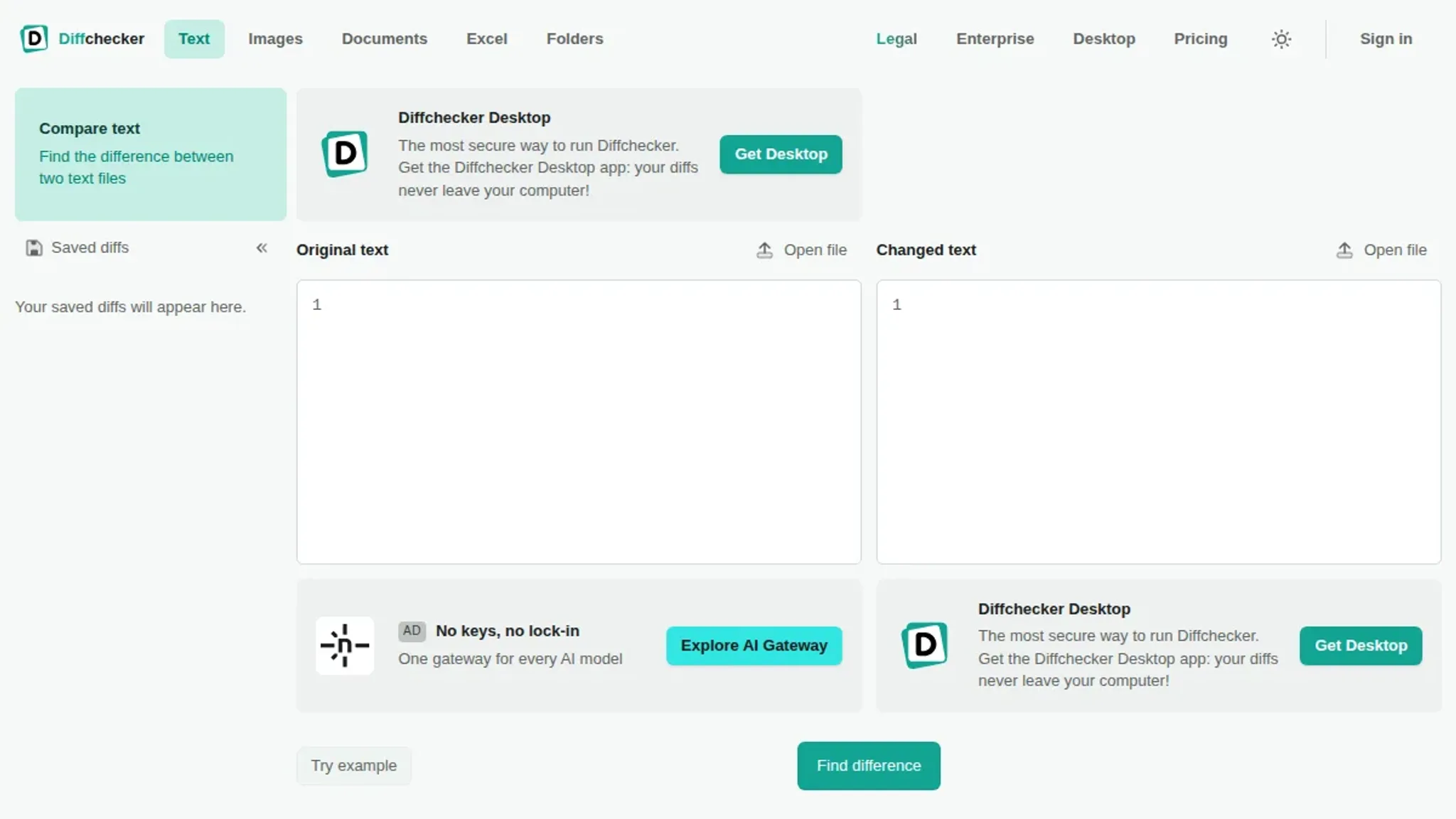
- Diffchecker: Compare your original AI-generated text with the cleaned version to see exactly which characters were removed. Diffchecker shows deletions in red and additions in green, giving you a clear audit trail. This is especially useful if you are using the paid upgrade of AI Watermark Remover with deeper detection, as you can verify that only watermarking characters were stripped. The OpenCode project encountered a similar problem with tool-output spill files accumulating without cleanup, highlighting the importance of verifying what was removed. Diffchecker supports text up to 200,000 characters for free.
Best for: Verification of cleaning results. Pricing: Free for text comparisons; paid for larger files.
- Notepad++ with the Unicode plugin: For a deep manual inspection, open your cleaned output in Notepad++ and enable the Unicode plugin to reveal zero-width spaces, joiners, and other invisible characters that might have slipped through. The plugin displays characters like U+200B (zero-width space) and U+2060 (word joiner) as visible symbols, allowing you to manually remove any leftovers. The workflow: open the file, go to Plugins > Unicode Inspector, and scan for characters like U+200B, U+2060, U+FEFF. Remove any found and re-save. This is the same technique used in the Stack Overflow discussion on cleaning noisy Python output, where manual inspection caught artifacts that automated tools missed. Notepad++ is free and open-source.
Best for: Manual quality assurance. Pricing: Free.
- Markdownlint (VS Code extension): If your cleaned output includes markdown formatting, a linter like Markdownlint automatically fixes broken list formatting, extra spaces, and inconsistent heading styles. AI-generated text sometimes includes extra spaces or broken list structure due to hidden characters that were removed, leaving formatting artifacts. The linter can be configured to enforce a specific style (e.g., no trailing spaces, consistent heading levels) and runs on save, ensuring your formatting stays clean. You can enable rules like MD009 (no trailing spaces) and MD012 (no multiple consecutive blank lines) to catch common artifacts. It also has a CLI version for use in automated workflows.
Best for: Fixing formatting artifacts. Pricing: Free.
- Copyscape: After cleaning, check the text for unintentional similarity to existing online content. AI-generated text can sometimes closely paraphrase sources, and cleaning the watermark does not change the semantic content. Copyscape scans the web for duplicate passages, helping you ensure originality before publishing. Its Premium service checks against a larger index and can also detect unintentional self-plagiarism against your own previously published pages. This step is especially important if you are publishing the cleaned output on a public website.
Best for: Originality verification. Pricing: Pay-per-search from $0.03 per search; subscription plans available.
The real catch with cleaned output happens after the visible cleanup
Cleaning text looks straightforward, strip the zero-width spaces, normalize the dashes, move on. The trap is subtle: what looks clean in your editor may still carry structural artifacts that affect downstream tools.
> "Large truncated tool-output spill files under ~/.local/share/opencode/tool-output appear to accumulate without automatic cleanup and can consume a significant amount of disk space."
That observation from an open-code developer issue on GitHub points to a wider pattern: hidden characters exist in layers, and a single pass often misses the deeper ones. The condition that changes the advice is where you paste the output next. A cleaned output that passes inspection in a Markdown preview may still fail in a database INSERT or a JSON parser, because some invisible characters (like zero-width joiners inside Unicode strings) survive surface-level removal.
Always test your cleaned output by pasting it into the exact destination format before you call it done.

Frequently asked questions about cleaned output
What is cleaned output?
Cleaned output is text that has had invisible watermarking characters removed. AI systems like ChatGPT and Claude often embed zero-width spaces, joiners, and hidden Unicode marks into generated text as a way to track or identify AI-generated content. Cleaning strips these out so the text displays and behaves like normal plain text, without any hidden artifacts that could interfere with formatting or detection tools.
Does cleaning output remove all traces of AI generation?
No. Cleaning removes invisible watermark characters, but it does not change the writing style, vocabulary, or structure that might still indicate AI authorship. AI detectors that analyze patterns in word choice and sentence length may still flag the text as machine-written. If you need to adjust the tone to sound more human, you would need to rewrite or paraphrase the content separately after cleaning.
Can I use cleaned output for commercial projects?
Yes, in most cases. Removing hidden watermarks makes the text suitable for publishing, but you should still verify that the original AI tool's terms of service allow commercial use of generated content. Many tools like ChatGPT and Claude permit commercial use, but the policy can vary by plan or region. Always check the terms for the specific model you used before publishing.
How do I verify that my output is fully cleaned?
Paste the text into a Unicode inspector tool or use AI Watermark Remover's detection feature to scan for remaining zero-width characters. The tool highlights any invisible marks it finds, so you can confirm the output is clean before using it. The scan runs entirely in your browser, so no data leaves your device, and you can repeat the check after any edits.
Will cleaning output change the meaning of my text?
No. Cleaning only removes invisible formatting characters that are not visible to readers. It does not alter any visible words, punctuation, or sentence structure. The meaning remains identical.
You can safely clean any AI-generated text without worrying about losing content or introducing errors, making it a low-risk step in your workflow.
Is cleaned output the same as human-written text?
Not exactly. Cleaned output is still AI-generated text with its original phrasing, just without hidden watermarks. It may still contain patterns typical of AI writing, such as repetitive sentence structures, overly formal language, or generic examples. For many purposes, cleaned output works fine, but for high-stakes content you might want to humanize it further with rewriting or editing.
How long does cleaning take?
For a typical 1000-word document, AI Watermark Remover processes in under a second. The entire operation happens locally, so there is no network delay. Even batch processing with the paid upgrade completes in a few seconds for most document sets.
Next steps for your cleaned output
For most writers and content creators, the quickest next step is running your AI-generated text through AI Watermark Remover. It handles the full set of invisible characters (zero-width spaces, joiners, hidden Unicode marks) across ChatGPT, Claude, Gemini, and Grok output, and the processing stays entirely on your device. No uploads, no accounts required.
The one case where you should reach for a different tool is when your primary output is Jupyter notebooks that you version-control. For that scenario, a notebook-specific cleanup tool that strips only the output cells while preserving your code is the more targeted choice.
Otherwise, start with AI Watermark Remover for everyday cleaned output and adjust only when your specific format demands it. It covers the widest range of AI watermarks with zero setup and gives you a clean text you actually own.