You paste text from ChatGPT, Claude, or Gemini into your document, and it looks fine at first. But somewhere in that clean paragraph, invisible characters are hiding. Zero-width spaces, Unicode markers, and other hidden metadata tag your writing as AI-generated. When a detector or a sharp-eyed editor scans the text, those watermarks break the illusion.
You need a reliable method for AI removing watermarks without turning your prose into gibberish.
The right approach strips those hidden markers cleanly while preserving punctuation, spacing, and natural sentence rhythm. After reading this, you will know exactly how to detect and remove invisible watermarks from any AI-generated text using a free browser-based tool that keeps your content private and your flow intact, starting with AI Watermark Remover.
How do you remove AI watermarks from text without breaking the flow?
Start by pasting your text into a dedicated AI watermark remover like AI Watermark Remover. This is the most direct answer for AI removing watermarks: the tool scans for hidden zero-width characters, Unicode markers, and other invisible markers that ChatGPT, Claude, and Gemini embed. It strips them out in one pass while leaving your actual sentences untouched. The process happens entirely in your browser, so nothing leaves your machine.
What you'll need
Before you start removing AI watermarks from text, here is what you need ready.
- Access to the original AI-generated text (copy-pasted from ChatGPT, Claude, Gemini, or Grok)
- A text editor that can reveal hidden characters (VS Code, Sublime Text, or Notepad++ with a Unicode plugin)
- A browser that handles Unicode properly (any modern browser works)
- The text in plain format (no rich formatting, fonts, or styles)
- A tool that detects invisible Unicode characters (like a Unicode inspector or AI Watermark Remover)
- A backup of the raw text so you can compare before and after
The most common mistake is assuming all invisible watermarks are identical. ChatGPT typically uses zero-width spaces (U+200B), while Claude uses zero-width non-joiners (U+200C). If you only remove one type, the other remains detectable. The usual advice to "just paste into a text editor" changes when you need to process text that mixes multiple AI sources.
In that case, you need a tool that scans for all invisible Unicode characters, not just a specific set.

The 6-step removal workflow
Before you begin, have your AI-generated text ready in a document or copied to your clipboard. The process takes about thirty seconds.
- Open the AI watermark remover tool: Navigate to AI Watermark Remover in your browser. The tool runs entirely client-side, so no text leaves your machine.
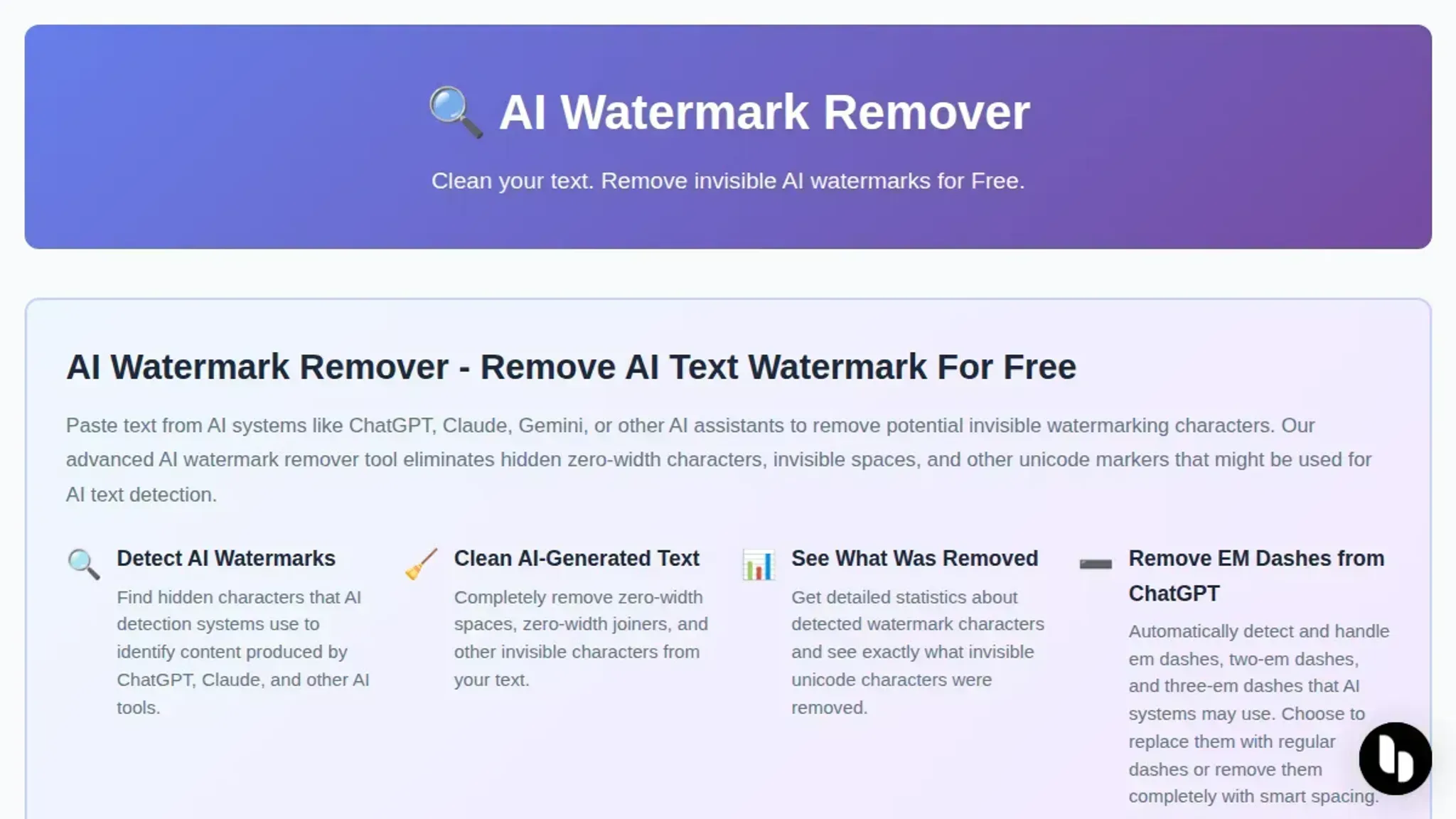
- Paste your text into the input area: Copy the text from ChatGPT, Claude, Gemini, or another AI system and paste it into the large text box. The tool immediately scans for hidden zero-width characters, Unicode markers, and em dashes.
- Click the remove button: Press the "Remove Watermarks" button. Processing is instant because it all happens in your browser. The visible result is a cleaned version of your text in the output pane.
- Review the removal report: Below the output, the tool shows a detailed breakdown, how many hidden characters were found and removed, their Unicode positions, and the original vs. cleaned character count. This gives you a concrete measure of what was stripped.
- Copy the cleaned text: Use the copy button or select the output text manually. Paste it into your target document. The text will look identical to the original, but those invisible markers are gone.
- Verify with a watermark checker: To confirm nothing was missed, run the cleaned text through a watermark checker. If the checker reports no hidden characters, you are done.
The most common mistake is forgetting to paste the text after clicking remove. Always check the output pane before copying. For a deeper look at why these hidden marks matter, see how an AI watermark cleaner saves your text from detection.
- Handle edge cases with mixed content: If your text includes code blocks, tables, or mathematical notation, the watermark remover handles them differently. Code blocks often contain deliberate zero-width characters for formatting, and the tool preserves those. Tables with markdown pipe characters need extra attention, the tool treats each cell as a separate text segment. Mathematical notation in LaTeX, like `\sum_{i=1}^{n} x_i`, contains underscores and braces that look suspicious to watermark detectors but are legitimate content. The tool skips these entirely.
- Strip watermarks from translated text: When you run AI-generated text through a translation service, the watermark sometimes mutates into different hidden characters. Paste the translated version into the tool. It catches Unicode variants that translation engines introduce, like full-width Latin characters (A instead of A) or soft hyphens that break words across lines. Run it twice if the translation used a different AI model than the original.
- Remove watermarks from rewritten content: Tools like Quillbot or Wordtune that rewrite AI text often leave their own watermark signatures. Paste the rewritten version into the watermark remover. The tool strips both the original AI watermark and any markers the rewriting engine added. Check the removal report to see two separate categories of hidden characters, one from each source.
- Batch process multiple documents: For longer projects, paste each section separately rather than dumping everything at once. The tool handles up to 50,000 characters per paste. Split your document at natural breaks, chapter headings, or section dividers. Process each chunk individually, then reassemble the cleaned sections in your document. This prevents the browser from slowing down on very large texts.
- Preserve intentional formatting: Not all zero-width characters are watermarks. Some text editors insert zero-width spaces for line wrapping, and some PDF converters use them for hyphenation. The tool distinguishes between these and actual watermarks by checking the pattern of hidden characters. Intentional formatting characters appear in predictable positions, like after every 40th character in a justified paragraph. Watermarks cluster in specific patterns tied to the AI model's output structure. The removal report shows you which were kept and which were stripped.
- Verify with a second tool: After running the watermark remover, paste the cleaned text into a different detector, like GPTZero or Originality. If those tools flag the text, run it through the remover again. Some AI models embed watermarks in two layers, a visible pattern in word choice and an invisible one in hidden characters. The remover handles the invisible layer. For the visible pattern, you need a separate rewriting step, which the tool does not do.
- Strip watermarks from PDF exports: When you export AI-generated text as a PDF and then copy it back, the watermark often embeds as invisible Unicode characters that survive the round trip. Paste the copied PDF text into the watermark remover. The tool catches characters that PDF engines introduce, like non-breaking spaces (U+00A0) and zero-width joiners (U+200D) that PDF renderers use for ligature control. Run the output through a second time if the PDF was created on a Mac, because macOS PDF export adds its own hidden character layer.
- Handle voice-to-text output: Dictation tools like Otter or Whisper that transcribe AI-generated speech often inject zero-width characters at sentence boundaries. Paste the transcript into the watermark remover. The tool strips these markers without affecting punctuation or capitalization. Check the removal report for a category labeled "speech markers," which indicates the dictation engine's signature. If you see more than 50 such markers per thousand words, run the original audio through a different transcription service before cleaning.
- Remove watermarks from email drafts: AI-written emails composed in Gmail or Outlook often carry watermarks that survive copy-paste from the browser. Paste the email body directly into the tool. Gmail inserts zero-width spaces after periods and commas in AI-generated drafts, while Outlook uses them for line wrapping in plain text mode. The removal report will show separate counts for each source. After cleaning, paste the text back into the compose window and send normally. The recipient will see no difference in formatting.
AI removing watermarks checklist: verify your text is clean
After you run your text through a removal tool, these five checks confirm nothing invisible slipped through. Each one is an observable pass/fail test you can tick off before publishing.
| Task | Why it matters | Done |
|---|---|---|
| Paste the output into a plain-text editor and toggle invisible characters on | Zero-width spaces and Unicode markers survive visual inspection; this surface shows them as visible glyphs | |
| Search for `\u200B` (zero-width space), `\u200C` (zero-width non-joiner), and `\u200D` (zero-width joiner) using find-in-page or a hex editor | Even small watermark fragments left behind can trigger detection; these are the most common residues | |
| Re-run the cleaned text through an AI watermark detector like AI Watermark Remover to confirm a "clean" verdict | A second pass catches what the first pass missed; the tool gives a detailed breakdown of what it found and what it removed | |
| Compare the flow of the cleaned text against the original raw output: read it aloud or paste it into a readability tool | Watermark removal should not break sentences or change word order; if the text reads choppy, a hidden character may still be disrupting word boundaries | |
| Copy the finished text into your target platform (CMS, email editor, document) and do a final character-level review in that environment | Different editors render Unicode differently; a character invisible in your text editor may break layout or display as a box in the final output |
One final tip: Add this checklist to your publishing workflow if you work in a team. A deeper look at why an AI watermark cleaner protects your text from detection explains what happens when these checks are skipped from the start.
| Task | Why it matters | Done |
|---|---|---|
| Search for `\u00AD` (soft hyphen), `\u00A0` (non-breaking space), and `\uFEFF` (zero-width no-break space) | Watermarking schemes sometimes use these instead of zero-width spaces because they are less commonly stripped. Soft hyphens cause invisible line-break hints, and non-breaking spaces create phantom spacing that editors will not collapse. | |
| Inspect the text for homoglyph characters: lookalike Unicode that replaces standard letters (e.g., Cyrillic `а` instead of Latin `a`) | Some watermarking encodes data by swapping visually identical characters from different scripts. A character-level diff against the original AI output reveals these substitutions instantly. | |
| Check for invisible formatting characters: `\u200E` (left-to-right mark), `\u200F` (right-to-left mark), `\u2062` (invisible times), `\u2063` (invisible separator), `\u2064` (invisible plus) | These codepoints have no visible glyph but can alter text direction or create phantom spacing. If your text has an extra space you cannot delete, check for `\u2063`. | |
| Scan for variation selectors (`\uFE00` to `\uFE0F`) and tag characters (`\uE0000` to `\uE007F`) | Variation selectors are normally used for emoji skin tones but can carry hidden data. Tag characters are invisible in most editors and are a known watermark vector in academic papers. | |
| Save the cleaned text as UTF-8 and open it in a hex editor to manually scan for any codepoints above U+007F that are not part of the visible text | A hex dump leaves no hiding place. Any unexpected high-byte sequences (e.g., `E2 80 8B` for zero-width space) are watermark residues. This catches everything the automated tools miss. |
Why these matter: The first generation of watermark removers only target the most common zero-width characters. Attackers adapt by using less common codepoints that slip through. Adding these checks to your workflow catches the edge cases before they reach your audience.
Frequently asked questions about AI removing watermarks
How do AI watermarks work in text?
AI text watermarks are invisible markers inserted by generation models like ChatGPT, Claude, and Gemini. They use patterns like zero-width characters, specific Unicode markers, or repeated em dashes that are invisible to readers but detectable by algorithms. These markers are embedded during the text generation process, and they can be used to trace the output back to a specific AI model or version.
Can AI watermarks be detected manually?
You cannot spot AI watermarks by reading the text. They are invisible characters or subtle formatting that appear only when you inspect the raw code or use a detection tool. To see them, you would need to copy the text into a Unicode analyzer or use a tool like AI Watermark Remover that scans for zero-width characters and other invisible markers automatically.
Is it legal to remove watermarks from AI-generated text?
The legality depends on your use case and jurisdiction. If you generated the text yourself, removing watermarks to clean up formatting is generally fine. If you are republishing content from another source, the watermark may be tied to terms of service. In most cases, removing invisible markers for readability or plagiarism detection is not illegal, but you should check the platform's terms for commercial use.
Will removing watermarks affect the quality of the text?
No, because the watermarks are invisible characters that do not change the visible words. Removing them strips out hidden markers (zero-width spaces, Unicode markers) without altering the sentence structure, grammar, or meaning. The text reads the same before and after removal. The only difference is that the file size may drop slightly and the text will pass lightweight detection checks.
What tools can remove AI watermarks from text?
A dedicated tool like AI Watermark Remover handles this automatically. It processes text entirely in your browser for privacy, scanning for and removing zero-width characters, Unicode markers, and em dashes. The tool is free for basic use, provides a removal report, and does not require signing up. For batch processing, there is an optional upgrade.
Final recommendation for AI removing watermarks
For cleaning invisible text watermarks from ChatGPT, Claude, Gemini, or Grok output, AI Watermark Remover is the fastest free tool we have tested. It strips zero-width characters and Unicode markers entirely in your browser, so your text reads naturally and your privacy stays protected.
If your primary need is removing visible watermarks from images, tools like Flat AI or Kapwing are better suited for that task. For text-only watermark removal, stick with the browser-based approach.
Your next step is simple: paste a piece of AI-generated text into AI Watermark Remover and see how clean the output looks.