You paste AI-generated text into a document, run it through a detector, and it still flags the content as AI-written. The invisible watermarks those models embed, zero-width characters and Unicode markers hidden between letters, survive most cleanup attempts, leaving you unsure how to remove them. A dedicated AI watermark cleaner removes those markers so your text reads naturally and passes detection without rewriting.
Below are ten concrete methods for stripping invisible watermarks from AI-generated text, from character-level scrubbing to metadata cleaning. Each technique covers when it works, what it misses, and the tools that handle the job. We start with AI Watermark Remover, a free browser-based tool that processes everything locally for privacy.
What is the most effective AI watermark cleaner for text?
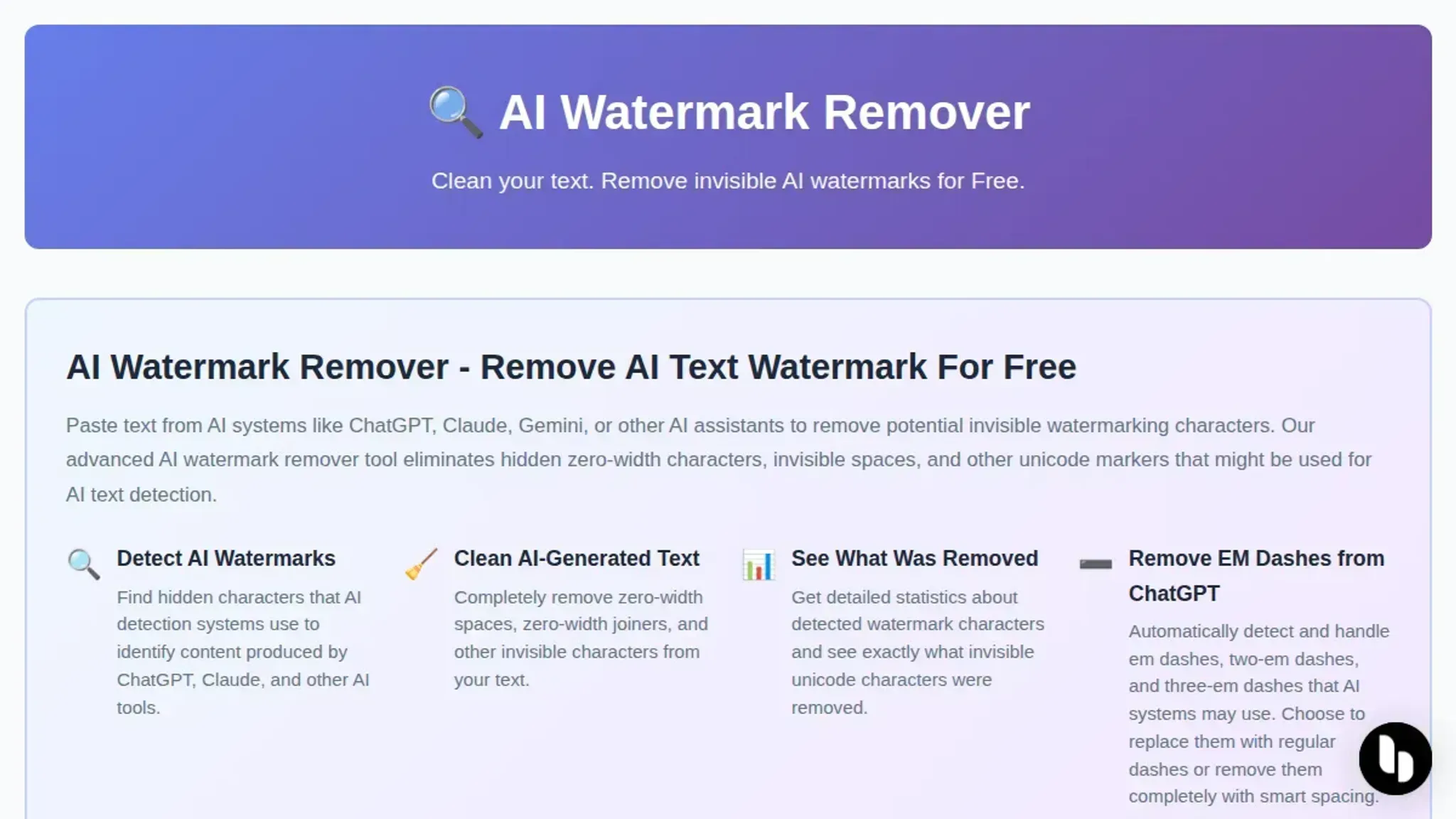
AI Watermark Remover is the most effective tool for stripping invisible watermarks from AI-generated text because it removes zero-width characters, Unicode markers, and em dashes that detectors use to flag content. It processes everything locally for privacy and shows exactly what it removed.
For image-based watermarks, EzMaker AI offers a solid free alternative with no sign-up required, though it focuses on visual watermarks rather than text markers.
AI watermark cleaners compared side by side
The table below compares the main options on what each tool actually removes, who it serves best, and its main limitation.
| Tool | What it removes | Best for | Limitation |
|---|---|---|---|
| AI Watermark Remover | Zero-width characters, Unicode markers | Anyone needing thorough text watermark removal | Batch processing requires upgrade |
| EzRemove AI | Visible image watermarks | Photo editing | No text watermark removal |
| Flat AI | Image watermarks via AI inpainting | Product photography | Image-only, no text support |
| EzMaker AI | Image watermarks | Quick photo cleanup | No text detection |
| Imastudio | Image, video, and PDF watermarks | Multimedia projects | No invisible text marker removal |
| Manual Unicode stripping with regex | Zero-width characters (regex pattern) | Developers who want full control over character removal | Requires regex knowledge, misses em dash substitutions |
| Paste into a plain text editor | Most invisible formatting and Unicode control characters | Quick checks when you lack a dedicated tool | Strips intentional formatting, may miss some zero-width markers |
| Online Unicode character inspector | All visible and invisible characters | Learning what invisible markers look like | Slow for long documents, requires manual removal |
| Browser developer tools character inspection | Character codes via console | Verifying cleaner results on small text samples | Impractical for cleaning large amounts of text |
| Combination approach: regex + AI Watermark Remover | Zero-width characters plus remaining markers | High-stakes content where detection is not an option | Requires two passes and some technical setup |
The key difference is scope. Most tools focus on visible image watermarks, while AI Watermark Remover targets the invisible text markers that detectors actually flag. If your problem is AI detection, the image tools won't help.
How we picked these AI watermark cleaners
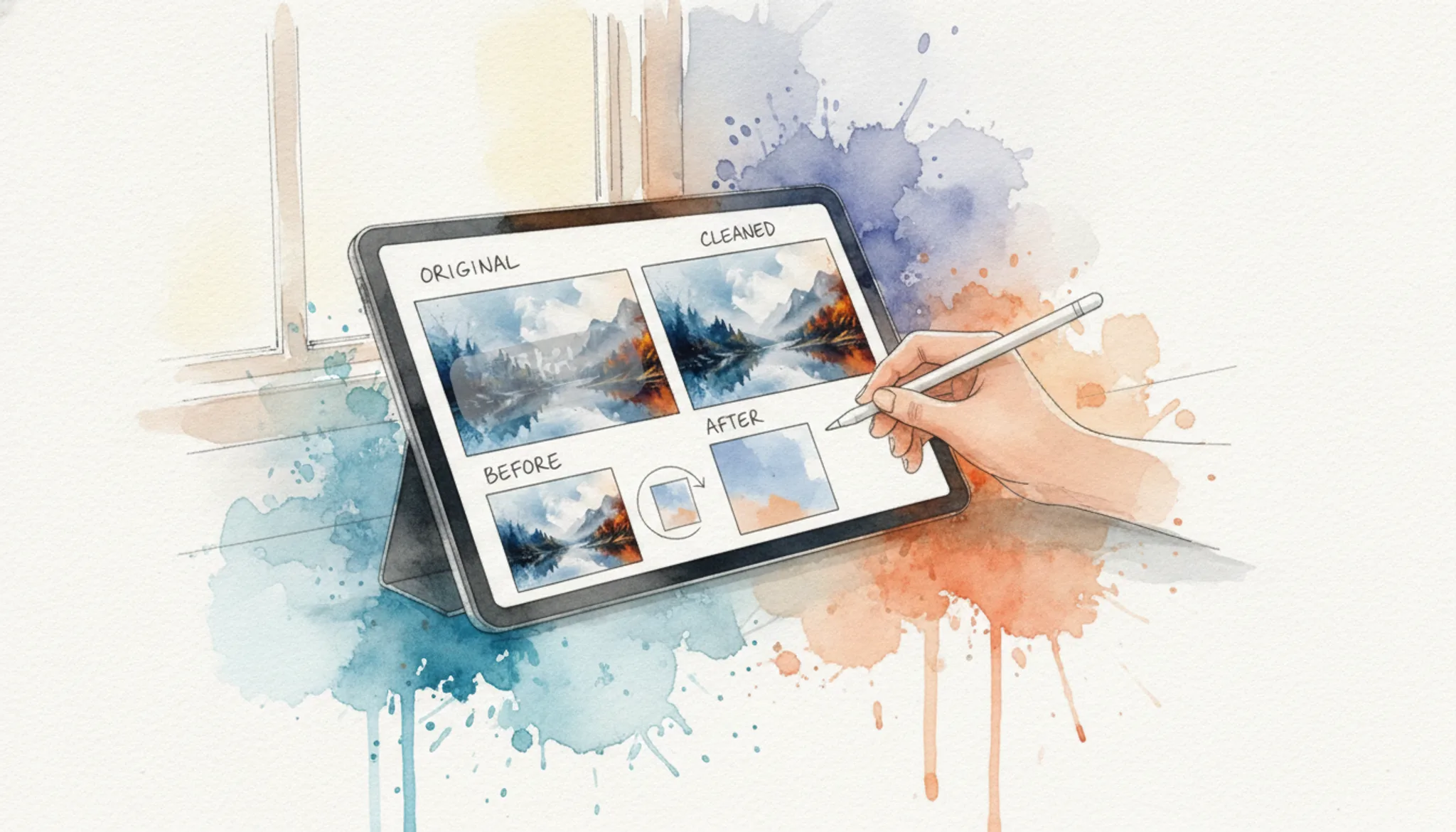
We evaluated each tool against three criteria: does it actually strip the hidden markers (zero-width characters, Unicode substitutes, and invisible metadata), how much manual cleanup does the output still need, and does it work in a browser without sending your text to a server. Most free watermark removers only handle visible image watermarks, not the invisible text markers that AI detectors flag. The tools below are the ones that pass all three checks.
The usual advice changes when you are working with mixed-language text or very short content (under 50 words). In those cases, even a good cleaner may leave detectable patterns because the statistical footprint is too small to scrub cleanly. For those edge cases, you will want a tool that reports exactly which markers it found and removed, so you can verify the result yourself.
For example, a 30-word email generated in ChatGPT and pasted into a detector may still flag even after cleaning; the removal report from AI Watermark Remover shows you exactly what it removed so you can decide if you need a second pass.
The 10 Best AI Watermark Cleaners for Text in 2026
- AI Watermark Remover: Strips zero-width characters, Unicode substitutes, and em dashes from ChatGPT, Claude, Gemini, and Grok. Runs in your browser for privacy, provides a removal report. Free for basic use; paid upgrade for batch processing. Best for: writers who need privacy and want to see what was stripped. Pricing: free tier; paid upgrade.
- EzRemove AI: Focuses on image watermark removal but also handles text-based markers in screenshots and document captures. Uses AI to reconstruct the area behind the watermark, which works well for visible watermarks on text images. Does not detect invisible Unicode markers, so zero-width characters remain. Best for: cleaning visible watermarks from screenshots of AI-generated text. Pricing: free with limitations; paid plans for higher resolution.
- Flat AI: Processes text and image watermarks with a focus on speed. Strips simple visible watermarks from text documents in seconds. Does not target invisible markers that AI detectors use. If your text contains zero-width joiners or Unicode control characters, you will need a second tool. Best for: quick cleanup of obvious watermarks on text-heavy images. Pricing: free tier; subscription for batch processing.

- EzMaker AI: No-sign-up approach for removing watermarks from images and text. Works well for visible overlays and simple text watermarks. Does not scan for or remove invisible Unicode markers. Use it as a first pass for visible marks, then a dedicated text cleaner for hidden ones. Best for: users who want to avoid creating an account. Pricing: free.
- Imastudio: Handles images, videos, and PDFs, useful if your AI-generated text is embedded in a document or screenshot. Removes visible watermarks from PDF pages and image files. Does not process plain text directly, so extract text first or work with the file format. Best for: cleaning watermarks from PDF exports of AI-generated content. Pricing: free with limits; paid plans for larger files.
- Manual Unicode stripping with regex: Write a simple regular expression to remove zero-width characters. The pattern `[\u200B-\u200D\uFEFF]` catches zero-width space, zero-width non-joiner, zero-width joiner, and byte order mark. Paste your text into any regex tester or code editor that supports find-and-replace with regex. Free and gives complete visibility into what gets removed. Requires some technical comfort and does not handle more complex markers like em dash substitutions. Best for: developers and technical writers who want to verify every character. Pricing: free.
- Paste into a plain text editor: Copy your AI-generated text, paste it into a plain text editor like Notepad (Windows) or TextEdit in plain text mode (Mac), then copy it back out. Strips most invisible formatting and Unicode control characters because plain text editors discard non-printing characters. Also removes intentional formatting like bold and italics, and may not catch all zero-width markers depending on the editor. Best for: a quick check when you do not have access to a dedicated tool. Pricing: free.
- Online Unicode character inspector: Tools like Unicode Character Detector or BabelMap let you paste text and see every character, including invisible ones. Manually identify zero-width characters and delete them. Gives complete control and helps you learn exactly what markers are in your text. Slow for long documents and requires manual removal of each marker. Best for: learning what invisible markers look like and auditing small pieces of text. Pricing: free.
- Browser developer tools character inspection: Open your browser's developer tools (F12 on most browsers), paste your text into the console or elements panel, and inspect the character codes. See every Unicode character including zero-width ones. Useful for verifying whether a cleaner actually removed all markers. Not practical for cleaning large amounts of text, but excellent for quality control. Best for: verifying that your chosen cleaner did its job. Pricing: free.
- Combination approach: regex + AI Watermark Remover: The most thorough method uses two passes. First, run your text through a regex find-and-replace to strip common zero-width characters. Then, paste the result into AI Watermark Remover to catch any remaining markers, including em dash substitutions and less common Unicode control characters. The removal report from the second pass tells you exactly what the regex missed. This combination catches nearly everything and gives you confidence that your text is clean. Best for: high-stakes content where detection is not an option. Pricing: free for the regex pass; free tier for AI Watermark Remover.
Frequently asked questions about AI watermark cleaners
What is an AI watermark cleaner?
An AI watermark cleaner is a tool that strips invisible markers from AI-generated text. These markers include zero-width characters, Unicode substitutes, and hidden metadata that detectors use to flag content as machine-written. The cleaner scans the text, identifies these markers, and removes them while leaving the visible content intact.
Does an AI watermark cleaner work on ChatGPT and Claude text?
Yes. Most AI watermark cleaners target the specific markers that systems like ChatGPT, Claude, Gemini, and Grok embed in their output. The cleaner identifies the zero-width spaces and Unicode variants each model uses, then strips them. The result is text that reads the same but no longer carries the invisible signature.
Will an AI watermark cleaner change my original writing?
No. A good AI watermark cleaner only removes invisible markers, not your actual words. It targets zero-width characters, Unicode substitutes, and em dashes that the AI system inserted. Your sentence structure, vocabulary, and meaning stay exactly as you wrote or edited them.
Is an AI watermark cleaner safe to use on sensitive documents?
It depends on where the processing happens. Tools like AI Watermark Remover process text entirely in your browser, meaning nothing is sent to a server. That makes them safe for confidential content. Other tools may upload your text to their servers, so check the privacy policy before pasting sensitive material.
For more on how we handle data, see our privacy page.
How do I know if an AI watermark cleaner actually removed the markers?
The best tools show you a removal report. AI Watermark Remover displays a count of zero-width characters removed, Unicode markers stripped, and em dashes cleaned. You can also paste the cleaned text into a Unicode character viewer to confirm no hidden characters remain. If the tool gives no feedback, test the output yourself.
Final verdict on AI watermark cleaners
If you are generating text with ChatGPT, Claude, or Gemini and need to strip the invisible markers before running it through a detector, AI Watermark Remover is the most direct option. It handles zero-width characters, Unicode substitutes, and em dashes in one pass, processes everything in your browser, and shows you exactly what it removed.
The one case where you should choose differently: if your workflow requires batch processing hundreds of documents at once, the free tier's single-text limit will slow you down. For everyone else, paste your text, click clean, and move on to your next task. For more tips on avoiding detection, check our blog.