You paste AI-generated text into a document, and the formatting breaks, invisible characters appear, or a plagiarism checker triggers a false positive. The hidden cause is an invisible AI watermark: zero-width characters or Unicode control codes embedded in the output. This is where an AI watermark detector like AI Watermark Remover can help.
After this, you will be able to spot those markers yourself, understand how the watermarking systems work, and run a quick check using an AI watermark detector to find what is hidden. No guesswork needed.
How can you detect AI watermarks in text?
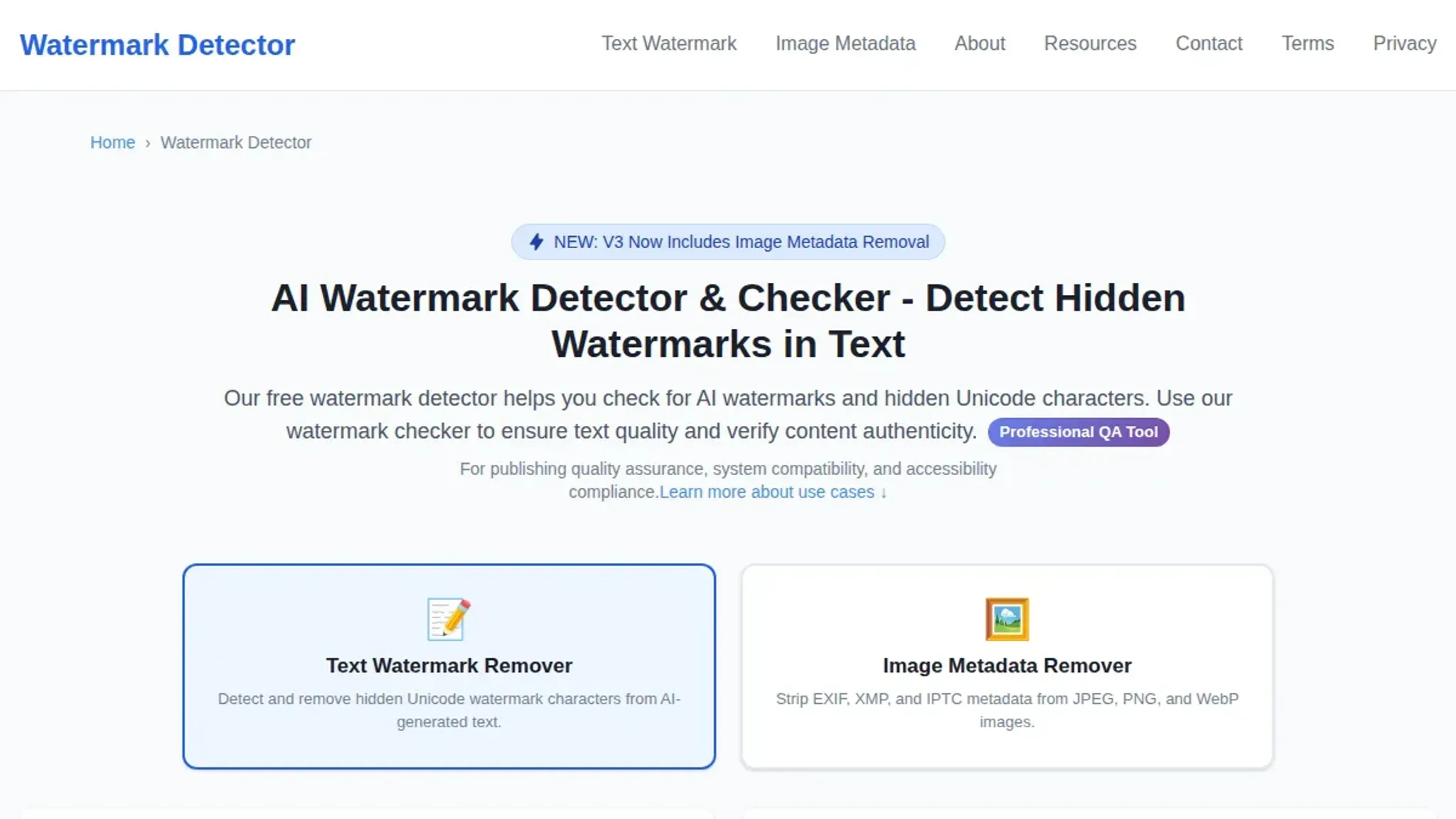
The most direct answer is to use a free AI watermark detector like watermarkdetector.com, which scans text for invisible Unicode characters (zero-width spaces, non-breaking spaces, em dashes) that AI systems embed as markers. Paste the suspicious text into the detector's field, click scan, and it highlights each hidden character in seconds. For a more thorough check, getgpt.app detects 34+ invisible character types and also removes them.
Detectors like slopornot.ai go further by reading SynthID and C2PA metadata in files, but those work on images and documents, not plain text.
What you'll need
Before you run your first scan, gather these three things:
- The text you want to check, paste it from ChatGPT, Claude, Gemini, or any other AI tool. The detector works on raw text, not PDFs or Word files.
- A browser with JavaScript enabled, the scan runs entirely in your browser, so no data leaves your machine. Chrome, Firefox, and Edge all work.
- A watermark detector URL, bookmark watermarkdetector.com or open it now. That's the tool you'll paste text into.

The detection workflow from start to finish
Before you run your first check, gather what you need. You will want the actual text you suspect contains watermarks, a browser tab open to your AI watermark detector of choice, and a plain text editor (Notepad, TextEdit in plain text mode, or VS Code) as a second place to inspect what you paste. The workflow below works for text from ChatGPT, Claude, Gemini, Grok, or any other AI assistant.
- Copy the text exactly as exported: Do not retype or rewrite it. Use the AI tool's native copy button if available, or select and copy the full response. Pasting into a word processor first (Word, Google Docs) can strip or rearrange invisible characters, so skip that step. The goal is to preserve whatever watermark bytes the AI embedded.
- Paste into the detector and scan: Go to your watermark detection tool's text input area and paste the content. Click the scan or check button. A good detector immediately highlights any hidden characters it finds. You will see either a count of flagged items (like "3 invisible characters detected") or a visual highlight in the text itself. If zero are detected, the text is clean of known watermark markers.
- Review the flagged positions in a raw text viewer: Copy the result report or the flagged text and paste it into a plain text editor that shows every character. In VS Code or Notepad++, enable "Show all characters" or "View whitespace" so zero-width spaces (U+200B) and zero-width non-joiners (U+200C) become visible as gray dots or special glyphs. This step confirms the detector is not a false positive, you literally see the invisible markers.
- Use a second detector for cross-verification: No single tool catches every watermark scheme. Paste the same text into a different AI watermark detector (try watermarkdetector.com if you used another first, or vice versa). Compare the flagged positions. If both agree on the same byte offsets, you have high confidence the watermark is real. If they disagree, the text may use a rare or custom embedding scheme.
- Remove the watermarks with a cleaning pass: If you need to strip the markers, use a dedicated removal tool, not your word processor's find-and-replace for zero-width characters, because you risk removing content you want to keep. Paste the text into an online cleaner or use a tool like getgpt.app/watermark that removes 34+ invisible Unicode characters in one pass. After cleaning, paste the result back into the detector to confirm zero flags remain.
- Test the cleaned text in your target destination: Open a new document in your word processor or CMS and paste the cleaned text. Check that formatting, paragraph breaks, and all visible characters survived intact. Run a second detection pass on the final pasted version, sometimes the destination app re-inserts invisible bytes during paste, especially in rich-text mode.
One common mistake: skipping step 3 and trusting a single detector's "clean" result. Some watermark schemes embed markers that only show up when the text is pasted into specific contexts (like a web form with character filtering). Always confirm with raw-text inspection before treating text as truly clean. For more on how detection works under the hood, see our how it works page.
Yes or no: did your watermark detection pass?
A quick checklist helps you verify each step before you trust the results.
| Task | Why it matters | Done |
|---|---|---|
| Paste raw text into the detector, not a screenshot | Invisible characters only survive in plain or rich text, not images | |
| Scan for zero-width characters (ZWSP, ZWNJ, ZWJ) | These are the most common AI watermark and appear as invisible bytes | |
| Check for hidden Unicode markers like U+2060 or U+FEFF | Word processors insert them; AI models also add them as watermarks | |
| Review the removal report after cleaning | The report shows exactly which characters were stripped and their count | |
| Compare cleaned text against the original side by side | Visual diff catches anything the scanner missed or misread | |
| Re-run the clean text through a second detector | Independent verification confirms all hidden markers are gone | |
| Check the detector's confidence score (e.g., 51% vs 95%) | A binary flag is less useful; 51% is noise, 95% is a signal | |
| Test a known clean text (e.g., a Wikipedia article) through the same detector | Establishes a baseline false positive rate for that specific tool |
One practical tip: keep a copy of the original paste before you run any detection. If the tool reports zero removals when you expected some, paste the original into a hex viewer like Hex Fiend for macOS or the free online UTF-8 encoder decoder at Babelstone. That gives you a literal character-by-character view and removes any doubt about false negatives.
Edge case to watch for: some detectors flag repeated whitespace or tab characters as a watermark signature. If your text uses intentional indentation (code blocks, poetry, formatted lists), check that the removal report does not strip those. A good detector distinguishes structural whitespace from hidden watermark padding. If it does not, you need a different tool for that input type.
Expert tip: when AI watermark detectors fail
> "SynthID does not guarantee unambiguous identification of AI-generated content in all situations…" , Google DeepMind, SynthID documentation
The most common failure point has nothing to do with the detector's accuracy. It happens when the text underwent modification before you checked it: a spell-checker removed zero-width spaces, a CMS stripped Unicode markers during paste, or the AI model that generated it used a watermark scheme the detector does not recognize.
If your detector returns "no watermark found" on text you know came from an AI, the first thing to verify is whether the invisible markers survived the journey from generation to your clipboard. Check our pricing page to see which detection tiers match your workflow.

Frequently asked questions about detecting AI watermarks
What is an AI watermark detector?
An AI watermark detector is a tool that scans text for invisible Unicode characters AI systems embed in their output. These include zero-width spaces, non-breaking spaces, and special markers that indicate the content came from ChatGPT, Claude, Gemini, or similar tools. The detector highlights each hidden character so you can see and remove them.
Can watermark detection identify which AI model generated the text?
Most detectors can tell you that watermarks exist, but not which model placed them. Different systems use different markers. ChatGPT, Claude, and Gemini each embed distinct combinations of zero-width characters. A few specialized checkers can distinguish between them, but most simply flag the presence of any hidden content.
Why would I need to check text for watermarks?
You might see formatting glitches in a document editor, get a false positive from a plagiarism checker, or need to verify whether a piece of text was AI-generated. Watermark detection confirms whether those invisible markers are present, which explains the weird behavior and lets you clean the text.
Can I detect watermarks manually without a tool?
Technically yes, but it is impractical. You can copy text into a Unicode character inspector and scroll through every character, looking for invisible ones. Realistically, that takes minutes for a single paragraph and misses subtle markers. A purpose-built AI watermark detector does the same scan in under a second and catches every hidden character reliably.
Do watermark detectors work on images or audio?
The tools covered here check text only. SynthID from Google DeepMind adds visible and invisible watermarks to generated images and audio, but detecting those requires specific image or audio analysis tools. Text watermark detectors and image watermark detectors are separate categories.
The final takeaway on AI watermark detection
Paste your suspect text into AI Watermark Remover, scan the results, and you will know within seconds whether invisible watermarks are present. If the detector flags zero-width characters, clean the text with the same tool in one click.
Choose a different path only when your workflow demands a solution that processes text server-side or integrates with a content management system. For the vast majority of writers and editors checking a passage for hidden markers, the browser-based approach is the fastest and most private option. No sign-up, no uploads, no lingering questions.
Try it yourself: paste text into AI Watermark Remover and see the hidden markers in seconds.