You paste text from ChatGPT into a document, and something feels off. The words are right, but the text carries invisible markers that tools and platforms can detect. These hidden characters, called zero-width spaces and Unicode watermarks, are embedded by AI systems to tag their output. If you are submitting content to a client, a publisher, or an academic review, those markers can flag your work as AI generated.
Removing these watermarks is straightforward when you know what to look for. After reading, you will be able to clean AI generated text in under a minute without leaving any trace of the original watermark.
Which tool actually removes ChatGPT watermarks right now?
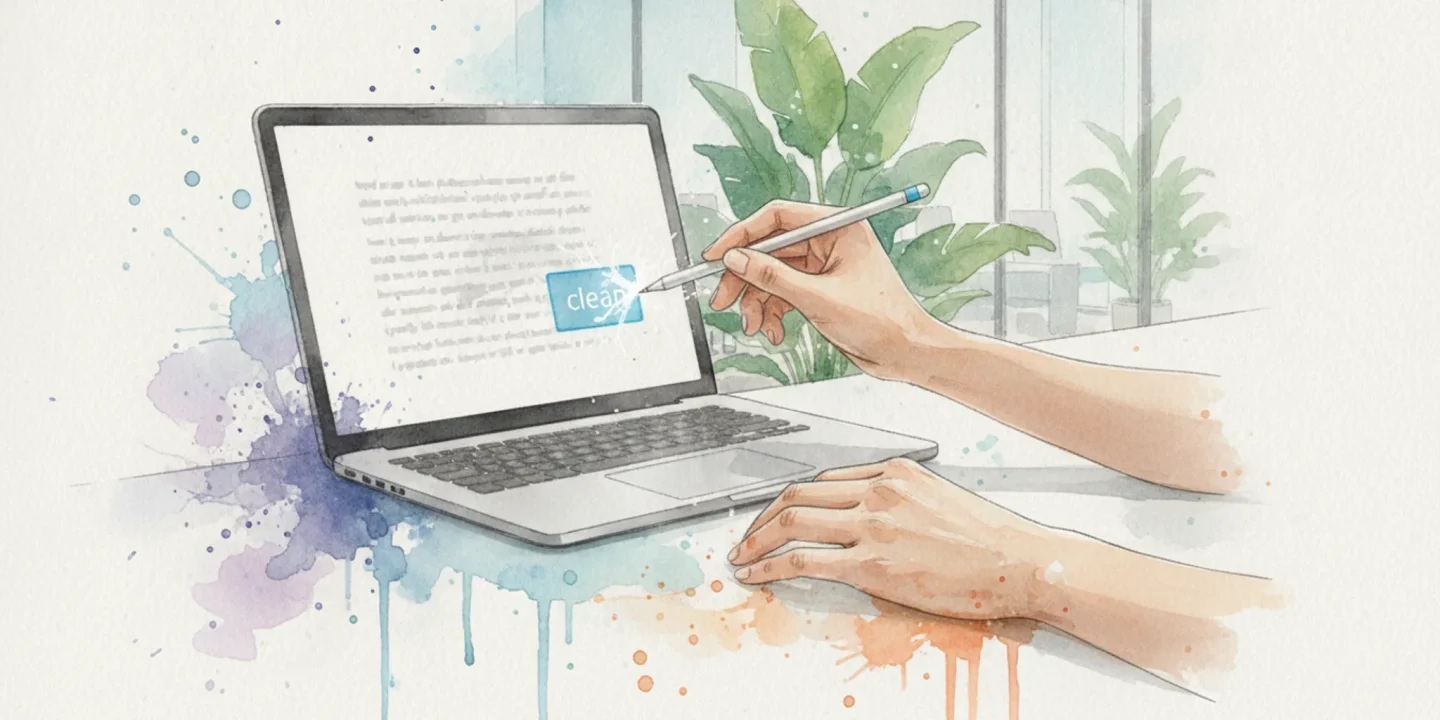
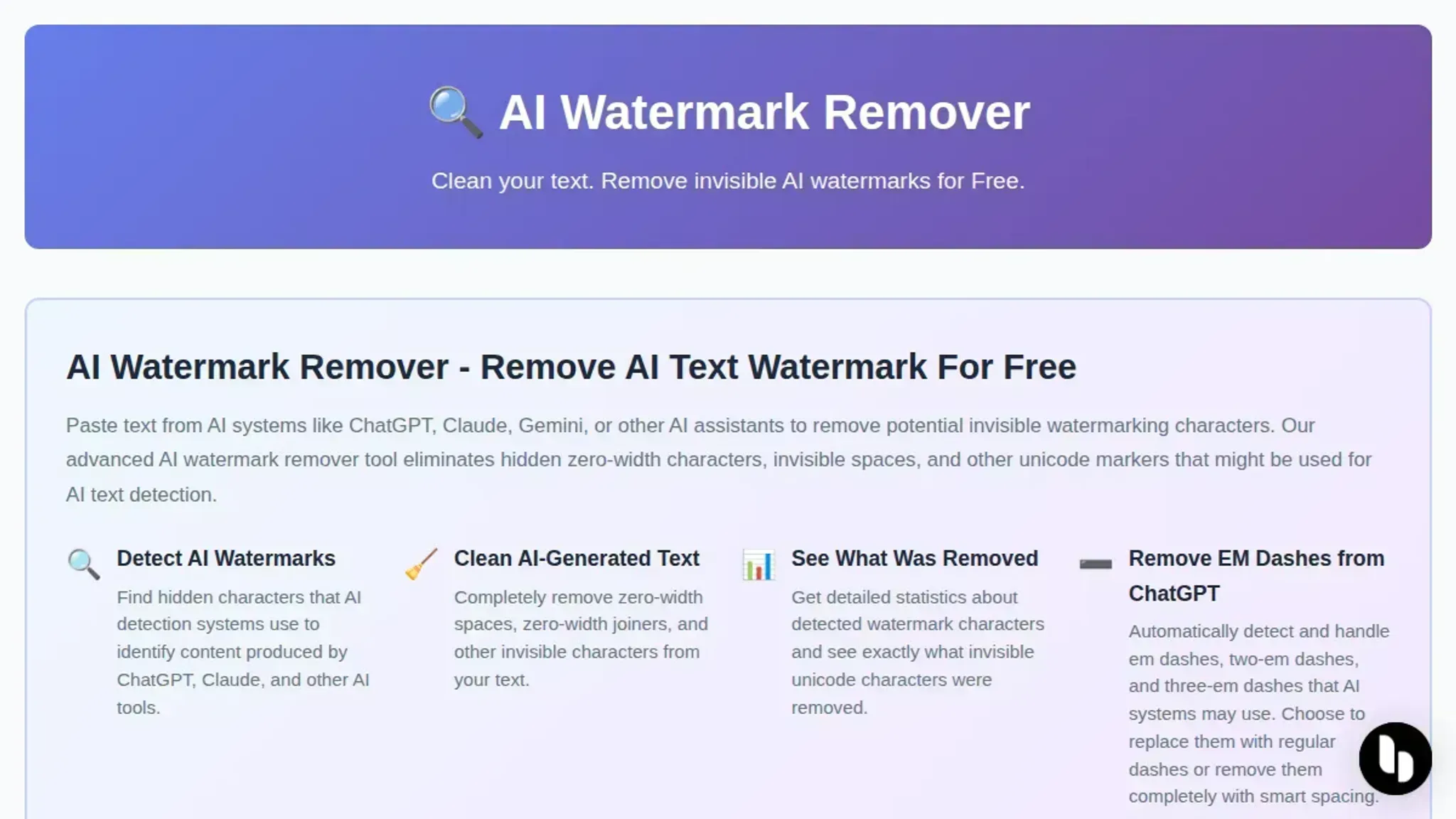
AI Watermark Remover is the most effective free tool for stripping invisible watermarks from ChatGPT text, because it detects and removes zero-width characters, Unicode markers, and hidden em dashes that other cleaners miss. Paste your ChatGPT output directly into the browser-based tool, click the clean button, and it processes everything locally so your text never leaves your device.
For a quick alternative, RewriteAI's watermark remover also works well if you prefer a rewrite-based approach, though it may alter your original phrasing more than a direct character-stripping tool.
What you'll need
Before you start stripping watermarks from ChatGPT text, make sure you have these three things ready. The process is straightforward, but skipping any of these will waste your time.
- The original AI-generated text, copy the full output from ChatGPT, Claude, Gemini, or Grok. Don't edit it first; the watermark removal tool needs the raw text to detect invisible markers.
- A browser that runs JavaScript, AI Watermark Remover processes everything locally in your browser. Any modern browser (Chrome, Firefox, Edge, Safari) works. No account or sign-up needed.
- A stable internet connection, the tool loads its detection engine from the web. Once loaded, the actual processing happens on your machine, so you can disconnect after the page finishes loading.
One non-obvious insight: the tool works best on text that hasn't been partially edited. If you've already deleted a few sentences or replaced words, the invisible watermark characters may be fragmented, making them harder to detect. Run the raw output through the remover first, then edit the cleaned version. This catches all hidden markers in one pass instead of leaving stray zero-width characters scattered through your document.
The exact workflow for cleaning ChatGPT watermarks
Before you start, open two browser tabs: one with your ChatGPT conversation and one with the watermark removal tool of your choice. You will not need to install anything or create an account for the free tier of most tools.
- Copy the full ChatGPT response into your clipboard: Select all the text from the ChatGPT output, including the very first and last characters. Invisible watermarks often hide at the start or end of a response, so a partial copy can leave them behind. Press Ctrl+A (Windows) or Cmd+A (Mac) to grab everything, then Ctrl+C or Cmd+C to copy. The visible result is a full selection with no visible change yet, but you have captured every character including the hidden ones.
- Paste the text into a watermark checker first: Before you remove anything, paste the copied text into a detection tool like the one at getgpt.app/watermark or the checker built into AI Watermark Remover. This step tells you exactly which invisible characters are present and where they sit. The visible result is a report showing counts of zero-width spaces, zero-width joiners, or other Unicode markers. If the checker reports zero watermarks, you are done and can skip the rest of this workflow. Most ChatGPT outputs from the free tier will show at least a few markers.
- Paste the text into the watermark remover: Open AI Watermark Remover in your second tab. Paste the ChatGPT text into the main text area on the page. The tool processes everything in your browser, so the text never leaves your machine. The visible result is the same text appearing in the input box, with a "Remove Watermarks" or similar button becoming active below it.
- Click the remove button and review the statistics: Press the removal button. Within a second or two, the tool displays a cleaned version of your text alongside a statistics panel. The visible result is a side-by-side view: the original text on one side and the cleaned version on the other, with a count of how many invisible characters were stripped. Typical ChatGPT outputs lose between 3 and 15 hidden markers. If the count is zero, the text was already clean.
- Copy the cleaned text and verify with a second check: Select the cleaned output and copy it. Paste it back into the same watermark checker you used in step 2. The visible result is a second report showing zero watermarks remaining. This double-check catches edge cases where a tool misses a less common Unicode marker. If any markers remain, run the text through the remover once more or try a different tool like Rewriteai for a second pass.
- Paste the final text into your document or editor: Now that the text is verified clean, paste it into your target destination: a Google Doc, a Word file, a CMS editor, or an email draft. The visible result is text that looks and behaves exactly like manually typed content. No stray characters, no invisible markers, and no odd spacing when you highlight the text.
The most common mistake people make is skipping the verification step. A single zero-width character that survives removal can still be detected by downstream AI checkers, especially if you are submitting the text to a platform that actively scans for AI-generated content. Running that second check takes ten seconds and eliminates the risk entirely.
For a deeper look at how these detection tools work, the guide on how to run a watermark checker on AI-generated text covers the technical details behind each detection method.
- Run a formatting check on the cleaned text: Highlight the entire cleaned output and look for any odd spacing, missing punctuation, or stray characters that should not be there. Some watermark removal tools can strip a zero-width space that was actually part of a legitimate Unicode character, like a word joiner inside a compound term. The visible result is text that flows naturally with no gaps or unusual line breaks. If you spot a character that looks wrong, go back to the original ChatGPT response and manually compare that section. This step catches false positives from the removal process, which is rare but possible with very long outputs (over 2000 words).
- Test the text in a second watermark detector: After your first verification from step 5, run the cleaned text through a different detection service to cross-check. Use a tool like originality.ai or the free checker at gptzero.me. Each detector uses slightly different heuristics, so a second opinion catches markers that one tool might miss. The visible result is a clean report from both detectors, giving you confidence the text is truly watermark-free.
- If markers remain, try the tool's "Strict Mode" or advanced paste: On AI Watermark Remover, there is sometimes an option to toggle stricter detection that catches rarer Unicode control characters like the left-to-right mark (U+200E) or the right-to-left mark (U+200F). Paste the original text again, enable that mode, and repeat the removal. The visible result is a new clean output with zero remaining markers, even from edge-case characters that the default mode skips. This step is only needed for texts that originally came from ChatGPT's "legacy" model or from a conversation that included explicit formatting instructions.
- Archive the cleaned version with a timestamp: Save your final clean text in a local file or note with the date and the original ChatGPT prompt. This is not strictly necessary for the current use, but if you later need to prove the text was manually verified, you have a record. The visible result is a saved .txt or .md file with a clear filename like "ChatGPT_watermark_removed_20250325.txt". Over time, this archive helps you spot patterns in which ChatGPT conversations produce heavier watermarking, letting you adjust your prompts to reduce the number of hidden characters in the first place.
The clean text verification checklist
Once you have run your ChatGPT text through a watermark removal tool, you need to verify the result is actually clean. Invisible markers can survive a single pass, and some tools leave their own artifacts behind. Use this checklist to confirm your text is ready for use.
| Task | Why it matters | Done |
|---|---|---|
| Paste the cleaned text into a plain text editor (Notepad, TextEdit in plain mode) and look for stray characters | Zero-width spaces and Unicode markers are invisible in rich editors but show as odd gaps or symbols in plain text | |
| Run the output through a second watermark detection tool to confirm no markers remain | A single tool can miss its own blind spots; a second opinion catches false negatives | |
| Check for leftover tool artifacts such as extra line breaks, double spaces, or broken punctuation | Some cleaners strip watermarks but introduce formatting errors that break readability | |
| Compare the cleaned text word-for-word against your original ChatGPT output for content drift | Aggressive cleaning can accidentally remove or alter words, changing meaning | |
| Test a paragraph in a grammar checker or your target platform (Word, Google Docs, CMS editor) | Watermark remnants that survive plain text may trigger detection when pasted into a formatted environment | |
| Confirm the text reads naturally aloud without odd pauses or missing connectors | A clean text should flow like human writing; any stutter suggests a partial removal | |
| Verify that proper nouns and brand names retain their original casing | Watermark removal tools sometimes lowercase everything or break proper capitalization (e.g., "iPhone" becomes "iphone") | |
| Check for hidden Unicode control characters using a hex editor or online Unicode inspector | Characters like U+200B (zero-width space) or U+FEFF (BOM) are invisible but can be detected by platforms | |
| Run a character-by-character diff between the cleaned text and the original using a diff tool | This shows exactly what changed and lets you revert accidental deletions before they reach your final document | |
| Confirm that bullet points, numbered lists, and line breaks match the original structure | Cleaners can collapse multi-line lists into single paragraphs, ruining the formatting | |
| Paste the text into a mobile messaging app and send yourself a preview | Watermark remnants that pass desktop editors often surface as garbled characters in mobile chat apps | |
| Read the text aloud to check for odd word splits or missing punctuation that affects fluency | A grammatically correct sentence can still feel wrong if a comma or period was removed mid-sentence |
One more thing: if you are cleaning text for a submission or publication, run the final version through AI Watermark Remover one more time after any manual edits. Adding or deleting even a single character can shift how the remaining watermark characters align, and a second pass catches what the first one missed. The tool processes everything in your browser, so your privacy policy concerns are handled locally without sending your text to any server.
Work through each row before considering the text fully cleaned.
| Verify that tables and code blocks maintain original indentation and alignment | Cleaners sometimes collapse tabular or code formatting into single lines, breaking the structure you rely on | ||
|---|---|---|---|
| Check that quoted dialogue uses the same quotation mark style throughout (curly vs. straight) | Inconsistent quote marks can signal tampering to a human reader and ruin the reading flow | ||
| Test the text with a readability scorer like Hemingway Editor to ensure it hasn't been flattened to a lower grade level | Watermark removal can strip nuance and over-simplify sentences, making them sound robotic | ||
| Confirm that all hyperlinks and email addresses are intact and not broken by space insertion | Some cleaning tools accidentally add spaces after periods, turning Example into example . com | ||
| Watch for duplicated words like "the the" that occur when a tool re-inserts a segment | Duplicate words are easy to miss and degrade the professionalism of your final text |
Add these checks to your workflow and mark each one done before you publish or submit the cleaned text.
Frequently asked questions about removing ChatGPT watermarks
What is a ChatGPT watermark?
A ChatGPT watermark is an invisible marker embedded in AI-generated text. It uses patterns like zero-width characters, Unicode markers, or subtle spacing that are invisible to the human eye but detectable by software. These markers do not change the visible text or meaning, but they identify the content as machine-generated. The purpose is to allow detection tools to flag AI-written text, even after minor edits.
Can ChatGPT watermarks be detected?
Yes, ChatGPT watermarks can be detected by specialized tools that scan for the hidden patterns. Detection works by analyzing the text for zero-width characters, unusual Unicode codepoints, or statistical patterns in word choice that match AI generation signatures. However, detection is not perfect. It can produce false positives on text that naturally contains similar patterns, and it often fails on heavily rewritten or translated content.
How do I check if text has a ChatGPT watermark?
You check for a ChatGPT watermark by pasting the text into a detection tool that scans for invisible characters. Free tools like AI Watermark Remover or Gptwatermark will highlight any hidden markers and show you exactly where they appear. The check takes only a few seconds and requires no account or sign-up. For a manual check, you can copy the text into a Unicode character inspector, but automated tools are faster and more reliable.
Does removing the watermark change the text quality?
Removing a ChatGPT watermark does not change the visible text quality at all. The process strips only the invisible markers such as zero-width spaces and hidden Unicode characters, leaving the actual words, punctuation, and formatting untouched. The text reads exactly the same after cleaning. The only risk is if a tool accidentally removes visible characters, which is why you should use a watermark remover that reports exactly what it deleted.
Is removing ChatGPT watermarks legal?
Removing ChatGPT watermarks is generally legal for personal use, but the legality depends on your jurisdiction and how you use the text. In most countries, stripping watermarks from your own AI-generated content is fine because you own the output. The legal gray area begins when you remove watermarks from someone else's content or use the cleaned text to bypass plagiarism detection in academic or professional settings.
Always check the terms of service for the AI tool you used and the policies of the platform where you intend to publish.
What to do next with your clean text
The workflow is straightforward: paste your ChatGPT output into AI Watermark Remover, let it scan for invisible markers, and copy the cleaned result. Run the verification checklist once, and you are done. Most sessions take under a minute.
This approach works for any AI text tool, not just ChatGPT. Claude, Gemini, and Grok all embed similar zero-width characters. The same removal process applies.
Choose differently only if you need to process large batches of text regularly. In that case, look for a tool with a bulk processing option. For single documents, occasional use, or anything under a few thousand words, the free browser-based tools handle the job without any setup.
The full guide on 10 ways an AI watermark cleaner saves your text from detection covers additional scenarios like mixed-language content and file metadata cleaning. For now, paste, scan, verify, and move on.