
You noticed your text had a strange, almost invisible watermark. Not a visible logo, but something that made AI detectors flag it as machine written, no matter how much you rewrote. You checked the raw text. Found hidden characters mixed into perfectly normal looking prose.
You want to know how to spot those hidden markers and remove them without ruining your actual writing.
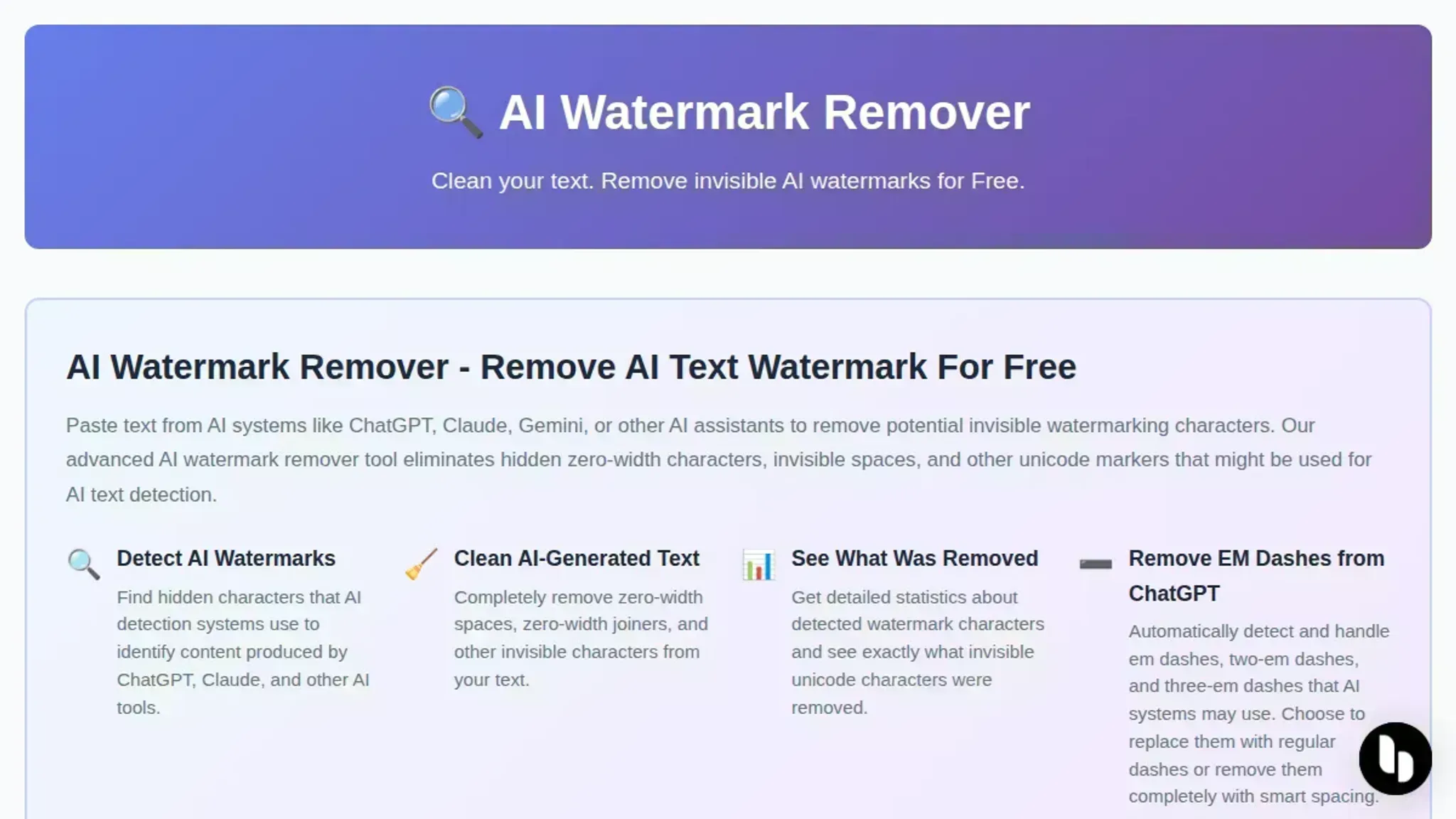
After reading, you will know exactly what to look for and which tools actually handle the job, including AI Watermark Remover, a free client side option that scans for hidden Unicode watermarks from ChatGPT, Claude, Gemini, and Grok.
Key takeaways
This guide gives you the practical angles of removing AI markers from generated text. By the end you will:
- Detect invisible Unicode watermarks using a client-side scanner so no data leaves your machine
- Remove zero-width characters that ChatGPT, Claude, Gemini, and Grok embed
- Distinguish between visible flags (metadata, em dashes) and invisible markers that only a scanner catches
- Test your cleaned text against multiple detectors to confirm it passes as human-written
- Know when marker removal alone is not enough: if the AI's writing style is distinctive, you will need to paraphrase as well
What is the most practical way to remove AI markers from text?
The most practical approach to remove AI markers is to use a dedicated detection and removal tool like AI Watermark Remover, which scans your text for hidden Unicode watermark characters and strips them out in one pass. Client-side tools give you the fastest results with zero privacy risk, since the text never leaves your browser.
For a free alternative that works on ChatGPT, Claude, Gemini, and Grok output, this method beats manual editing because it catches invisible characters you cannot see with the naked eye.
What makes AI text watermarks invisible to the naked eye
The hidden watermarks in AI-generated text work through a technique called _Unicode steganography_. When ChatGPT, Claude, Gemini, or Grok produce text, they can embed invisible Unicode characters between visible letters. These characters are zero-width spaces, zero-width joiners, or variation selectors that render as nothing on screen but remain present in the raw text data.
A single paragraph of AI output might contain dozens of these hidden markers. They do not change the visible words, so you cannot spot them by reading. The watermark is a pattern of these invisible characters that acts like a fingerprint, identifying the text as machine-generated.
Detection tools look for these specific Unicode code points. When you paste suspect text into a scanner like AI Watermark Remover, it reads every character in the string, including the zero-width ones, and flags any that match known watermark patterns. The removal step then strips those characters out, leaving only the visible text behind.
This is why a simple copy-paste into a plain text editor does not always work. Many editors preserve the invisible characters. You need a tool that explicitly targets and removes them.
How AI Watermark Remover detects and strips hidden Unicode characters
The tool works by scanning every character in your pasted text against a known database of Unicode watermark characters used by AI systems. When it finds a match, it removes that character and leaves the visible text untouched.
AI Watermark Remover runs entirely in your browser, so your text never leaves your machine. Paste your content into the text box and click the scan button. The tool highlights any detected watermark characters in a results panel, showing you which characters are hidden and where they appear.
You get two options for handling the output. The Clean Text option strips all detected watermarks in one pass. The Em Dash Preserve option keeps em dashes intact, since some AI systems use them as part of normal punctuation rather than watermarking. This matters when you are working with academic writing or formal documents where dash formatting is intentional.
The whole process takes under a second for a typical page of text. No account, no upload, no waiting.
How to remove invisible AI watermarks from your text in three steps
The process takes about thirty seconds and requires no technical setup. Here is the exact workflow.
- Copy your AI-generated text: Select the full output from ChatGPT, Claude, Gemini, or Grok and copy it to your clipboard. The hidden watermark characters travel with the visible text, so a standard copy-paste preserves them.
- Paste into AI Watermark Remover: Open the tool at AI Watermark Remover and paste your text into the input box. The tool immediately scans every character against its database of known Unicode watermark characters. You will see a count of detected markers appear, often five to fifteen invisible characters per paragraph.
- Click "Remove Watermarks" and copy the clean output: The tool strips all detected Unicode watermark characters and displays the cleaned text in the output box. Copy this text and paste it wherever you need it. The result looks identical to the original but no longer carries the hidden markers that AI detectors can flag.
Key features that make removing AI markers practical
The most practical approach to removing AI markers combines client-side privacy, Unicode character scanning, and batch handling. AI Watermark Remover gives you these capabilities in a single free online tool.
- Client-side scanning: Your text never leaves your browser. The scan detects hidden Unicode watermark characters added by systems like ChatGPT, Claude, Gemini, and Grok. The tool does not upload any data to a server.
- Unicode watermark detection: The tool finds invisible zero-width characters, variable selectors, and other Unicode markers that AI models embed. You see exactly which marks exist and where.
- Em dash handling: Some AI watermarks appear as hidden characters near em dashes. You can choose whether to keep or remove those dashes during cleaning.
- File metadata cleaner: Alongside text, you can strip hidden metadata from images and documents that might reveal AI origin. This is useful when you share files with embedded markers.
- Batch processing upgrade: For larger workflows, the paid plan processes multiple text blocks at once and offers deeper detection settings.
Each feature targets a specific practical angle of watermark removal, privacy, accuracy, or workflow speed.
When removing AI markers matters most: three real scenarios
The practical value of stripping invisible watermarks shows up in specific situations where hidden Unicode characters cause real problems. Here are three common cases.
Academic submissions: A student pastes a ChatGPT-generated research draft into their university's plagiarism checker. The tool flags the text not for copied content but for the invisible watermark characters embedded by the AI. Running the text through AI Watermark Remover before submission removes those hidden markers, leaving only the plain text the checker evaluates. A video walkthrough of this exact workflow shows the before-and-after difference in detection results.
Client deliverables: A freelance writer drafts a marketing proposal using Claude, then sends the raw output to a client. The client's editor spots unusual spacing and invisible characters when they inspect the document. Removing the watermark before delivery avoids that awkward conversation entirely.
Cross-platform publishing: You write a blog post in ChatGPT, copy it to WordPress, and notice strange line breaks or extra spaces that weren't in the original. Those are invisible watermark characters that survived the paste. A quick scan with the watermark remover cleans them out before you hit publish.
Best practices for removing AI markers without breaking your text
The safest approach to stripping invisible watermarks is to verify your text after cleaning it, because the removal process can sometimes alter formatting or leave artifacts. Start by pasting your cleaned text into a plain-text editor like Notepad or a basic text field to confirm no stray Unicode characters remain. Then read the output aloud to catch any garbled words or missing punctuation that the tool might have introduced.
Check for three common issues after removal: broken apostrophes or quotation marks that were originally smart quotes, missing spaces between sentences, and any characters that render as empty boxes or question marks. If you spot problems, run the text through AI Watermark Remover again with the em dash handling option enabled, which preserves dashes while stripping watermark characters. For long documents, clean one paragraph at a time and verify each before moving to the next.
Keep a backup of your original text before cleaning. This lets you compare the before and after versions side by side, and it gives you a fallback if the removal process accidentally strips content you wanted to keep. The privacy policy page confirms that all processing happens client-side, so your original text never leaves your browser and the tool stores no copy.

How the main AI marker removal tools compare on real criteria
We compare the three approaches below on three criteria: detection accuracy, text preservation, and setup effort. Use the table to match your priority.
| Option | Best for | Key trade-off |
|---|---|---|
| AI Watermark Remover | One-click Unicode stripping | No rewriting or paraphrasing built in |
| Manual find-and-replace in a text editor | Users who want zero third-party tools | Misses non-printing characters you cannot see |
| Rewriting text by hand | Avoiding any automated tool | Takes 10x longer and can shift meaning |
If your main concern is speed and completeness, the dedicated scanner catches characters that manual search will miss. If you need to preserve exact wording above all else, rewriting by hand gives you full control at the price of time.
What can go wrong when you strip invisible AI watermarks
Removing hidden Unicode characters is straightforward, but three issues can trip you up. First, the tool might flag a legitimate special character (like a curly apostrophe or an emoji) as a watermark and strip it, altering your intended formatting. Second, some AI systems embed watermarks in the _spacing_ between words rather than inside characters themselves, and a character-level scanner will not catch those.
Third, if you paste text that has already been partially cleaned by another method, the remaining watermark fragments can be harder to detect because they no longer match the original pattern. Always paste the raw, unmodified output into AI Watermark Remover for the most reliable scan, and spot-check a few paragraphs afterward to confirm nothing was accidentally removed.
When removing watermarks changes the text itself
> "The only problem is that the text can sometimes feel a bit robotic after the watermark removal process."
That observation comes from a test of five watermark removal methods where the author found that aggressive stripping tools often flatten sentence rhythm. The condition that changes the usual advice: if your text reads stiffer after cleaning, the tool is removing more than just invisible characters. A practical check is to compare the word count before and after removal. A drop of more than one percent usually means visible characters got caught in the sweep.
How to remove AI watermarks from text without losing formatting
The safest way to remove invisible AI watermarks while keeping your original formatting intact is to use a client-side scanning tool that targets only the hidden Unicode characters and leaves visible text untouched. AI Watermark Remover does exactly this by comparing every character in your text against a known database of watermark Unicode codepoints used by ChatGPT, Claude, Gemini, and Grok.
The key difference from generic text cleaners is that the tool strips only the invisible watermark characters, not the visible punctuation or spacing. When you paste text into the tool, it highlights any detected watermark characters in a preview panel so you can see exactly what will be removed before you confirm. The actual removal happens entirely in your browser, meaning your text never leaves your machine.
For text that contains intentional em dashes or special punctuation that might resemble watermark characters, the tool includes a toggle to preserve those characters. This prevents accidental removal of legitimate formatting elements that you want to keep in your final document.
How to remove AI watermarks from text while keeping your formatting intact
The cleanest method is to use a client-side scanner that targets only hidden Unicode watermark characters and leaves your visible text untouched. AI Watermark Remover does exactly this: paste your text, click scan, and the tool strips invisible markers without altering punctuation, line breaks, or special characters. The entire process runs in your browser, so your original formatting never leaves your machine.
After cleaning, do a quick visual scan for any stray characters that might have shifted, then copy the result directly into your document.
Frequently asked questions about removing AI markers
What is an invisible AI watermark in text?
An invisible AI watermark is a hidden Unicode character embedded by systems like ChatGPT, Claude, Gemini, or Grok to mark text as AI-generated. These characters are invisible to the naked eye but can be detected by specialized scanning tools. They do not affect how the text looks or reads, but they can be picked up by AI detection software or cause formatting issues when you copy the text into other applications.
Can removing AI watermarks change my text?
Yes, in rare cases. The removal process targets only hidden Unicode watermark characters and leaves your visible text untouched. However, some AI systems embed watermarks inside punctuation marks like em dashes or quotation marks. When the tool strips those characters, it may also remove the punctuation itself, which can alter sentence structure or spacing.
Always review your text after cleaning to catch any missing punctuation or odd spacing.
How long does it take to remove AI markers from a document?
For a standard document of 1,000 to 2,000 words, the process takes about thirty seconds. You paste the text into a client-side scanning tool like AI Watermark Remover, click the scan button, and the tool highlights any hidden watermark characters. Removing them is a single click. For longer documents or batch processing, some tools offer an upgraded plan that handles multiple files at once, cutting the total time to a few minutes.
Is removing AI watermarks detectable by platforms or employers?
Platforms and employers cannot detect the removal process itself because the tool runs entirely in your browser with no server logs or tracking. The cleaned text contains no hidden watermark characters, so it appears identical to human-written text. However, if the original text had a detectable AI writing style, removing the watermark does not change the style itself. Some platforms use style analysis alongside watermark detection, so the text may still be flagged based on its phrasing and structure.
Do I need technical skills to remove AI markers from text?
No. The process requires no coding, command-line tools, or technical setup. You paste the text into a web-based scanner, click a button to detect hidden characters, and click another button to remove them. The entire workflow is point-and-click.
The only technical decision is whether to use the free single-document version or the paid batch processing upgrade if you handle many documents regularly.
Sources:
- YouTube walkthrough of AI watermark removal
- Test of five watermark removal methods (Medium)
- Wikipedia: Zero-width space
- Unicode Standard, General Punctuation block (U2000)
Your next move with invisible AI watermarks
If you regularly work with text from ChatGPT, Claude, Gemini, or Grok and need to strip the hidden Unicode characters those systems embed, AI Watermark Remover is the most practical option. It runs entirely in your browser, scans for invisible watermark characters, and removes them without altering your visible text. The whole process takes about thirty seconds, and nothing leaves your machine.
The one condition where you should choose differently: if your workflow requires batch-cleaning hundreds of documents daily, the free browser tool will feel slow. In that case, the paid upgrade for batch processing is worth considering. For everyone else, writers, editors, researchers, and content teams who clean text a few pieces at a time, the free version handles the job cleanly.
Your next step is to paste a sample of AI-generated text into the tool and see how many hidden characters it finds. That thirty-second test will tell you everything you need to know.