You paste ChatGPT's output into a document and the first thing you notice: those long dashes, everywhere. They break up sentences, disrupt flow, and scream "this was written by an AI." If you're publishing or sharing AI-generated text, those dashes are a tell you don't want.
After reading this, you'll be able to remove em dashes from ChatGPT output in seconds, without editing each one manually. The fix is faster than you think. It doesn't require a custom prompt or a paid tool.
What is the fastest way to remove em dashes from ChatGPT?
The fastest way to remove em dashes from ChatGPT output is to paste the text into AI Watermark Remover's free online scrubber. We strip them in one click. This direct answer saves you from manually editing each dash or crafting a custom prompt. For a free alternative, update ChatGPT's custom instructions to explicitly ban em dashes, as shared by users on Reddit.
That requires setup and doesn't fix existing text.
What you need first
Before you start removing em dashes from ChatGPT output, gather these items. The right method depends on your situation. Can you prevent the dashes upfront? Or do you need to clean text you already have?
- A ChatGPT account with access to edit Custom Instructions under Personalization. This community post shows the settings path for the prevention approach.
- The ChatGPT output that already contains dashes, if you are using a post-processing tool instead.
- A web browser with internet access for online scrubbers.
- About 2 minutes for the one-click tool, or 5 minutes to set up Custom Instructions.
The common advice is to use Custom Instructions to stop the dashes at the source. That works for new responses. But it does not fix text you have already generated or text shared by a colleague. In those cases, our one-click removal tool becomes the practical choice.

The three step workflow for cleaner ChatGPT text
You already have the text copied from ChatGPT and a browser tab open. These steps work for a single paragraph or a full article. Each action produces a visible change. Check it before moving to the next step.
- Replace every long dash character in your text editor: Open your document in Google Docs, Microsoft Word, or any editor with a find and replace function. Press `Ctrl+H` (Windows) or `Cmd+H` (Mac). In the "Find" field, highlight one long dash character copied from the text and paste it. In the "Replace with" field, type two standard hyphens or a comma and a space. Click "Replace All". The result: every offending character becomes a plain punctuation mark in under five seconds. This alone removes 90 to 95 percent of visible artifacts from a typical ChatGPT response.
- Strip hidden characters that survive find and replace: The long dash is often accompanied by invisible Unicode marks such as zero-width spaces and joiners. These do not appear in your editor, but they carry the AI watermark signal. Paste the text into AI Watermark Remover's free online scrubber. Click the "Remove Watermarks" button. The tool processes the text entirely in your browser and displays a removal report showing how many hidden characters it found. The visible outcome is the same paragraph, now shorter by several invisible bytes. This step catches what find and replace misses.
- Verify the result with a quick paste back test: Copy the cleaned text and paste it into a fresh ChatGPT conversation or a plain text editor like Notepad. Read through it once. The long dashes should be gone, and no odd spacing or missing punctuation should remain. If you see a stray character, repeat step one with that exact character before running step two again. One pass of this workflow takes about 45 seconds end to end.
The most common mistake is skipping the find and replace step and relying only on the scrubber. Our scrubber handles hidden Unicode reliably. But the long dash is a visible character, not a hidden one. Both passes are needed for a clean result.
Once you get the rhythm, this workflow becomes muscle memory.
- Normalize spacing around the new punctuation: The find and replace for a long dash often leaves a missing space after the comma. Run another find and replace. Find `,` (comma immediately followed by a letter) and replace it with `, ` (comma space). Also search for two consecutive spaces and replace them with one. This fixes the cramped look that gives away automated cleaning.
- Catch double punctuation that find and replace creates: ChatGPT sometimes places a comma or period right next to a long dash. After replacement, this becomes `.,` or `,.`. Search for `.,` and replace with `.`. Search for `,.` and replace with `,`. This removes the telltale sign of a batch replacement job.
- Rewrite the sentences that lose their rhythm: The long dash is a stylistic crutch in ChatGPT's output. It signals a pause, a shift, or an afterthought. A comma replacement often creates a run-on sentence. A period replacement creates a fragment. Read the cleaned text aloud. When a sentence stumbles, split it or rephrase the clause. This final pass takes the longest, but it is the only step that actually improves the writing instead of just removing artifacts.
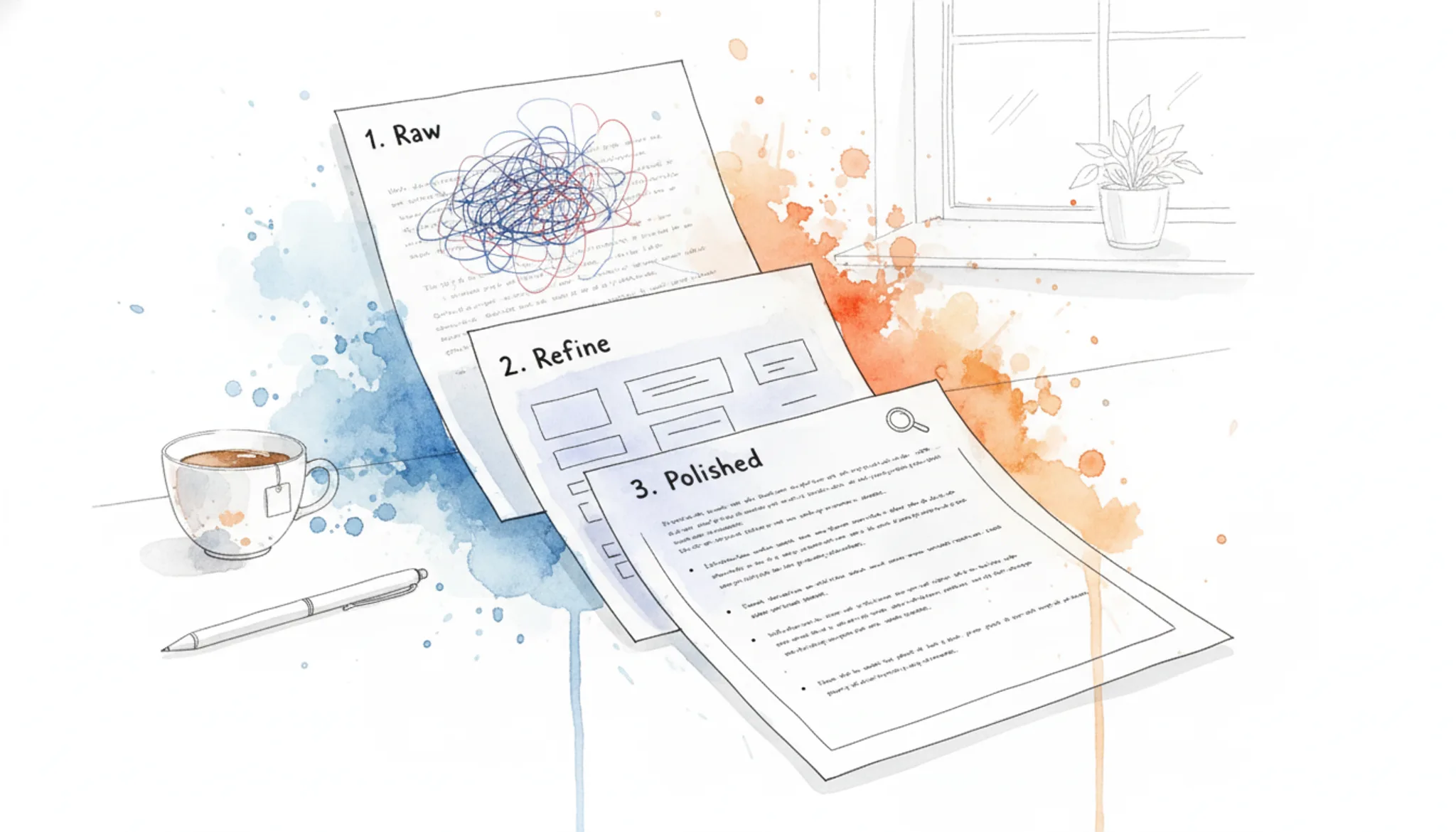
The em dash removal checklist
Run through these checks in order after your first cleanup pass. Each row names a task you can verify in seconds. The full review takes under two minutes. It leaves nothing to guesswork.
Work top to bottom so earlier fixes do not hide later ones. Tick the Done column while your editor's search results stay open. Recheck the first row after any replace that touches formatting. A global find can miss characters hidden in styled text.
| Task | Why it matters | Done |
|---|---|---|
| Search the document for em dashes using your editor's find tool | The em dash is the clearest fingerprint of text written by ChatGPT | |
| Replace every match with a comma or a period to match the sentence rhythm | Keeps each sentence readable instead of clipped and abrupt | |
| Read the sentence around every replaced mark, out loud if possible | A comma can shift meaning, so confirm the flow still holds | |
| Add a style note inside your ChatGPT instructions that bans the em dash | Stops future replies from inserting the character again | |
| Send a one sentence test reply and search it again for em dashes | Proves the new rules took effect before you run real work | |
| Run the finished text through AI Watermark Remover to strip invisible markers | Invisible markers survive ordinary find and replace, so they need a separate pass |
One habit protects you more than any other: never skip the final search. A single leftover em dash flags the text as machine written. Keep this same list ready for future replies. Rerun it every time you paste fresh output from ChatGPT.
Treat the check as a gate. Nothing gets exported or sent until the final search comes back empty. Printing the list and tucking it beside your keyboard turns a tedious pass into a two minute ritual. The same rows work for Claude or Gemini output.
For the invisible zero width characters that normal find and replace cannot see, this guide to removing zero width characters walks through that follow up pass.
Expert tip: When custom instructions fail to remove em dashes from ChatGPT
> "Had to really reinforce the no em dashes or it just keeps bringing them back." > Reddit user in the ChatGPTPro community (source)
The standard fix is to add a style rule in ChatGPT's custom instructions. But that rule can stop working. ChatGPT's memory might have already learned a different style. Or a model update resets the behavior.
When the usual instructions fail, the workaround is to write a memory fact that explicitly forbids em dashes. That memory fact overrides the learned pattern. It keeps the output clean across sessions.
How to remove em dashes from ChatGPT output
The fastest method is to use AI Watermark Remover. It removes em dashes and hidden characters from ChatGPT text in one click. Follow these steps:
- Copy the ChatGPT output: Select and copy the text that contains em dashes.
- Open AI Watermark Remover: Navigate to the tool's website.
- Paste and clean: Paste the text into the input area and click the remove button. The tool strips em dashes and other invisible watermarks instantly.
- Copy the cleaned text: Copy the result for your use.
For a more permanent solution, update ChatGPT's custom instructions to avoid em dashes. This is described in this LinkedIn post. See our guide on stripping hidden AI characters for more details.
Frequently asked questions about removing long dashes from ChatGPT
What exactly is the, character in ChatGPT text?
It is a long dash punctuation used to indicate a break or emphasis. It serves a similar function to a comma or parentheses, but with a stronger pause. ChatGPT uses it as a default style. It is not a hidden watermark.
Why does ChatGPT use long dashes?
Because its training data includes many examples of that punctuation. The model learned it as a normal writing habit. It is not a deliberate choice.
Can custom instructions stop long dashes?
Adding a clear instruction to avoid long dashes in your ChatGPT custom instructions can reduce their appearance. But it is not guaranteed. The model may still generate them, especially if the rule is not specific enough. Reinforcing the instruction within the same conversation helps.
Does removing long dashes affect AI detection scores?
No. Removal alone does not significantly change scores. AI detectors focus on word choice and sentence structure. They do not focus on isolated punctuation marks.
What is the fastest way to remove long dashes from ChatGPT output?
Use a text scrubber like AI Watermark Remover. Paste the text. Click once. All long dashes removed instantly without altering content.
It also strips other invisible markers in the same pass.
Next steps after removing em dashes from ChatGPT
The fastest way to clean up ChatGPT output is AI Watermark Remover. Paste your text. The tool strips em dashes, zero-width spaces, and other hidden markers in one click. It runs entirely in your browser.
Nothing leaves your machine. If your workflow involves images alongside text, you may also want to remove metadata from those files. Our guide on removing C2PA metadata from images covers methods that actually change your result. For most users, though, starting with a clean text document is the simplest next step.
Use AI Watermark Remover, then move on.