You paste AI-generated text into a detector, and the result says "watermark detected." That alert alone does not tell you which invisible characters were found, how many there are, or whether they are real watermarks or harmless Unicode artifacts. Without that detail, you cannot decide what to clean or whether the text is safe to use.
Every detected watermark needs a follow-up inspection. Examine the flagged characters, separate genuine watermarks from false positives, and confirm your text is clean.
For inspecting and removing detected watermarks, AI Watermark Remover scans every character and surfaces the specific hidden marks it finds, so you can verify each one and strip only what needs to go.
What should you do about detected watermarks?
The most direct fix for detected watermarks is to run the flagged text through a client-side checker like AI Watermark Remover and strip the hidden characters before anything is published. The tool scans every character for invisible markers such as zero-width spaces, joiners, and other hidden Unicode marks, then removes them without sending your text to a server.
For a second opinion, paste the same text into a free checker that flags invisible Unicode characters and compare what it finds.
Detected watermarks: cleanup tools compared
We compared three cleanup tools on three criteria: what each one detects, whether it removes detected watermarks, and where the text is processed.
| Tool | Best for | Differentiator |
|---|---|---|
| AI Watermark Remover | Cleaning text after a detection warning | Strips zero-width spaces, joiners, and em dashes entirely in the browser |
| AI Watermark Detector | Verifying a watermark exists before cleanup | Reads every character for hidden Unicode marks, detection only |
| Text Watermark Remover | Fast paste-and-check scans | Targets 34+ invisible Unicode characters, including em dashes and zero-width spaces |
Read the differentiator column first: it names the trade-off that changes the pick. The middle row confirms a suspicion, while the first and third rows act on it, so start at a remover when your text is already flagged.

Inspect the exact characters behind detected watermarks
A detector's flag is a starting point, not a verdict. Before deleting anything, confirm the watermark is actually embedded as invisible characters, not a statistical guess. A character-level scanner like AI Watermark Detector runs through every character and flags zero-width spaces (U+200B), zero-width joiners (U+200D), and similar hidden marks, so it makes a solid second opinion.
The same text should trigger the same positions in two checkers. If they disagree, you are seeing a heuristic result, not a real marker. For online checkers, confirm how your text is handled before pasting; AI Watermark Remover explains its client-side processing in its privacy policy.
- [] Paste the flagged text into a second detector and compare flagged positions.
- [] Move the cursor through each detected location and confirm it stops on an invisible character.
- [] Turn on formatting marks and locate zero-width spaces, joiners, or non-breaking spaces at the flagged spots.
- [] Copy the hidden character into a Unicode inspector and note its code point, such as U+200B or U+200D.
- [] Remove one flagged character, re-run the detector, and confirm the warning changes.
Skipping this pass means you can strip valid formatting and still leave a second layer of invisible characters behind.

Six checks to confirm detected watermarks are gone
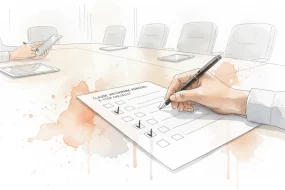
Watermark characters are invisible by design, so cleaned text looks exactly like uncleaned text. Appearance cannot tell you whether the cleanup worked, and a single clean report is easy to trust too early. This checklist gives you six pass or fail checks, each observable in under a minute, so you can mark the job done with evidence instead of a guess. Run them in order and skip none.
| Task | Why it matters | Done |
|---|---|---|
| Paste the cleaned text back into the same detector that first flagged it | The test that raised the original warning must now come back clean | |
| Inspect the text for zero-width spaces (U+200B) and zero-width joiners (U+200C) in a character view | Detectors skip short passages, and a manual scan catches what they miss | |
| Compare the total character count before and after the cleanup run | A lower count is measurable proof that hidden marks were removed | |
| Paste the cleaned text into a brand new document file | Old file formatting can silently re-add the exact marks you removed | |
| Run the detector once more after adding headings, bold, or links | Word processors can reintroduce zero-width characters during formatting | |
| Re-detect the saved file after closing and reopening it | A second clean result confirms that saving did not restore anything |
Run the checks in the order shown because each one builds on the last. The detector re-test comes first because it repeats the exact test that raised the flag. The fresh-document paste comes near the end because it protects the final copy, and the formatting pass comes last because it guards the version you will actually publish.
The fresh paste is the check people skip most often, and it fails most often. Cleaning text inside a Word or Pages file leaves document-level formatting behind, and that formatting can silently reintroduce hidden characters when you save. Move the cleaned text into a new file before you call the job done.
If the draft is sensitive, read the terms of service on AI Watermark Remover before you paste it anywhere. That page states plainly what happens to text after you submit it, which matters when your source material is a client brief or an unpublished manuscript.
The full run of these six checks takes about three minutes, and the second clean pass is worth more than any single detector verdict. When all six rows are marked done, the text is as clean as the tools you used can make it, and you have the evidence to say so.
Where detected watermarks resurface after you publish
Cleaning the file in front of you is only half the job. Invisible character marks often slip back in during the move from your editor to the published page, through copy-paste into a CMS, an export to PDF, or a platform that re-formats the text. The published copy, not your draft, is what readers and detection systems actually see.
Watermark detection does not stop at your desk. Some detection tools keep evolving to flag text that has clearly been through a removal tool, so a clean paste can still draw attention after it goes live.
Run these four checks against the published page, not the draft:
- [] Copy the text from your live page, paste it into AI Watermark Remover, and confirm the scan comes back clean.
- [] Open the published page's source and search for U+200B, U+200C, and U+200D; any match means a hidden character survived.
- [] Compare the word count of a published paragraph against your cleaned source file; a mismatch suggests invisible characters survived.
- [] Re-submit the published text to the detector that first raised the flag and confirm it now passes.
Skipping this group means publishing text that looks clean in your editor but still carries the marks you were trying to remove.
Expert tip: a clean result is only clean for that detector
Two detectors can return opposite verdicts on the same text, and both can be right. Each checker scans its own list of hidden characters, so one tool reporting no detected watermarks only proves that its list came up empty. A tool with a longer list can flag the same paragraph.
The usual advice changes once your text lands somewhere that runs its own scan. A client, a CMS, or an AI-content policy checker applies a different character set, and roundups of detection tools show how much those sets vary. Before treating a clean result as final, test with the checker that most closely matches what the receiving system uses. That verdict decides whether detected watermarks become someone else's problem.
Frequently asked questions about detected watermarks
Why does my AI-generated text trigger a watermark warning?
Because the AI model that wrote it embedded invisible marker characters while generating the text. ChatGPT and Claude append zero-width spaces and other Unicode characters meant to be read by detectors, not by people, so flagged text can look perfectly normal.
Are detected watermarks visible to the people reading my text?
No. Detected watermarks are ordinarily invisible by design: zero-width characters that occupy no space on the page. A reader sees identical wording either way, and the difference appears only when a detector scans the underlying character codes.
Can I strip detected watermarks using find and replace?
Usually not, because the watermark characters are invisible and hard for word processors to search for. A dedicated scanner like AI Watermark Remover lists each hidden character it finds, letting you strip every one in a single pass without hunting for them.
Is my text private when I check it for watermarks?
Yes, provided you use a client-side tool. AI Watermark Remover runs the scan in your browser, so the pasted text never leaves your device. That matters for unpublished drafts or text with sensitive content you do not want sent to a remote server.
Do detected watermarks affect search rankings or plagiarism checks?
Generally no, because search engines and plagiarism tools match on the visible text, and zero-width characters occupy no screen space. The practical effect is narrower: an AI detector will keep flagging the text until the watermark characters are removed.
The bottom line on detected watermarks
When your text comes back flagged, the practical move is to clean the invisible characters the detector found, then re-run your checks before you publish. AI Watermark Remover does this in your browser: it detects the zero-width spaces, joiners, and hidden Unicode marks behind the watermark detected verdict and strips them from the text.
Choose a different tool only when you want a second opinion rather than a fix. A standalone detector tells you whether text is flagged, but it does not remove what it finds.
Next step: take the text that failed, paste it into AI Watermark Remover, run the character scan, clean it, and re-test with the detector that flagged it. A clean pass on that same detector is your confirmation.