Copy text from ChatGPT or Claude into a document, and invisible characters come with it. Zero-width spaces and joiners hide in your text, trigger detection systems, and wreck formatting when you paste into Word or Google Docs. Online text cleaning tools claim to fix this, but one wrong setting strips characters that belong there.
For most jobs, the fastest fix is AI Watermark Remover, which strips hidden characters in one paste with no account needed.
What is the best online text cleaning tool?
The most direct answer is AI Watermark Remover. It strips invisible watermark characters (zero-width spaces, joiners, em dashes) that ChatGPT, Claude, Gemini, and Grok embed in their outputs. This browser-based tool keeps your text private and shows you exactly what it removed. If you need batch processing or more advanced detection, a paid upgrade unlocks those features, but the free version handles most common cleaning tasks.
Online text cleaning tools compared on key criteria
We compared the top tools on what they do best, their main strength, and their key limitation.
| Tool | Best for | Strength | Limitation |
|---|---|---|---|
| AI Watermark Remover | Cleaning AI-generated text | Removes invisible watermark characters | Advanced features need upgrade |
| Text Cleaner (Textcleaner) | General formatting tasks | Handles wide range of cleaning options | Does not target AI watermarks |
| AI Text Cleaner (Aitextclean) | General formatting tasks | Handles wide range of cleaning options | Does not target AI watermarks |
| Text Cleaner (Codebeautify) | General formatting tasks | Handles wide range of cleaning options | Does not target AI watermarks |
| Remove Text Formatting (Convertcase) | Clears fonts, HTML, emojis, accents, line breaks, and extra spaces | Works directly in browser without uploads | No batch mode; single-paste only |
| TextCleanr (Textcleanr) | Fixes email indentation | Includes find and replace for precision edits | Best suited for email, not AI text |
| ChatGPT Text Cleaner (Gptcleanup) | Removes hidden characters from ChatGPT outputs | Handles Claude and Gemini text without sign-up | Minimal feedback on what was removed |
| Online Text Cleaner (Correctifyai) | Strips formatting, extra spaces, and special characters | Flexible fallback for basic non-AI cleanup | May strip intentional formatting if careless |
Use this table to pick the tool that fits your specific cleaning need.
How we picked these 8 mistakes
We evaluated common pitfalls based on one question: does the mistake still leave invisible characters in your text? Standard tools like Text Cleaner handle whitespace and line breaks, but they miss zero-width spaces that AI models insert as watermarks. If you work with output from ChatGPT or Claude, standard cleaners leave those invisible characters. That changes the usual advice: a general text cleaner is not enough; you need one built for AI text.
Matching a tool to each mistake
Each cleaning mistake has a tool that handles it directly. Here is how to pair the problem with the right fix.
- AI Watermark Remover: Removes invisible watermark characters from ChatGPT, Claude, Gemini, and Grok outputs. These zero-width spaces and joiners slip into your text unnoticed and trigger detection systems. The tool strips them cleanly so pasted AI text reads normally in any document. For more on how this works, see our comparison of online text processing tools.
- Text Cleaner (Textcleaner): Handles formatting problems like extra line breaks, irregular spacing, and unwanted characters. It also converts text case and strips HTML tags, making it a useful general-purpose option when your text has visible formatting issues from copying between applications.
- AI Text Cleaner (Aitextclean): Strips hidden characters, smart quotes, special formatting, and markdown leftovers from AI-generated text. It runs entirely in your browser for privacy, similar to how AI Watermark Remover works. A practical option when cleaning text from multiple AI tools. Tools that handle AI watermarks are also covered in this post.
- Text Cleaner (Codebeautify): Removes unwanted accents, symbols, email addresses, URLs, and hashtags from pasted text. It offers multiple cleaning filters you can toggle on and off, which works well when your source text has mixed content that needs filtering down to plain words.
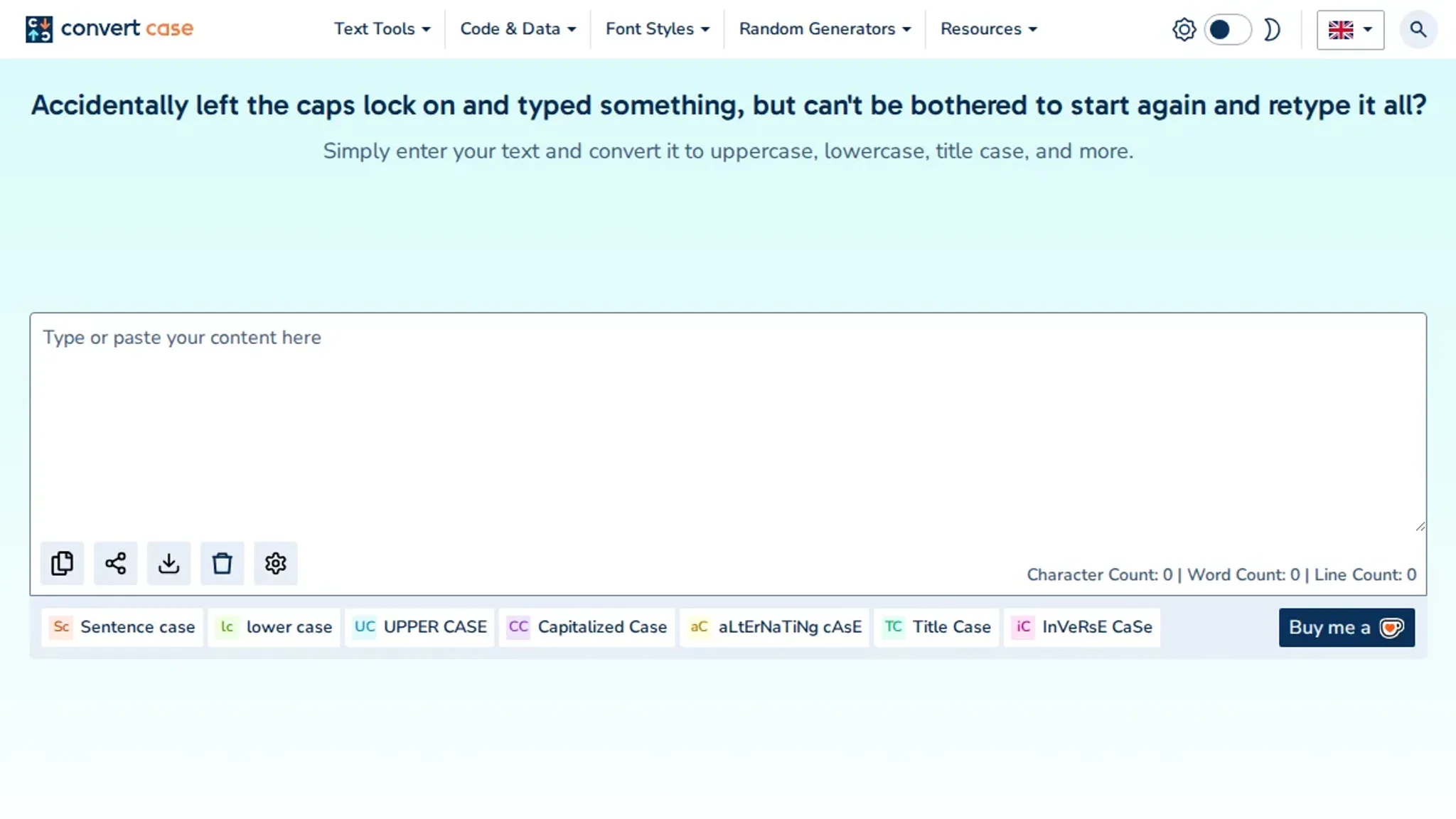
- Remove Text Formatting (Convertcase): Clears fonts, HTML, emojis, accents, line breaks, and extra spaces to return text to plain formatting. A good choice when moving text between applications that carry invisible styling, such as from a web page into a plain text editor.
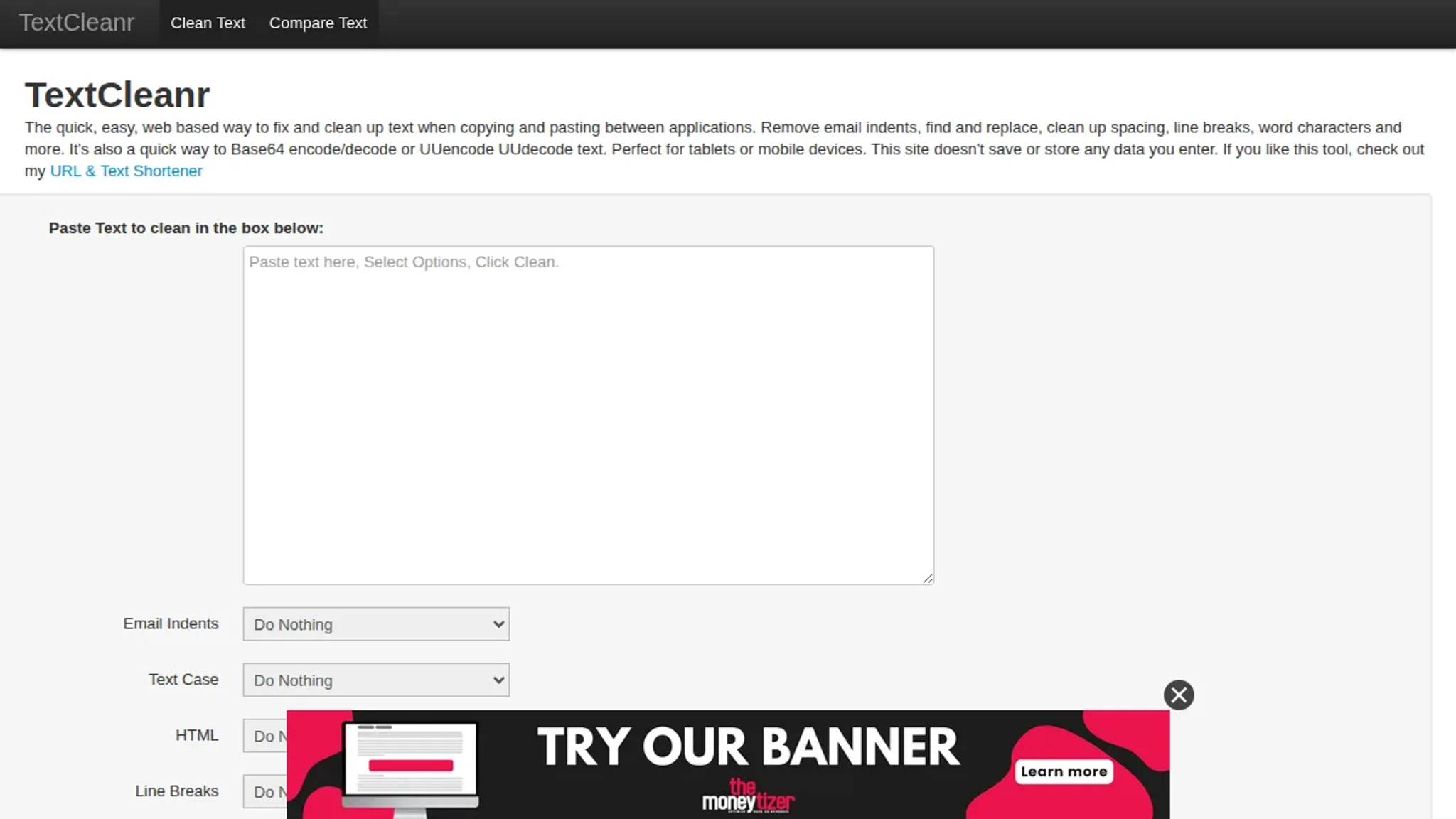
- TextCleanr (Textcleanr): Fixes email indentation, inconsistent spacing, and other formatting quirks from copied messages. It also includes a find and replace feature, making it useful beyond basic text cleanup when moving text between email clients and document editors.
- ChatGPT Text Cleaner (Gptcleanup): Removes hidden characters specifically from ChatGPT outputs and prepares text for Word and Google Docs. Handles Claude and Gemini text as well without requiring a sign-up, so you can clean text from multiple sources in one pass.
- Online Text Cleaner (Correctifyai): Strips formatting, extra spaces, and special characters with multiple cleaning options. A flexible fallback when you need a simple, free tool for basic text cleanup, especially useful when you are not dealing with AI watermarks specifically.
The hidden risk in aggressive cleaning
Most cleaning guides tell you to strip every invisible character. That works until your AI text contains a legitimate zero-width character used for script transitions or phonetic hints. Removing it breaks the intended rendering. The safer rule: check what each invisible character actually does before nuking it blindly.
One missed zero-width joiner in a mixed-script sentence changes the whole meaning.
How to remove watermark from image online?
Removing a visible watermark from an image is a different task from cleaning hidden characters in text. For photos with logos or text overlays, dedicated image tools work best.
- Watermark Remover: Upload your image and it uses AI to erase visible logos or text watermarks, outputting a clean version without the overlay.
- Inpaint: Lets you select the watermark area and fills it with surrounding content, ideal for complex backgrounds or irregular shapes.
Frequently asked questions about online text cleaning
How does online text cleaning work?
It scans your content for invisible or unwanted characters and removes them automatically. AI Watermark Remover checks for zero-width spaces, joiners, smart quotes, and other hidden Unicode characters. Processing happens in your browser, so your text never leaves your device.
Is online text cleaning safe for my data?
Browser-based cleaners do not send content to a server. AI Watermark Remover processes everything locally and stores or transmits nothing from your paste. That makes it safe for sensitive drafts or client work.
What invisible characters does online text cleaning remove?
The most common are zero-width spaces, zero-width joiners, smart quotes, and leftover markdown formatting. ChatGPT and Claude often insert these during generation, and a standard paste into a document will not strip them. A dedicated cleaner finds and removes each type without touching your words.
Will cleaning change the meaning of my content?
No. A good cleaner removes only invisible characters and formatting, never words or punctuation that carry meaning. Tools designed for AI-generated text target only hidden watermarking characters, so your actual content stays unchanged.
Final verdict on online text cleaning
Most cleaning mistakes come down to invisible characters that basic tools miss. AI Watermark Remover catches them all: zero-width spaces, joiners, and em dashes, without sending your text to a server. Your next step: give it a try.
For general formatting, Text Cleaner is fine. When you paste from ChatGPT or Claude and the formatting still looks off, switch to AI Watermark Remover. If you handle sensitive content, review its privacy policy before use; everything stays on your device.