
You copied text from an AI chatbot, pasted it into your document, saw nothing unusual, and published it. Then a plagiarism checker flagged it, or a collaborator pointed out weird invisible characters breaking the formatting. The problem is invisible watermarks, zero-width characters and Unicode markers that AI models embed in text. You need to remove invisible watermark content from your text before you share it, submit it, or publish it.
The quickest way to start is with AI Watermark Remover, a free tool that strips those invisible characters from ChatGPT, Claude, Gemini, and Grok output in your browser.
What is the fastest way to remove invisible watermarks from AI text?
The fastest way to remove invisible watermarks from AI-generated text is to paste your content into AI Watermark Remover, a free browser-based tool that strips zero-width characters, Unicode markers, and em dashes in seconds. It processes everything locally on your device, so no data leaves your computer. No sign-up, no uploads, just a clean copy ready to paste back into your document.
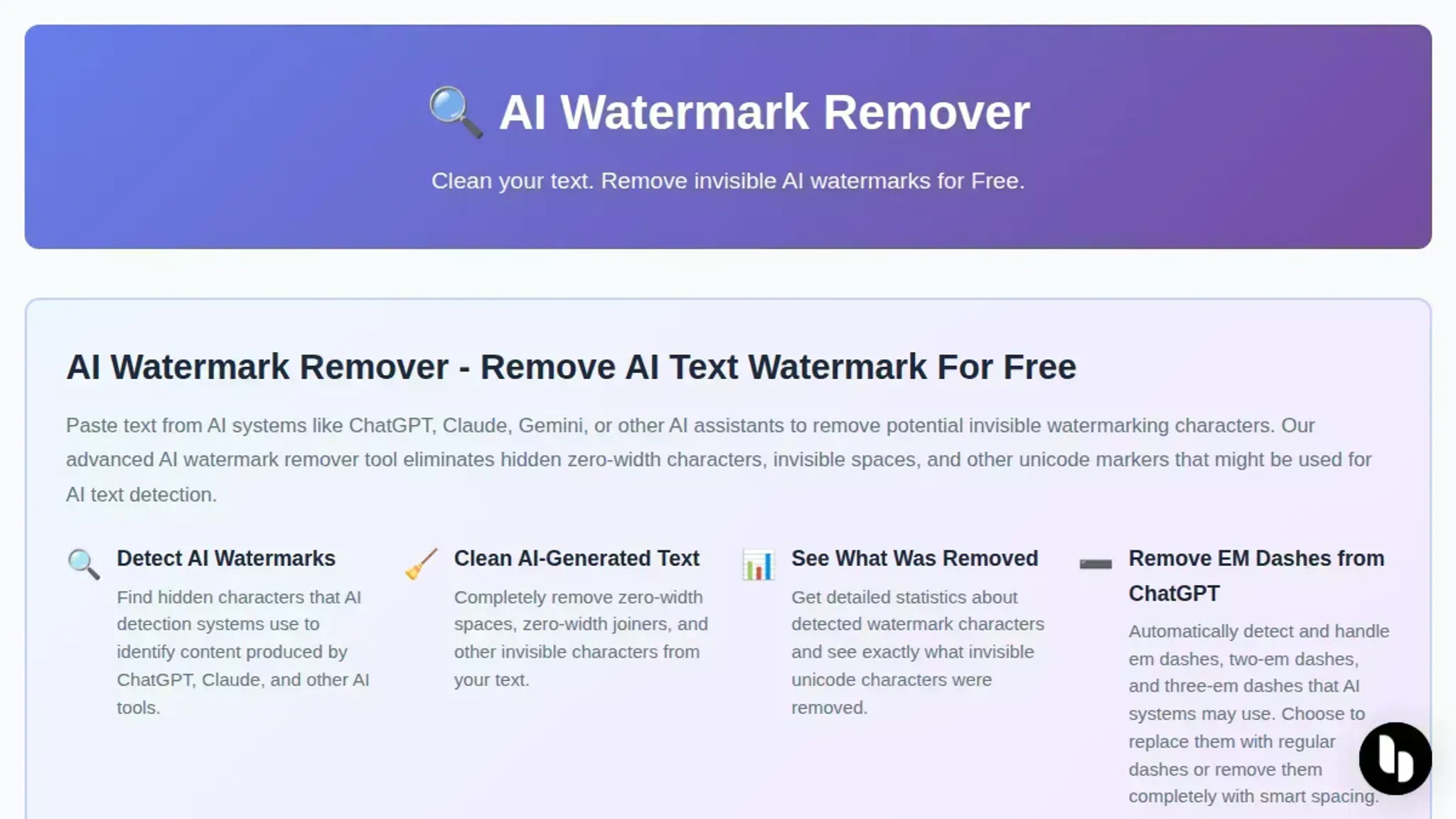
What you'll need to get started
Before running your first check, gather these items. Missing one can give a false sense of clean text.
- AI-generated text that you suspect has invisible watermarks. Paste raw output, retyping can strip markers by accident.
- A Unicode-aware text editor or plain text file. Rich-text editors hide invisible characters, defeating detection.
- A modern browser that supports JavaScript. The removal runs locally in your browser.
- The original prompt or metadata (if available). Some watermarking ties to the model version; having it helps verify complete removal.
- A secondary detection method (optional). Run a second pass through a different detector, like the noai-watermark GitHub project, to catch stragglers.
One non-obvious catch: if your text uses invisible Unicode characters for layout (zero-width spaces in a justified paragraph), the removal tool strips them too. Check formatting after cleaning.

How to remove invisible watermarks from AI text in 7 steps
Before you start, gather the original AI-generated text you want to clean. You will need a browser and internet access for the online tools. The entire process, from first paste to final verification, takes about 60 seconds once you have the text ready.
- Copy the raw AI output: Go back to the source where you generated the text, whether it is ChatGPT, Claude, Gemini, or another tool. Select the entire response and copy it to your clipboard. Do not paste it into a document editor first, because editors like Word or Google Docs can silently strip or reformat invisible characters. If you paste into a rich editor first, you might get a false sense of cleanliness and miss the watermarks entirely. The visible result here is simply the raw text on your clipboard, still containing whatever hidden markers the AI embedded.
- Paste the text into a watermark checker: Open a dedicated detection tool such as AI Watermark Remover and paste the copied text into the input area. The tool scans every character in the text, including zero-width spaces (U+200B), zero-width joiners (U+200D), zero-width non-joiners (U+200C), and other Unicode markers that AI systems use as invisible watermarks. Within two to three seconds, you will see a detection report. The visible result is a clear summary of how many hidden characters were found, what Unicode codepoints they are, and where in the text they appear.
- Review the detection results: Read the report carefully. It typically lists each type of invisible character found and the count. For example, you might see "4 zero-width spaces detected at positions 12, 47, 103, and 208." Some tools also flag visible markers like double hyphens or unusual punctuation that AI models sometimes add as part of their watermarking scheme. This step confirms that your text actually has watermarks and tells you exactly what you are dealing with. If the report shows zero hidden characters, your text may already be clean or the watermarking method may be one the tool does not detect yet.
- Run the removal process: Click the button to clean the text. The tool processes the text entirely in your browser, which means nothing is uploaded to a server and your privacy is preserved. It replaces or strips every detected invisible character without altering your visible content. When it finishes, you get a clean version of your text. The visible result is a character count that is lower than the original, and the difference tells you exactly how many hidden characters were removed. If you want to compare different removal tools, you can check a roundup of apps that actually remove watermarks from AI text for alternatives.
- Verify the cleaned text: Paste the output into a plain text editor like Notepad, a simple textarea on a web page, or the same watermark checker you used earlier. The goal is to confirm that nothing visible was lost and that no hidden characters remain. Read through the content carefully, especially around punctuation marks and line breaks, where invisible characters tend to cluster. If you run the text through a watermark checker a second time, you should see a report of zero hidden characters. The visible result is a clean text that looks and behaves exactly as you intended.
- Test the text in your target platform: Paste the cleaned text into the place where you intend to use it, such as a document, email, CMS, or social media post. Check that formatting, spacing, and line breaks look correct. Some platforms handle invisible characters differently, so what looks clean in one editor might still show artifacts in another. For example, a zero-width space that was not detected might cause a line to break unexpectedly in a web form. The visible result is a text that renders correctly in your actual use case, with no unexpected spacing or formatting issues.
- Save a clean copy for reference: Keep one version of the cleaned text in a plain text file or document. If you ever need to regenerate the content, compare future outputs, or share the verified version with a team member, you will have a known-clean baseline. This step also helps you track whether the AI tool you are using has changed its watermarking method over time. The visible result is a reliable reference file that you can trust as clean.
The most common mistake people make is skipping the verification step. They paste the text into a watermark checker, run the removal, and assume it is clean without confirming. Always re-check the output before publishing or sharing. A second pass takes ten seconds and catches the watermarks that the first pass might have missed.
Invisible watermark removal checklist: 5 checks before publishing
Use this checklist after you have run your initial removal pass. Each task is a pass/fail check you can verify before publishing.
| Task | Why it matters | Done |
|---|---|---|
| Paste the cleaned text into a watermark detection tool like AI Watermark Remover | Confirms no hidden characters remain after your removal pass | |
| Search for zero-width characters using a Unicode inspector (e.g., a hex editor view) | Zero-width spaces and joiners are invisible to the eye but detectable by AI detectors | |
| Copy the text into a plain text editor and toggle raw character display | Strips formatting that might mask hidden markers embedded in rich text | |
| Run the text through a second independent watermark scanner | Catches false positives or missed watermarks that a single tool might miss | |
| Compare the character count before and after cleaning | A discrepancy of even one character signals a hidden watermark was partially removed |
Keep a copy of the original text alongside the cleaned version for quick comparison. If any check fails, run the removal process again before publishing.
These checks target the edge cases that survive a basic removal pass.
| Task | Why it matters | Done |
|---|---|---|
| Search for soft hyphens (U+00AD) and non-breaking spaces (U+00A0) in a Unicode inspector | Both render invisibly in most editors, and watermark tools use them to hide payload data in plain sight | |
| Check for variation selectors (U+FE00 to U+FE0F) after emoji and CJK characters | They change glyph rendering without altering visible text, making them a favorite hiding spot for invisible watermarks | |
| Compare the cleaned text against the original using a diff tool like Diffchecker | A side-by-side diff highlights every removed or altered character, including ones that are invisible in a normal editor | |
| Paste the cleaned text into a fresh document in a different application, such as a plain text editor and a word processor | Some watermark markers survive in clipboard formatting and reattach when pasted into rich text | |
| Look for bidi control characters (U+202A to U+202E and U+2066 to U+2069) | These invisible marks can reorder whole sentences when the text is copied elsewhere, a clear sign of tampering | |
| Run a homoglyph check on common letters like 'a', 'o', and 'e' | Watermarks sometimes swap a letter for a visually identical character from another script to encode data without changing what you see | |
| Compare the byte size of the cleaned file against a manually typed version of the same text | Invisible characters add bytes that character counts miss, so a size difference exposes leftover markers | |
| Copy the text from the rendered page rather than the source, then re-run the first check | Some watermarks reattach during copy from a rendered page, so the removal only counts if it survives a fresh copy | |
| Verify the cleaned text in the same tool you will publish with, such as a CMS editor or a social media composer | Publishing tools may apply their own encoding, which can strip or re-add invisible characters before the text goes live |
A single leftover zero-width space is enough for a detector to flag the text, so when a check fails, remove the offending characters one by one and run the entire checklist again, not just the item that failed. Watermark removal is a verification loop, and the loop ends only when every check on this list passes.

How to remove watermark from image online?
Most online image watermark removers work in three steps: upload, process, and download. You start by selecting the image file from your device or pasting a URL. The tool scans the image, detects the watermark region, and reconstructs the missing background using AI inpainting. After processing, you preview the result and save the cleaned version.
- Upload your image: Choose a site like Ezremove or Removethewatermark that specializes in removing visible and transparent watermarks. These platforms support common formats (JPEG, PNG, WebP).
- Adjust selection (if needed): Some tools let you manually highlight the watermark area for better accuracy, especially on complex backgrounds.
- Process and download: Click the remove button. The AI fills the selected area with plausible pixels. Download the final image in seconds.
For invisible watermarks embedded via steganography or metadata, you need a dedicated detector or a tool like Airmore that also scans for hidden markers. Most general watermark removers handle only visible overlays.
How to remove watermark in Photoshop?
Photoshop handles visible image watermarks with tools like the Clone Stamp and Content-Aware Fill. But invisible watermarks in AI-generated text require a different approach. Here's how to do both.
Removing a visible watermark in Photoshop
- Clone Stamp tool: Sample a clean area and paint over the watermark. Works best on uniform backgrounds.
- Content-Aware Fill: Select the watermark, then go to Edit > Fill > Content-Aware. Photoshop fills the area with surrounding pixels.
How to remove invisible watermark from AI text
Invisible watermarks (zero-width characters, Unicode markers) are embedded in the text. Photoshop cannot detect them. Instead, paste your text into AI Watermark Remover to strip those characters instantly. The tool processes everything in your browser, so your content stays private.
For video watermarks, see our guide to free online tools.

Frequently asked questions about invisible watermark removal
What is an invisible watermark in AI text?
An invisible watermark is a set of hidden characters embedded in text by AI models like ChatGPT, Claude, or Gemini. These characters are typically zero-width spaces, Unicode control characters, or special markers that are invisible to the human eye but detectable by software. They serve as a fingerprint to identify text as AI-generated. Removing them strips that fingerprint without changing the visible content.
This process is essential for ensuring your text is not flagged as machine-made.
Can invisible watermarks be detected without a tool?
Yes, but it is tedious. You can paste the text into a Unicode inspector or a hex viewer to see the hidden characters. For example, pasting into a site like Unicode Character Inspector will reveal zero-width characters as highlighted symbols. However, manually scanning an entire document is impractical.
A dedicated tool like AI Watermark Remover automates the detection and removal in seconds. This approach is far more reliable than manual inspection.
Is removing invisible watermarks from AI text legal?
The legality depends on the AI tool's terms of service. Most platforms do not prohibit removing watermarks, but some forbid tampering with attribution markers. For personal use, removal is generally not illegal. For commercial republishing, check the platform's terms.
Removing a watermark is not a criminal offense, but it could violate a contract if you agreed to leave watermarks intact. Always keep a copy of the original text for your records.
What are the limitations of invisible watermark removal tools?
No tool removes every possible hidden character. Some AI models use non-standard markers. Free tools handle common zero-width characters but may miss rare ones. Some watermarks survive re-encoding.
For best results, run the text through a removal tool and then verify with a Unicode inspector or the detailed 5-step checklist published in this article.
How do I check if my text still has invisible watermarks after removal?
Paste the cleaned text into a Unicode inspector or use the verification feature of the removal tool. Look for any zero-width characters or control characters. If you see none, the text is clean. For a thorough check, follow the detailed 5-step checklist in this article.
Conclusion: your next step for clean AI text
The 7-step checklist in this article gives you a repeatable process to catch what most editors miss. For the actual removal work, AI Watermark Remover is the fastest path: paste your text, see the hidden characters counted, and get clean copy in seconds.
Your next step is to run the checklist on one piece of AI-written content you already have drafted. If you are working with image-based watermarks instead of text, the Photoshop and online tools covered earlier are the better fit. For AI-generated text, the browser-based approach keeps your content private and the results verifiable.