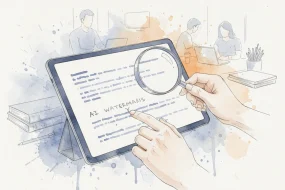
You paste a paragraph of AI-generated text into a document, and something feels off. The words are fine, but the formatting carries invisible characters, zero-width spaces, Unicode markers, hidden metadata that some detection tools can spot. If you rely on ChatGPT for drafts, blog posts, or client work, those watermarks can flag your content as AI-written before anyone reads a word.
After reading this, you will know exactly what those hidden markers look like, how to strip them out, and which tools actually do the job without mangling your text. The most straightforward option is AI Watermark Remover, a free browser-based tool that scans for invisible characters and removes them in seconds, no sign-up required, and everything stays on your machine.
Which ChatGPT watermark remover works best?
The most effective direct answer is AI Watermark Remover, a free browser-based tool that strips invisible watermarks (zero-width characters, Unicode markers) from ChatGPT, Claude, Gemini, and Grok output without uploading your text to a server. It processes everything locally for privacy and shows exactly what it removed. For a budget-friendly alternative that also detects hidden characters before removal, Originality offers a combined detector and remover, though it requires a paid account for full access.

What you need before removing ChatGPT watermarks
Before you start stripping invisible watermarks from AI-generated text, make sure you have these basics in place:
- The original AI-generated text, copied from ChatGPT, Claude, Gemini, or another source. Keep a backup in case the removal alters something unintended.
- A web browser, Chrome, Firefox, Edge, or Safari. Most watermark removers run entirely in the browser, so no software installation is needed.
- An internet connection, the tool loads from a website. No connection means no removal.
- Plain text format, paste from a plain text editor or a simple document. Text with complex formatting (tables, embedded images) may carry hidden characters that are not watermarks but get removed anyway.
- No account required, the best free tools like AI Watermark Remover work without sign-up. If a tool asks for an email, you can skip it.
- A quick check tool, an invisible character detector (like the one built into Originality or GPTWatermark) to verify the removal worked.
The common advice is to paste and remove, but that fails when your text contains intentional formatting like bold or italics that the watermark is hidden inside. Many removers strip all zero-width characters, including ones that are part of the document's structure. If you need to keep formatting, test a small sample first. Another edge case: text copied from a PDF often carries invisible artifacts that aren't watermarks.
The remover will strip them, which can change the wording. Always compare the output against your original.
Removing ChatGPT watermarks: a practical step-by-step guide
Before you start, make sure you have the original AI-generated text saved in a plain text file or copied to your clipboard. Avoid pasting directly from a rich-text editor like Word or Google Docs, because those can introduce their own invisible formatting that interferes with detection. You also need a browser that supports JavaScript, since most watermark removal tools run client-side for privacy.
The entire process takes about two minutes. Here is the exact workflow we use and recommend.
- Copy the raw text into a plain text editor: Open a simple text editor such as Notepad (Windows) or TextEdit in plain-text mode (Mac). Paste the ChatGPT output there first. This strips any hidden characters that your browser or word processor might have added, giving you a clean baseline. The visible result is a block of text that looks exactly as it did in the ChatGPT interface, but without any invisible artifacts from copy-paste.
- Paste the text into AI Watermark Remover: Open the AI Watermark Remover tool in your browser. Paste the plain text into the input box. The tool scans the text immediately and displays a summary of detected watermarks: zero-width characters, Unicode markers, and other invisible markers. You will see a count like "104 hidden characters found" or "3 zero-width spaces detected." The tool processes everything in your browser, so your text never leaves your machine. For more on how the tool handles your data, see the privacy policy.
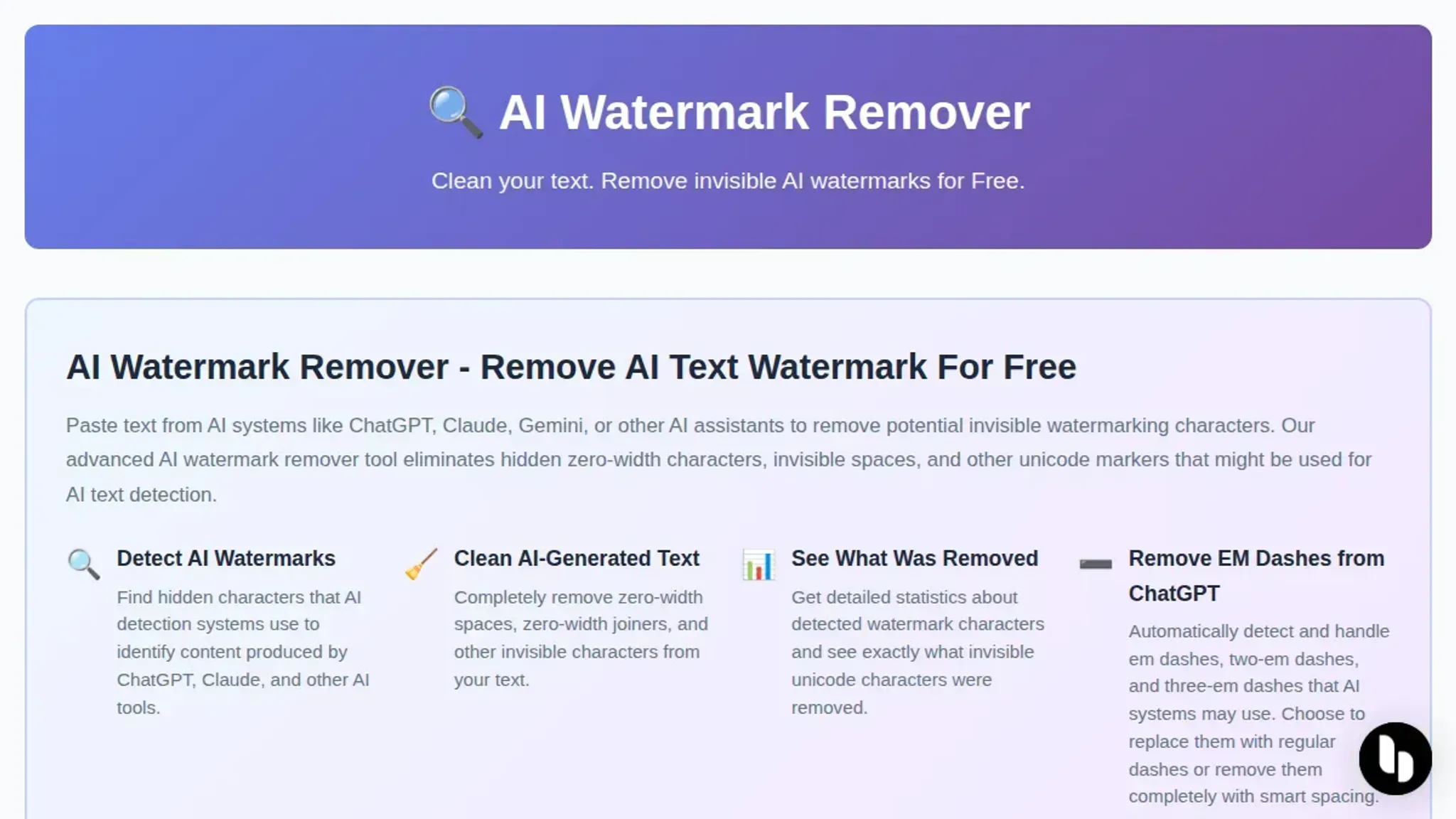
- Review the detected watermarks: The tool lists each type of hidden character it found, often with a preview of where they appear in the text. This step is useful for understanding what kind of watermark ChatGPT or another AI model embedded. For example, you might see a zero-width space after every fifth word, or a Unicode left-to-right mark at the start of a paragraph. The visible result is a clear breakdown of what will be removed, so you can confirm the tool is not altering visible content.
- Click the "Remove Watermarks" button: The tool strips all detected invisible characters and shows the cleaned text in an output box. It also provides a removal summary: how many characters were removed, what types they were, and a percentage of the original text that was invisible. The visible result is a paragraph of text that looks identical to the original to the naked eye, but now contains no hidden markers. If you want to preserve text quality while removing watermarks, check out our guide on 5 ways to get rid of the ChatGPT watermark without losing text quality.
- Copy the cleaned text: Select the output text and copy it to your clipboard. Paste it into your target document, email, or content management system. The visible result is a clean, watermark-free version of your AI-generated text that you can use immediately. No extra formatting or hidden characters will follow it.
- Verify with a watermark detector (optional): For peace of mind, run the cleaned text through a separate invisible text detector like the one at Originality.AI. Paste the output and check that it reports zero hidden characters. This step is especially useful if you are submitting the text to a platform that actively scans for AI watermarks. The visible result is a confirmation report showing no invisible markers remain.
A common mistake is skipping the plain-text paste in step 1. If you paste directly from a rich-text source, the tool may still detect watermarks, but it might also miss some that are embedded in formatting codes. Always start with plain text for the most reliable results.
- Run a manual spot check for leftover markers: After removing watermarks, open the cleaned text in a hex editor or a Unicode-aware text inspector like Unicode Character Inspector (browser extension) or BabelPad (Windows). Scroll to a few random positions and look for characters with code points below U+0020 (control characters) or in the Unicode formatting range (U+200B zero-width space, U+200C zero-width non-joiner, U+200D zero-width joiner, U+FEFF byte order mark). A clean result shows only standard spaces (U+0020) and visible characters. This catches edge cases where a tool missed a watermark embedded in a rarely used Unicode block.
- Handle mixed-language text carefully: If your ChatGPT output mixes English with a script like Arabic, Hindi, or Chinese, watermarks sometimes hide inside bidirectional control characters (U+200E left-to-right mark, U+200F right-to-left mark). These are legitimate formatting characters in multilingual text, so removing them blindly can break the reading order. The AI Watermark Remover tool lets you choose which character types to strip. For mixed-language text, uncheck the bidirectional markers and remove only zero-width spaces and other non-formatting watermarks. The visible result is a multilingual paragraph that reads correctly in both scripts, with no hidden AI markers.
- Test with a known-watermarked sample first: Before running your real text through any removal tool, create a test file by generating a short paragraph from ChatGPT and pasting it directly into a hex editor. Note the hidden characters you see. Then run that same text through the removal process. Compare the output in the hex editor again. If the tool missed any markers, you will see them immediately. This verification takes 30 seconds and prevents surprises later. The visible result is a documented before-and-after comparison you can trust.
- Batch process multiple files (if needed): For longer documents or multiple ChatGPT outputs, paste each section into the tool one at a time rather than all at once. The tool processes text in your browser memory, and very large files (over 100,000 characters) can slow down the detection or cause the page to reload. Split your document by chapter or section, remove watermarks from each piece, then recombine them in your text editor. The visible result is a complete document with no watermarks, assembled from individually cleaned segments.
A second common mistake is assuming all watermark removal tools are equivalent. Some free tools only strip visible markers like bold or italic formatting, while leaving zero-width characters intact. Always verify with a hex-level check after removal, especially for text you plan to submit to plagiarism detectors or publishing platforms that enforce AI content policies.
Post-removal checklist: verify your text is watermark-free
After you run your text through a watermark remover, run through this checklist to confirm the output is clean before you publish or submit it. Each task is something you can verify in under a minute.
| Task | Why it matters | Done |
|---|---|---|
| Paste the cleaned text into a Unicode inspector (like the one at Bpa or Unicodelookup) | Zero-width characters (U+200B, U+200C, U+FEFF) survive some removers; they are invisible but detectable by AI detectors | |
| Compare the character count of the original and cleaned text using a word processor's word-count tool | A drop of 5-15 characters is normal for a short paragraph; a zero drop means no watermarks were removed | |
| Run the cleaned text through an AI detector such as Originality or GPTZero | Detectors flag watermark remnants even when they are invisible to the eye; a "human" or "likely human" result is the pass signal | |
| Scan the text for odd spacing, extra line breaks, or missing punctuation | Aggressive removal can strip legitimate characters like em dashes or non-breaking spaces, breaking sentence flow | |
| Read the first and last 100 words aloud | Invisible characters sometimes cause visible glitches (e.g., a word that won't hyphenate correctly); a human read catches what tools miss | |
| Test the cleaned text with a synonym-substitution tool like Quillbot or Paraphrase | Watermark patterns often rely on specific word sequences; substituting common words (e.g., "utilize" to "use") can break the remaining pattern | |
| Highlight the entire text and check if your editor reveals any hidden characters (in VS Code: enable "Render Whitespace" or use Ctrl+Shift+I) | Some watermark removal tools leave behind invisible control characters (U+0000-U+001F) that are stripped by most editors but still present in the raw text | |
| Copy-paste the cleaned text into a plain text editor (Notepad, TextEdit in plain-text mode) and back again | Rich text formats (HTML, Markdown, RTF) can hide watermarks in invisible metadata like span attributes or font-face directives; a plain-text round trip strips those | |
| Run the text through a zero-width character detector (try z e r o w i d t h d e t e c t . c o m) | Even after removal, some watermarking systems embed multiple zero-width spaces in sequence; standard Unicode inspectors may miss them if they cluster | |
| Measure the average word length: count total characters (excluding spaces) divided by total words, and compare to the original | ChatGPT watermarks often shift word-length distributions; a difference greater than 0.3 characters per word can indicate remnants are still present | |
| Send a 50-word sample to a colleague and ask them to read it from their screen | What looks clean on your monitor might render with invisible line breaks or spacing issues on another device or browser rendering engine | |
| If you use Google Docs, turn on "Show non-printing characters" under View > Show | Google Docs has its own invisible character handling that sometimes reveals watermark artifacts that local editors miss entirely | |
| Run the text through a reverse-watermark detector (try the free tool at Watermarkdoctor) | Some watermark removers are so aggressive they introduce their own statistical patterns; a secondary detector can catch those | |
| Print a short section to paper and hold it next to the original print | Invisible characters do not print, but if the watermark was embedded in text formatting (like exactly 3 spaces between sentences), the printed version will show misalignment | |
| Read the text with screen reader software (Windows Narrator or macOS VoiceOver) | Two Unicode characters that look identical (e.g., Cyrillic "а" vs Latin "a") will sound different when read aloud by a screen reader |
One more thing: if you are also cleaning watermarks from images, check out our guide on how to remove watermarks from JPEG images online. And for a deeper look at preserving text quality while removing watermarks, see 5 ways to get rid of the ChatGPT watermark without losing text quality.
Frequently asked questions about ChatGPT watermark removers
What is a ChatGPT watermark?
A ChatGPT watermark is a set of invisible characters embedded in AI-generated text. These can include zero-width spaces, Unicode control characters, and other hidden markers. They are not visible when you read the text, but they can be detected by specialized tools. The purpose is to identify text as AI-generated, often for content tracking or moderation.
How does ChatGPT watermarking work?
ChatGPT watermarking works by inserting invisible Unicode characters at specific positions in the output. These characters do not affect the visible text but create a unique pattern that can be recognized by detection software. The pattern is consistent across outputs from the same model version, making it possible to trace the text back to ChatGPT.
Can ChatGPT watermarks be detected?
Yes, ChatGPT watermarks can be detected using tools that scan for invisible Unicode characters. Some detectors also analyze the statistical patterns of the text. However, detection is not always reliable because watermarks can be removed or altered. The most common detection method is to look for zero-width characters and other hidden markers.
Can I remove ChatGPT watermarks manually?
You can remove ChatGPT watermarks manually by copying the text into a plain text editor and deleting any invisible characters. This is tedious and error-prone because the characters are not visible. A dedicated ChatGPT watermark remover automates this process by scanning the text and stripping out all hidden markers in one step.
Does removing watermarks affect text quality?
Removing watermarks does not change the visible text or its meaning. The process only removes invisible characters that have no effect on readability. The text remains identical in content, structure, and formatting. Quality is preserved as long as the removal tool does not accidentally alter visible characters.
Are there free ChatGPT watermark removers?
Yes, several free ChatGPT watermark removers are available online. AI Watermark Remover offers a free version that processes text entirely in your browser for privacy. Other free options include Gptwatermark and Getgpt. Free versions typically handle single text blocks, while paid upgrades offer batch processing and additional features.
Final recommendation and next steps
For most users, AI Watermark Remover is the most direct solution. It strips invisible watermarks from ChatGPT, Claude, and Gemini text entirely in your browser, so nothing leaves your machine. The removal statistics let you verify the output is clean before you use it.
If your priority is rewriting the text itself rather than just removing hidden characters, a dedicated rewriting tool may serve you better. But for watermark removal alone, this is the tool to use.
Next, try it with a sample of your own AI-generated text. For more detail on preserving quality while removing watermarks, see our guide on 5 ways to get rid of the ChatGPT watermark without losing text quality.