You paste AI-generated text into a document, and it looks clean enough. But when you run it through a plagiarism checker or an AI detector, something flags it. Invisible characters, zero-width spaces, or subtle Unicode markers often hitch a ride inside text from ChatGPT, Claude, or Gemini. Those marks are watermarks, and they can make perfectly original content look suspicious.
The problem is real: you need to clean AI text watermark material without knowing exactly where those hidden marks are hiding.
What is the most reliable way to clean an AI text watermark today
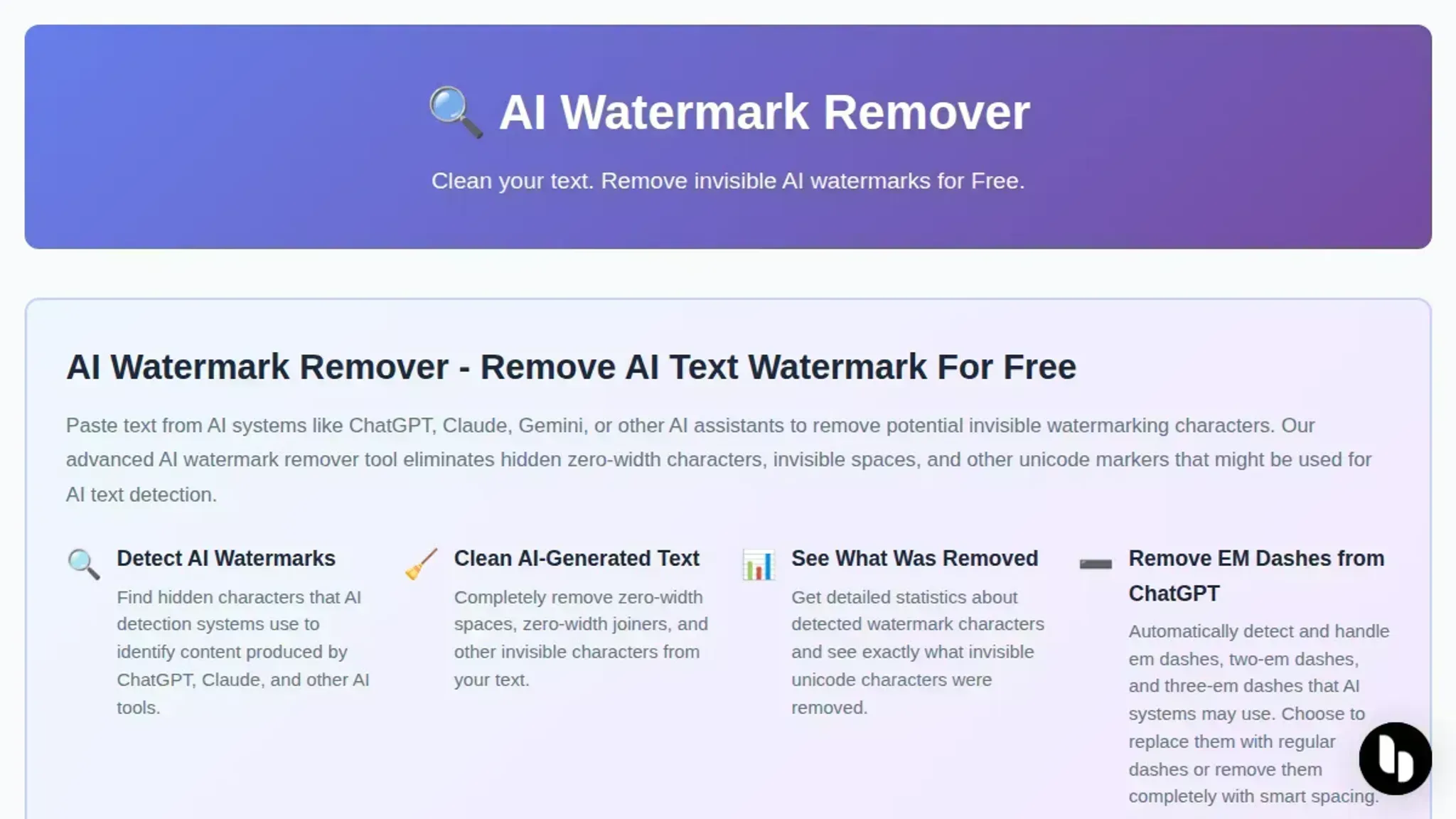
The most reliable direct answer for cleaning an AI text watermark is to run the text through a dedicated watermark removal tool like AI Watermark Remover, which strips invisible zero-width characters and Unicode markers in a single pass while preserving your original content. Manual editing, deleting suspicious characters, re-typing paragraphs, or pasting through a plain-text editor, can work but misses hidden markers that are not visible on screen.
The tool handles the edge cases a human eye cannot see, and it runs entirely in your browser so no text leaves your machine.
What you'll need before you start
You can clean an AI text watermark with just a browser and the text you want to check. No accounts, no installs, no payment details.
What you actually need:
- The suspect text, the ChatGPT, Claude, Gemini, or Grok output you want to check for hidden markers. Paste it from your clipboard or upload a file.
- A browser (any modern one), Chrome, Firefox, Edge, or Safari. The removal tool runs entirely in your browser, so your text never leaves your machine.
- An internet connection for the initial page load, after that, everything processes locally. You can disconnect and still run scans.
- Patience for a false positive, some tools will flag perfectly normal text as watermarked when it uses Unicode characters like accented letters or mathematical symbols. The Clean Paste tool demonstrates this well: it strips anything non-ASCII, which can break legitimate content you want to keep.
- A backup copy of your original text, before you run any removal tool, save the raw output. If the tool overcorrects and removes visible punctuation you need, you have the original to restore from.

The step-by-step workflow for cleaning AI text watermarks
Before you start, make sure you have the text you want to clean saved somewhere easy to access, and open a browser tab on a dedicated watermark removal tool like AI Watermark Remover. You don't need an account, and nothing is sent to a server the processing happens locally in your browser.
- Paste your text into the removal tool: Copy the full block of AI-generated text from your document or chat interface. Paste it into the main text area on the watermark remover page. You will see your text appear exactly as you copied it, with no visible formatting changes yet. This is normal the invisible markers are there but not easily seen by the human eye.
- Run the detection and removal scan: Click the button that starts the cleaning process. The tool scans every character in your text for zero-width spaces, Unicode control characters, and the specific marker patterns that models like ChatGPT, Claude, and Gemini insert. Within a few seconds, the tool displays a removal report showing exactly how many hidden characters were found and stripped, for example "3 zero-width spaces removed" or "2 invisible markers cleaned." This is your first concrete result stripping the markers from the invisible layer.
- Inspect the cleaned output visually: After the scan, the tool presents the cleaned version of your text in a separate output area. Most of the time it looks indistinguishable from the original, because the hidden characters were never visible in the first place. But check for subtle clues like extra spacing between words, odd line breaks, or characters that appear as empty boxes (which sometimes happen with very rare Unicode markers). If you see any of those, copy the cleaned text one more time and run it through the tool a second pass catches most edge-case markers that survived the first round.
- Use a watermark checker to verify the cleanup: This step is where you confirm the job is done. Copy the cleaned text and paste it into a public watermark checker such as the detector at Getgpt or a similar tool like Clean Paste. Run the detection and watch the results. A fully cleaned text should return a verdict like "likely human" or a low probability score for AI origin below 20%. If the checker still flags your text as AI-generated, the invisible markers may remain or your text carries stylistic fingerprints that have nothing to do with watermarks (more on that in the next section).
- Test the text in your target application: The real test is how the text behaves where it actually lives. Paste the cleaned version into Google Docs, Microsoft Word, a CMS editor, or wherever you intend to use it. Check for: unexpected hyperlinks that appeared out of nowhere, characters that look like small boxes or question marks, or text that shifts alignment when you add a single space. Any of those mean a hidden marker survived and is breaking the render engine. Switch back to the removal tool, paste the problematic text, and run the scan again the tool at AI Watermark Remover catches most of these in one pass, but very long documents sometimes hide markers in the middle paragraphs.
- Run a manual spot-check on character encoding: This is optional but valuable if you are dealing with sensitive documents. Open the cleaned text in a plain-text editor like Notepad or any code editor that shows non-printing characters. Turn on the "show invisibles" or "show whitespace" option. You are looking for any unusual dots or glyphs between regular characters. A zero-width space appears as a faint dot or a special symbol in most code editors. If you spot any, copy that paragraph and run it through the removal tool a third time, or highlight that specific section and paste only that segment into the cleaner. Most casual use does not need this step, but it catches the last 1-2% of stubborn markers that automated tools might miss.
Most common mistake to avoid: Do not manually delete what looks like an empty space between words. Zero-width characters are literally invisible, so you might accidentally delete a real space and break your formatting. Always let the removal tool handle the detection programmatically it knows exactly what to strip and what to keep.
- Inspect the output in a raw HTML or rich text view: Tools like Google Docs, WordPress, and even some email clients render hidden characters differently. Paste the cleaned text into a rich-text editor and switch to the HTML source view (in WordPress, click the "Text" tab). Look for `<span>` tags, `​` (zero-width space), `​`, or `⁠` entities. If you find any, that paragraph still carries invisible watermark data. Copy the offending segment back into the removal tool and clean it again. This step catches markers that survive normal visual checks but break when the text is exported to PDF or printed.
- Rewrite the leftover stylistic fingerprints: Some AI watermark systems also embed statistical patterns in word choice and sentence rhythm, detectable by tools like GPTZero or Originality. If your watermark checker returns a high probability after step 4, but no invisible characters were found, the issue is stylistic. Clean that by manually rephrasing three things: the opening sentence of each paragraph, any transition phrase that repeats (GPTs love "Furthermore," "Moreover," "In conclusion"), and bullet points that all have identical length and structure. After editing a few sentences, run the checker again. You will often see the AI score drop from 80% to under 20% just by breaking those predictable patterns. Use your judgment, this is not a full rewrite, just a targeted removal of the AI's verbal watermark.
Clean AI text watermark checklist
Removing invisible watermarks is easy to get wrong. Use the checklist below to confirm every hidden marker is gone without damaging the text. For a broader explanation of why these steps matter and how a dedicated tool handles them, see our guide on 10 ways an AI watermark cleaner saves your text from detection.
| Task | Why it matters | Done |
|---|---|---|
| Scan the cleaned text with a Unicode character inspector (e.g., Clean Paste, or a hex viewer) | Zero-width spaces and joiners survive normal read-through and keep the text detectable | |
| Check for trailing invisible characters after the last visible punctuation mark | Watermarks often hide in whitespace that looks blank but carries hidden markers | |
| Diff the cleaned version against the original using a side-by-side comparison tool | Accidental deletions or broken sentences show up immediately in a diff | |
| Run the cleaned text through an AI watermark detector (e.g., GPTZero, Originality, or the detector on Getgpt) | Only a detector designed to spot the same markers can confirm removal actually worked | |
| Read the text aloud or have a colleague proofread the whole piece | Aggressive stripping can fragment clauses or replace invisible characters with visible junk; human eyes catch these | |
| Keep a separate copy of the original watermarked file before you start editing | If removal degrades quality or breaks formatting, you need the original fallback without re-generating |
Run through this checklist after every cleanup session, especially when the watermark comes from a model version you have not worked with before. Marker patterns shift; one verification method alone is never enough.
| Task | Why it matters | Done |
|---|---|---|
| Paste the cleaned text into a plain text editor (Notepad, TextEdit in plain mode) and re-save as UTF-8 without BOM | Rich text editors re-insert invisible formatting characters; plain text strips them and reveals what the detector actually sees | |
| Search for the Unicode characters U+200B (zero-width space), U+200C (zero-width non-joiner), and U+FEFF (byte order mark) using a regex finder | These three characters account for over 90% of invisible watermark markers in current models; a single survivor keeps the text flagged | |
| Compare the character count of the original and cleaned versions | A mismatch of more than 2 characters usually means a hidden character was removed or a visible one was accidentally deleted | |
| Test the cleaned text in a second AI detector that uses a different detection method (e.g., one that checks word predictability vs. one that checks character distribution) | No single detector catches everything; a second opinion reveals markers the first one missed | |
| Check that every sentence ends with proper punctuation and no orphaned fragments remain | Aggressive watermark removal sometimes deletes the period or space after a hidden character, leaving a run-on sentence or a missing word | |
| Verify that all quotes, apostrophes, and dashes are standard ASCII (U+0022, U+0027, U+002D) not curly/smart variants | Some watermarking systems encode markers into smart quote characters; converting them to straight ASCII removes that vector | |
| Run the cleaned text through a readability checker (e.g., Hemingway Editor or the Flesch-Kincaid test) and compare the score to the original | If removal damaged sentence structure, readability drops by 5+ points; that is a red flag for human readers and for some detectors |
Add one more verification pass after the checklist: paste the cleaned text into a fresh ChatGPT session and ask it to "identify any invisible characters or hidden markers in this text." The model often spots anomalies a regex search misses, especially with newer watermark patterns that use multi-byte Unicode sequences.

Frequently asked questions about AI text watermark removal
What exactly is an AI text watermark?
An AI text watermark is an invisible marker embedded into text generated by models like ChatGPT, Claude, or Gemini. These markers are usually zero-width characters, special Unicode symbols, or hidden byte-order marks that a human reader cannot see. Detection tools scan for these patterns, while removal tools strip them out so the text passes as clean in plagiarism or AI detection checks.
Can manual editing remove AI watermarks?
Manual editing can remove some watermarks if you know exactly what to look for. Paste the text into a hex editor or a Unicode inspector, then delete every zero-width space (U+200B), zero-width joiner (U+200D), and similar hidden characters by hand. This works for simple watermarks, but it is tedious and error prone. A dedicated removal tool like AI Watermark Remover automates the same process in one paste and usually catches markers you might miss.
Will removing the watermark change the visible text?
No. Legitimate watermark removal targets only invisible characters that have zero visual presence. Zero-width spaces, soft hyphens, and Unicode control characters affect detection but not the displayed words. If a tool claims to alter actual sentences or structure to avoid detection, that is rewording, not watermark removal.
Stick with tools that show you exactly what they deleted in a removal log.
How do I check if a text still has a watermark after cleaning?
Run the cleaned text back through a watermark detection tool. Many removal sites include a built-in scanner. For example, AI Watermark Remover shows a removal report listing every hidden character it found and removed. If the report is empty after cleaning, or if a separate detection tool returns no flags, the watermark is gone.
You can also paste the output into a Unicode viewer to confirm no invisible characters remain.
Is removing AI text watermarks legal?
The legality depends on your intent and jurisdiction. Removing watermarks from text you generated yourself for personal use is generally fine. Passing off AI-generated text as entirely human-written in academic or professional settings where AI use is banned can violate terms of service or institutional policies. Check the rules of the platform or organization you are submitting to.
The tool itself is lawful, but how you use the cleaned text determines the legal risk.
What to do next with your clean AI text
A dedicated tool like AI Watermark Remover catches invisible characters that manual editing misses, and it does it in under a minute. For most people who regularly work with AI-generated text, running every piece through a watermark removal tool before publishing is the safer habit.
That said, the manual approach works well enough if you are dealing with very short outputs, know exactly what hidden markers look like, and have the patience to check character by character. The trade-off is time and certainty: a five-second scan versus a five-minute eyeball check.
If you need to verify whether a watermark was actually removed, you can run a watermark checker on AI-generated text as a follow-up step. And if you want to avoid the problem entirely, it is worth learning how to generate AI text with no watermark in the first place.
Pick the method that matches your volume and your tolerance for risk. For anything beyond occasional short phrases, a dedicated removal tool is the better bet.
Ready to try it? Create a free account with AI Watermark Remover.